





With the aBlocks – ConvertKit integration, you can automatically add subscribers from your aBlocks forms directly into your ConvertKit account. This allows you to grow your audience and trigger email sequences without any manual data handling.
Generate Your ConvertKit API Key
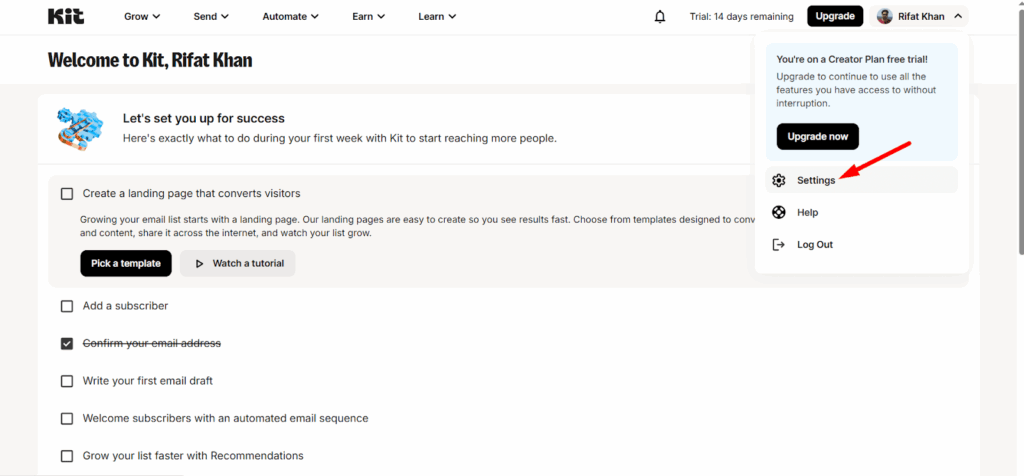
To connect aBlocks with ConvertKit, you first need to obtain your API key from your ConvertKit account. Begin by logging in to the ConvertKit website with your credentials. After logging in, click on your profile avatar in the top-right corner and select Settings from the dropdown menu.
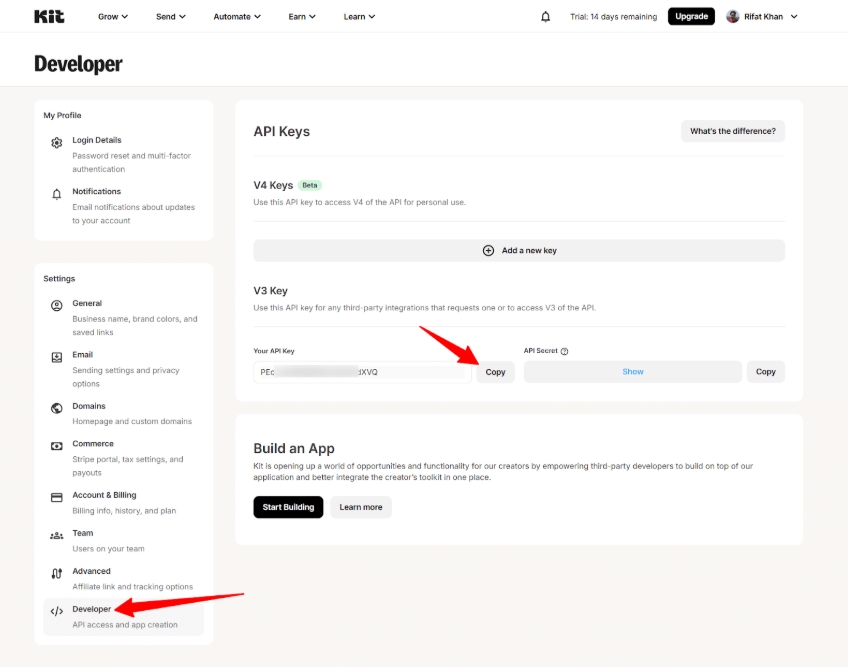
Inside the settings area, open the Developer tab. Here you will find both your API Key. Copy the API Key.
Set Up ConvertKit with aBlocks
Once you have your ConvertKit API key, return to your WordPress dashboard and open the aBlocks Settings page. Inside the settings panel, navigate to the Integration section.
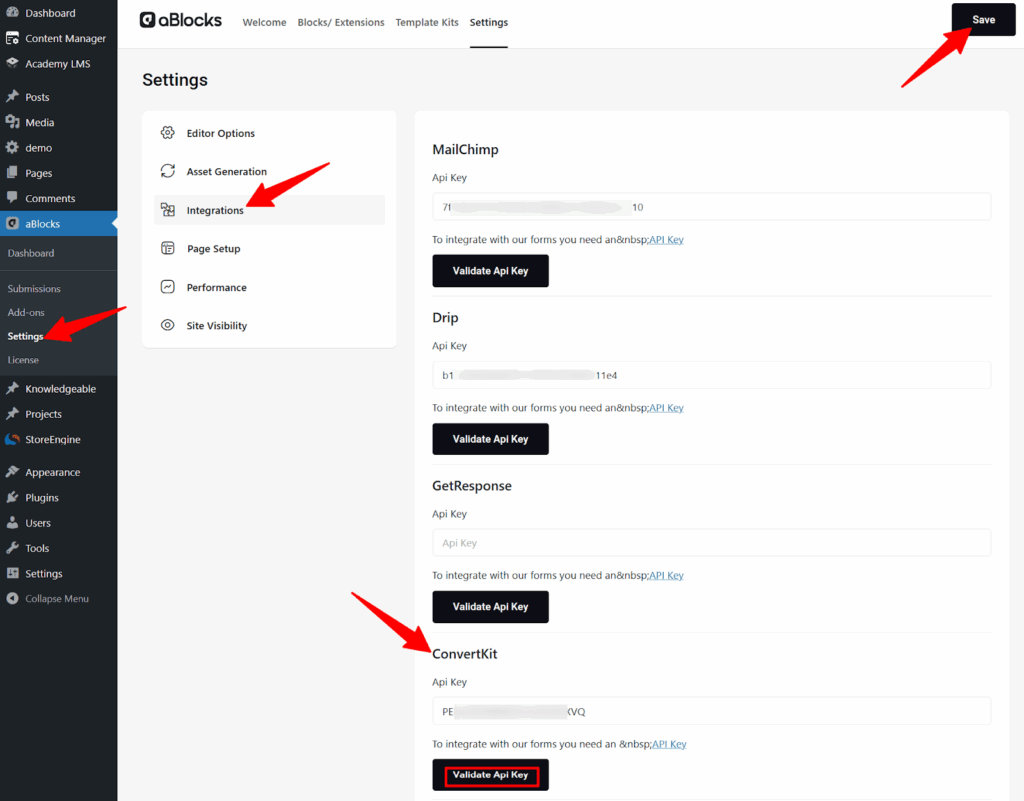
Locate the ConvertKit Integration option and paste the API Key you copied from ConvertKit into the designated field. After pasting, click Save Settings to confirm the connection. At this point, your aBlocks installation is successfully linked with your ConvertKit account.
Connect ConvertKit with aBlocks Forms
Now that the integration is active, you can connect any aBlocks subscription form to ConvertKit. Open one of your subscription forms in the aBlocks editor and go to its settings. Under the After Submit Action section, choose ConvertKit from the available options.
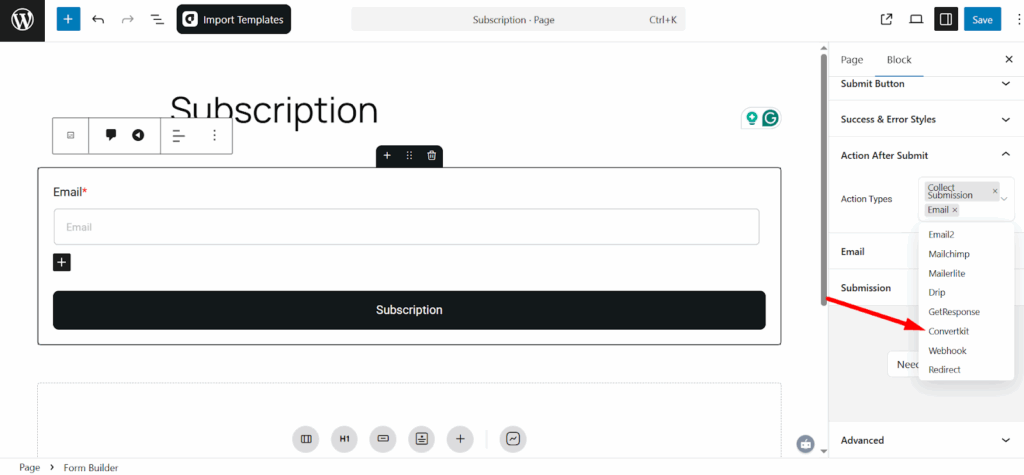
Once selected, you’ll be able to specify which ConvertKit form or sequence new subscribers should be added to.
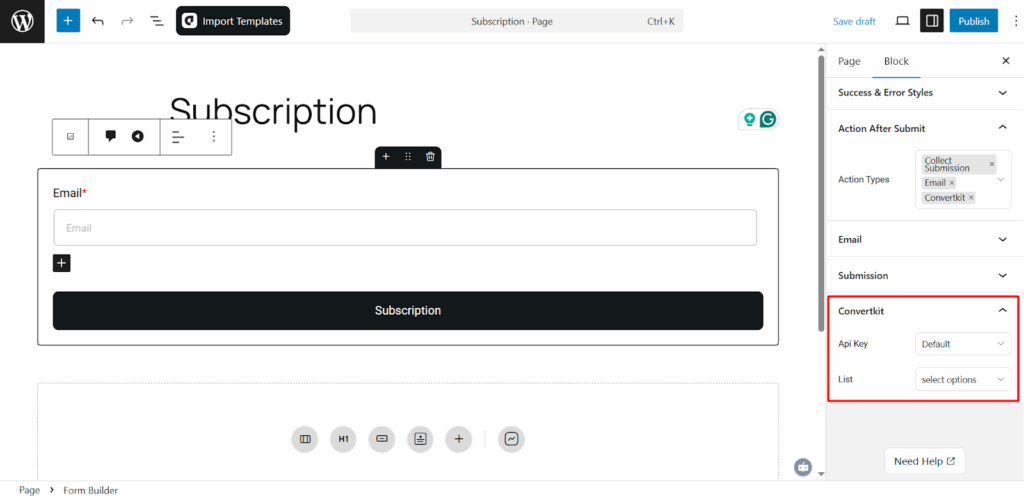
Save your changes and update the form. From this moment forward, anyone who subscribes through your aBlocks form will be automatically sent to ConvertKit.