





The aBlocks Text Path Block lets you display text along a curved path, like a circle or arc, without writing any code. It’s great for adding creative headings, highlights, or decorative text. This guide will walk you through how to add and customize it step by step.
How to Add the aBlocks Text Path Block
Open your WordPress dashboard and select the page or post where you want to add Text Path.
Click the ( + ) icon to open the block options.
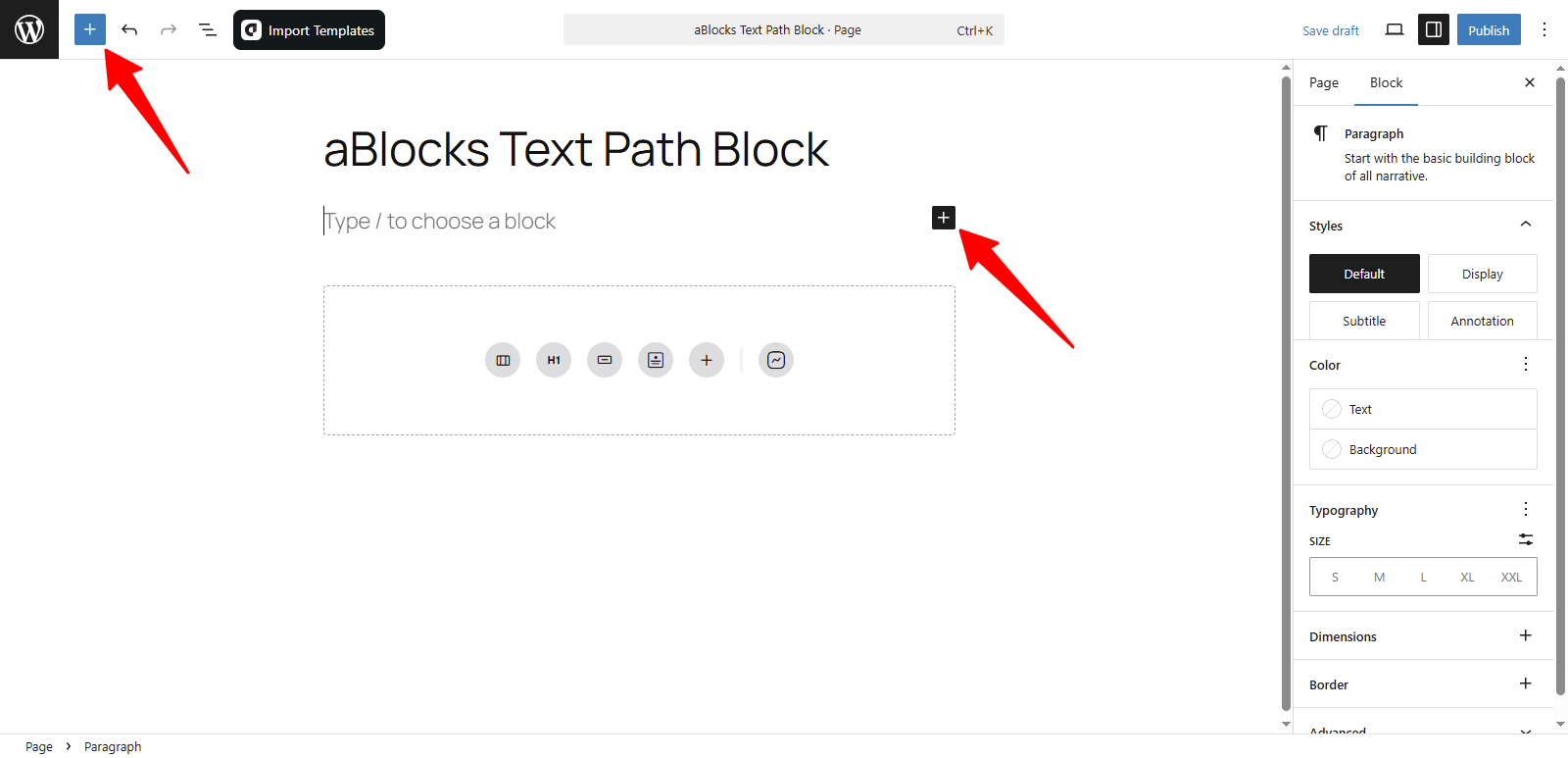
You’ll see all available aBlocks blocks. You can scroll to find the Text Path Block or type Text Path Block in the search bar for quick access.

Now, select the aBlocks Text Path Block and click to add it. Then customize it to match your site’s style.
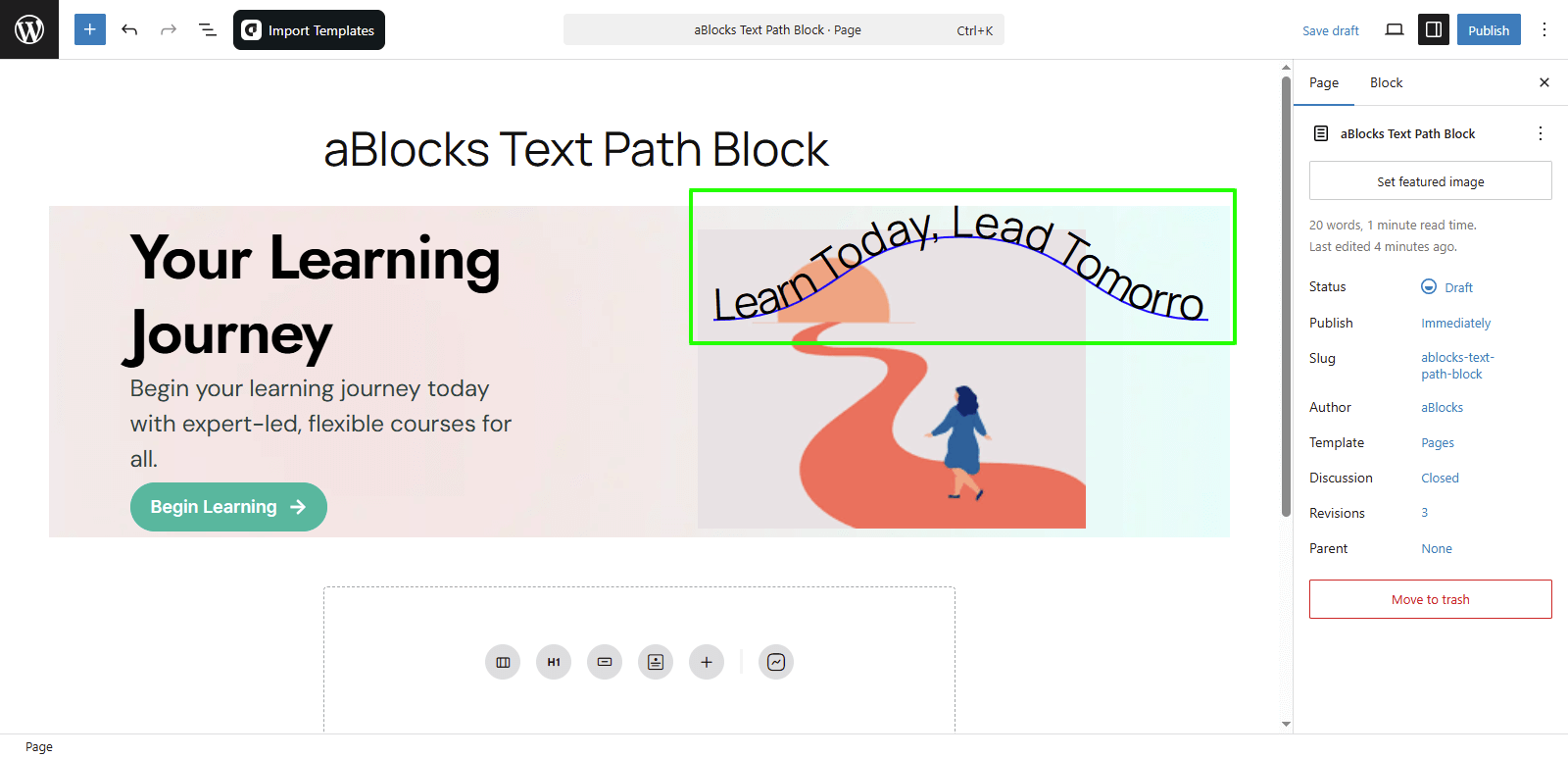
Customize the aBlocks Text Path Block
We’ll guide you through using and customizing the aBlocks Text Path Block in a clear, step-by-step way.
Select the block, then go to Block > General on the right sidebar. Under Text Path, you’ll find all the main settings.
Let’s go through the option step by step.
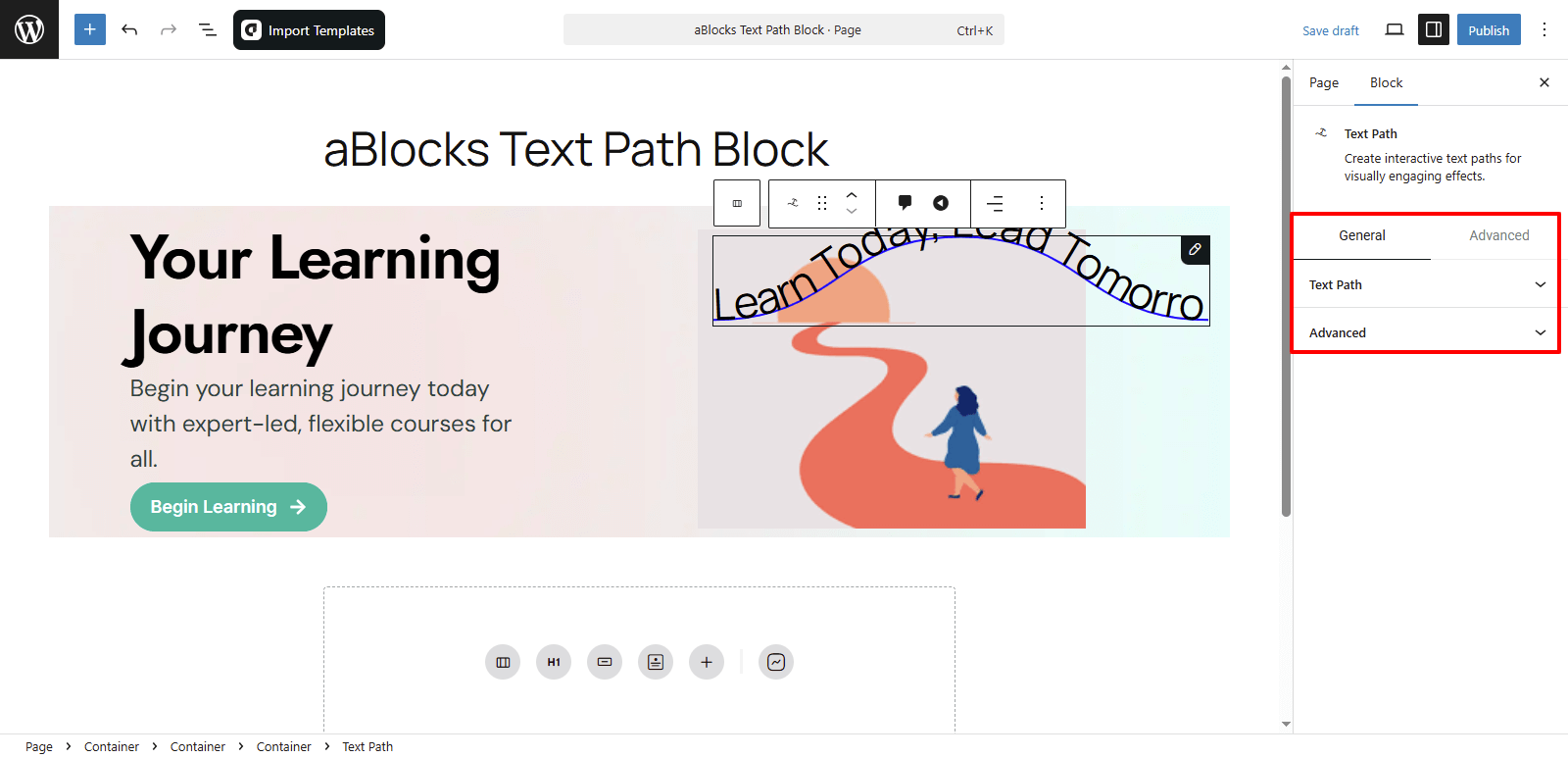
Text Path
In this section, you’ll find two main options: Content and Style.
Content
Title: Here, you’ll see a title field. You can type in or edit your text directly in this box. On the right side of the box, you’ll notice a Dynamic Content icon. Click it if you want to manage your title using dynamic content.
To learn more about how dynamic content works, check out our aBlocks Dynamic Content Block documentation.
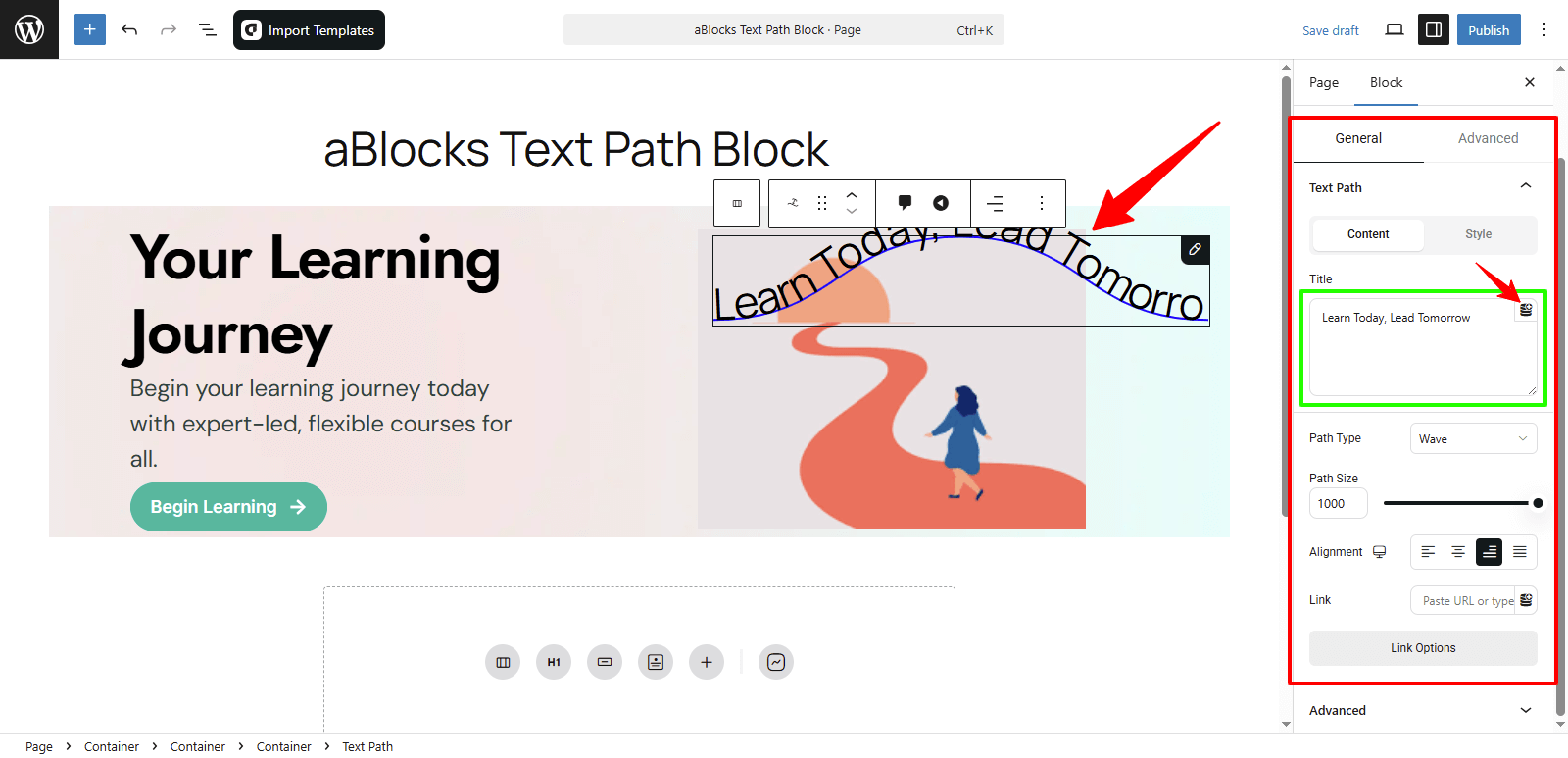
Path Type: From here, you can choose the shape your text will follow. Available options include:
- Circle: Wraps the text around a full circle. Great for badges or round designs.
- Wave: Displays the text in a smooth wave shape. Works well for fun or flowing layouts.
- Arc: Curves the text in a half-circle or arc shape. Ideal for titles or section headers.
- Line: Keeps the text straight, following a simple horizontal path.
- Oval: Bends the text around an oval shape—wider than a circle.
- Spiral: Twists the text in a spiral layout. Useful for artistic or abstract styles.
- Custom: Lets you use your own SVG path for complete control over the shape.
Pick the one that fits your design. Each shape changes how the text flows visually.
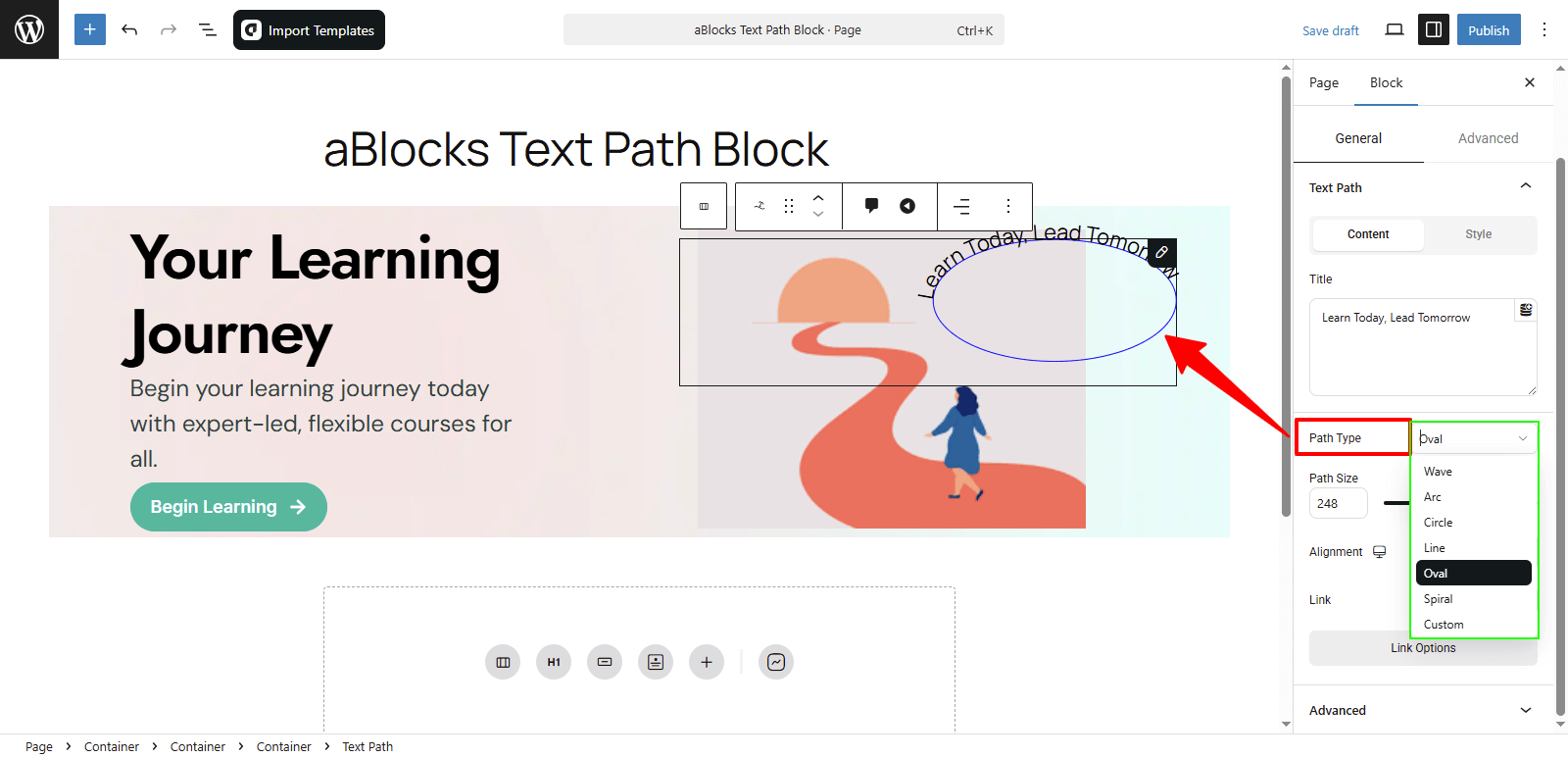
Path Size: This option lets you adjust the size of the path. You can increase or decrease it to control how wide or tight the text curve appears.
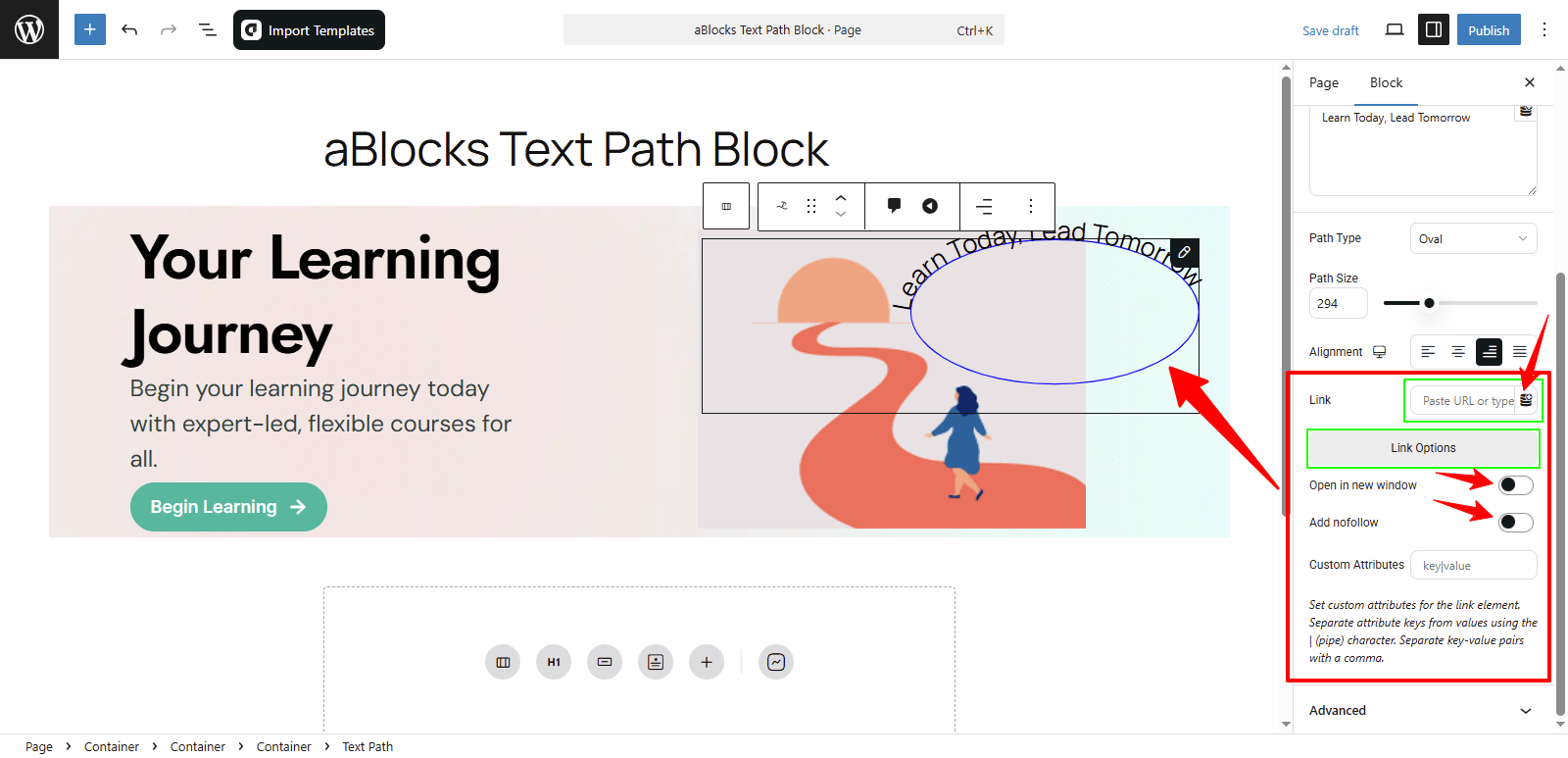
Alignment: You can set the alignment of the path to Left, Center, Right, or Justify. This controls how the curved text is positioned inside the block.

Link: You can add a URL to your path text using the link field. A Dynamic Content icon is also available beside the box—click it to insert dynamic links if needed. For help, see our aBlocks Dynamic Content documentation.
Click Link Options to access more settings:
- Open in New Window – Enable this to open the link in a new tab.
- Add Nofollow – Turn this on to make the link nofollow.
- Custom Attributes – Add key | value pairs if you need extra attributes for the link.
Style
This section lets you customize the look of your text path. Let’s go through each option:
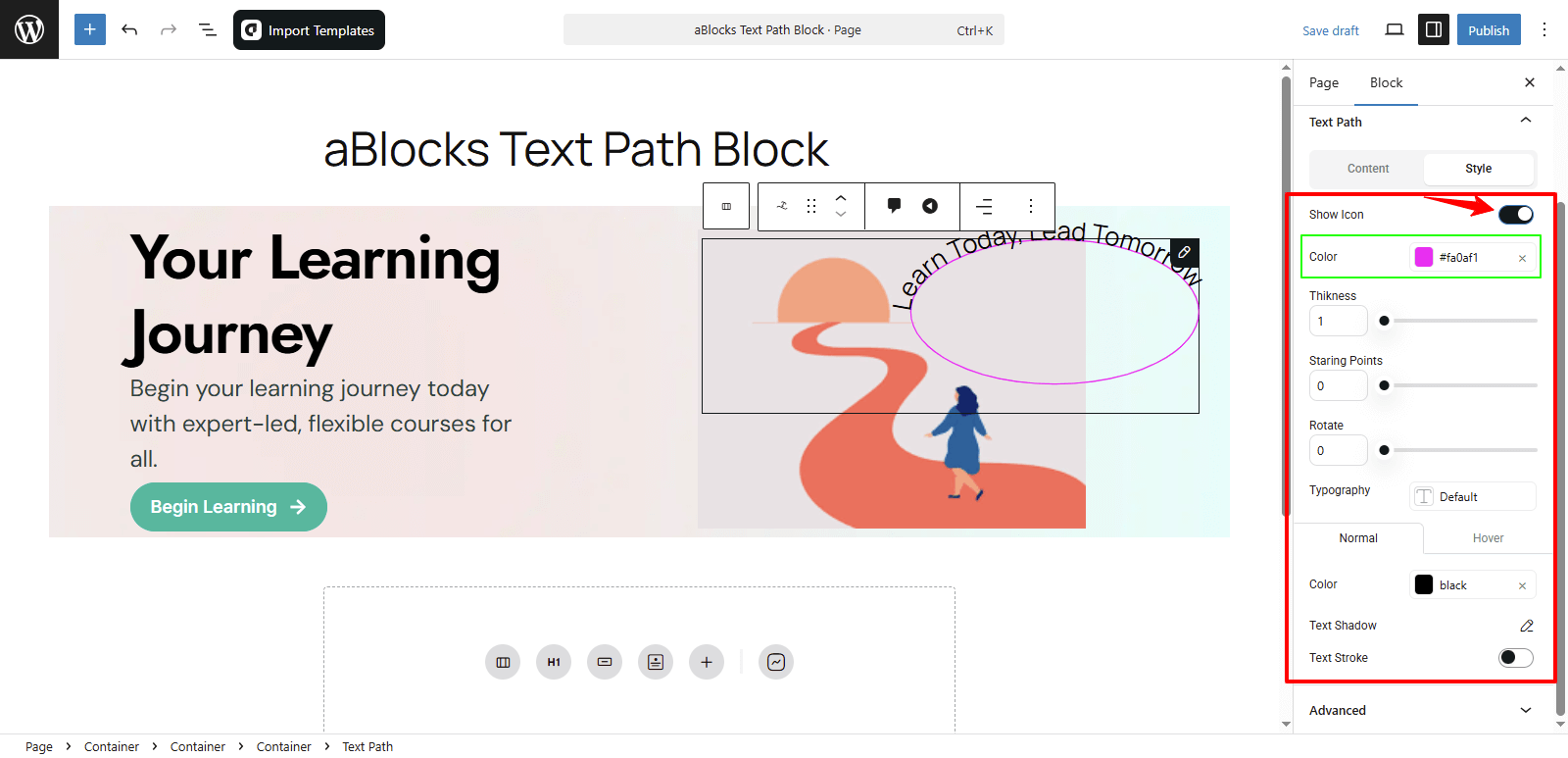
Show Icon: Toggle on or off to show or hide the icon next to the text.
Color: Change the icon color from here.
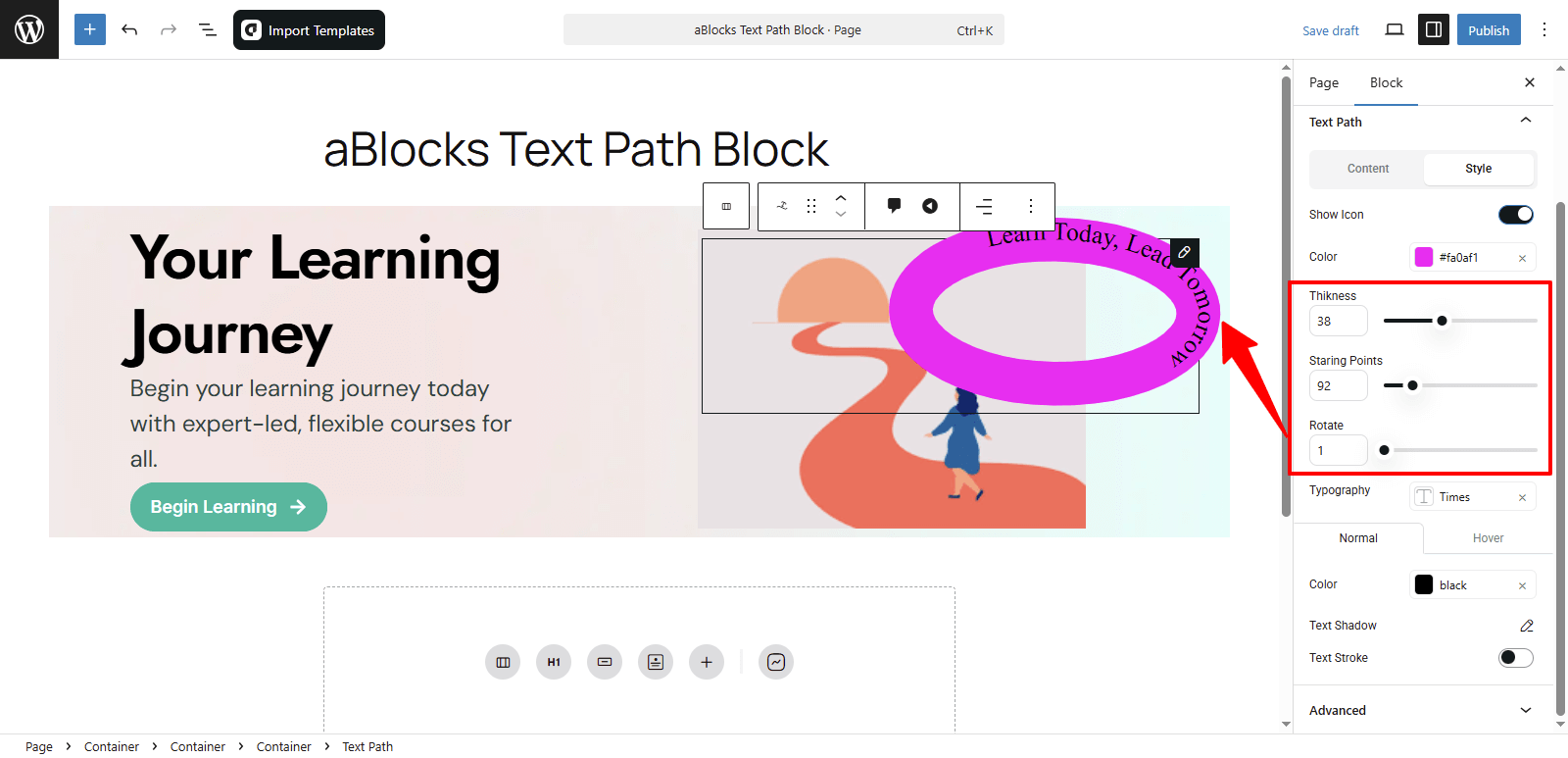
Thickness: Adjust the thickness of the icon.
Starting Points: Set where the text starts along the path. You can increase or decrease the starting point to control positioning.
Rotate: Rotate the text path as needed.
Typography: Customize your text (font, size, weight, spacing, etc.) from this section. For full typography settings, check our aBlocks Typography Settings documentation.
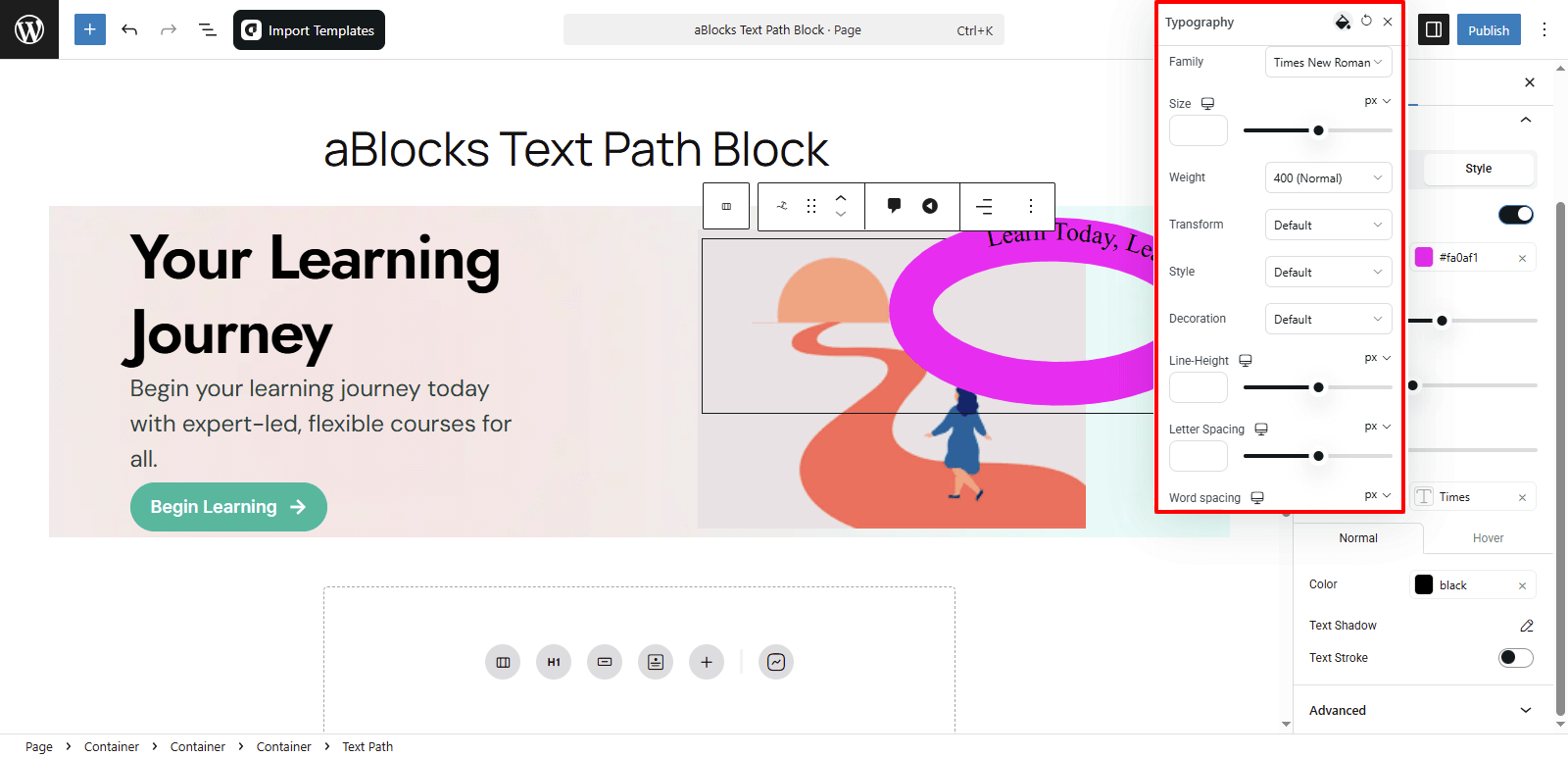
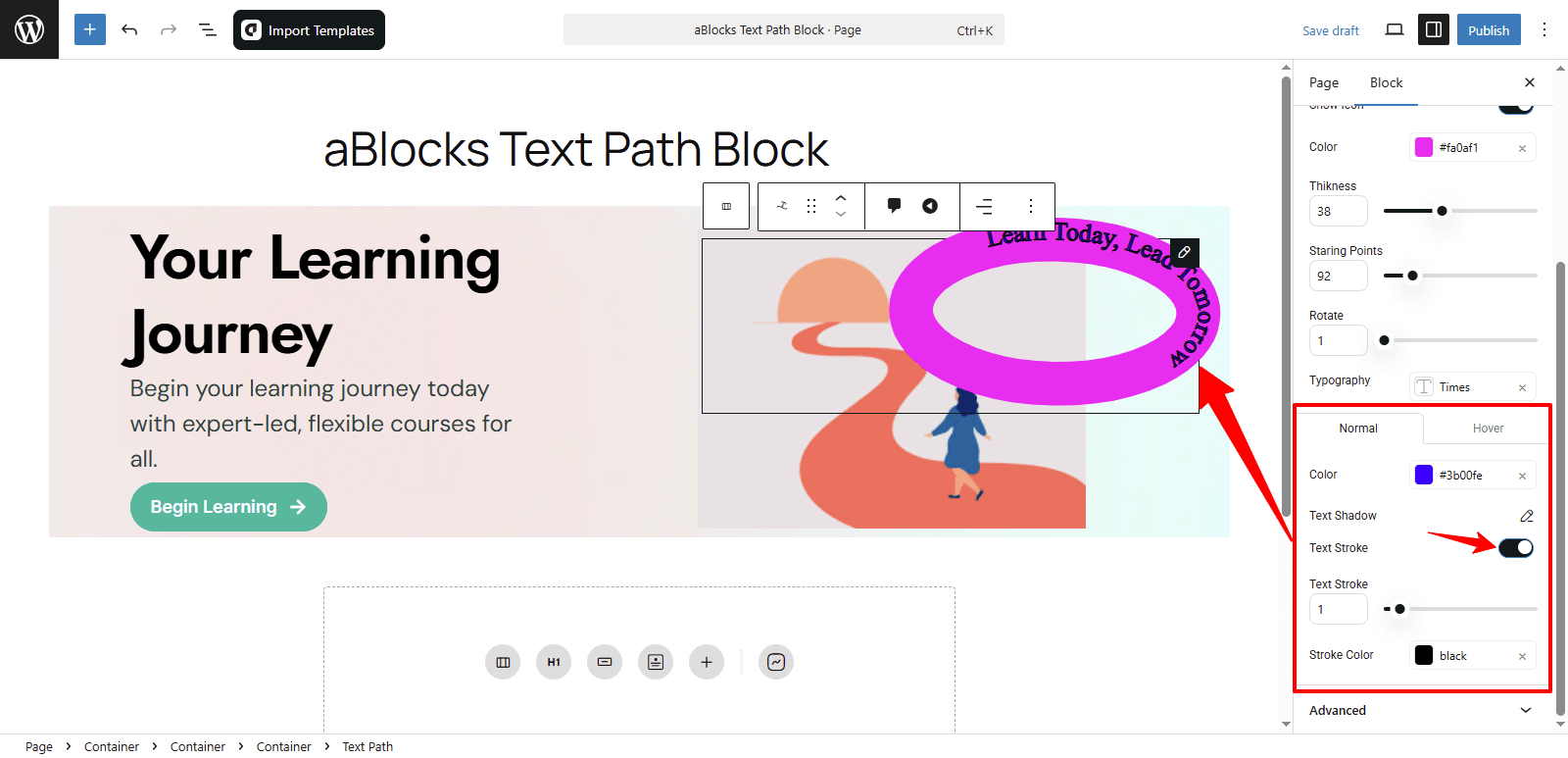
Now you’ll see two tabs: Normal and Hover — both offer similar settings:
Color: Change the text color for both normal and hover states.
Text Shadow: Add shadow effects to your text. To learn more, visit our aBlocks Text Stroke and Text Shadow documentation.
Text Stroke: Toggle this on to apply stroke to your text. You can then control stroke width. To learn more, visit our aBlocks Text Stroke and Text Shadow documentation.
Stroke Color: Pick a color for the stroke effect on your text.
Conclusion
The aBlocks Text Path Block makes it easy to add curved or shaped text to your WordPress site without using code. With multiple path types, full styling control, and dynamic content support, you can create creative titles, highlights, or decorative elements that match your design. Explore the options and tweak each setting to get the exact look you want.
If you have any questions or need assistance, feel free to contact our support team. We’re here to help!