





Creating a Pricing List in WordPress is easy with aBlocks. A well-structured price list helps visitors quickly understand your offerings and pricing. With aBlocks, you can easily create a responsive and visually appealing price list using the Price Menu block.
This block allows you to showcase pricing details for products or services in a clean, organized format without any coding.
How to Add the Price Menu
Open your WordPress editor, edit an existing page, or create a new one. Click the “+” button to add a block.

Search for “Pricing Menu” in the block inserter and simply select the aBlocks price menu block.
Customize Price Menu
To customize the price menu, select the price menu block and go to Block>General. Here you can find all the customization options of your price menu.
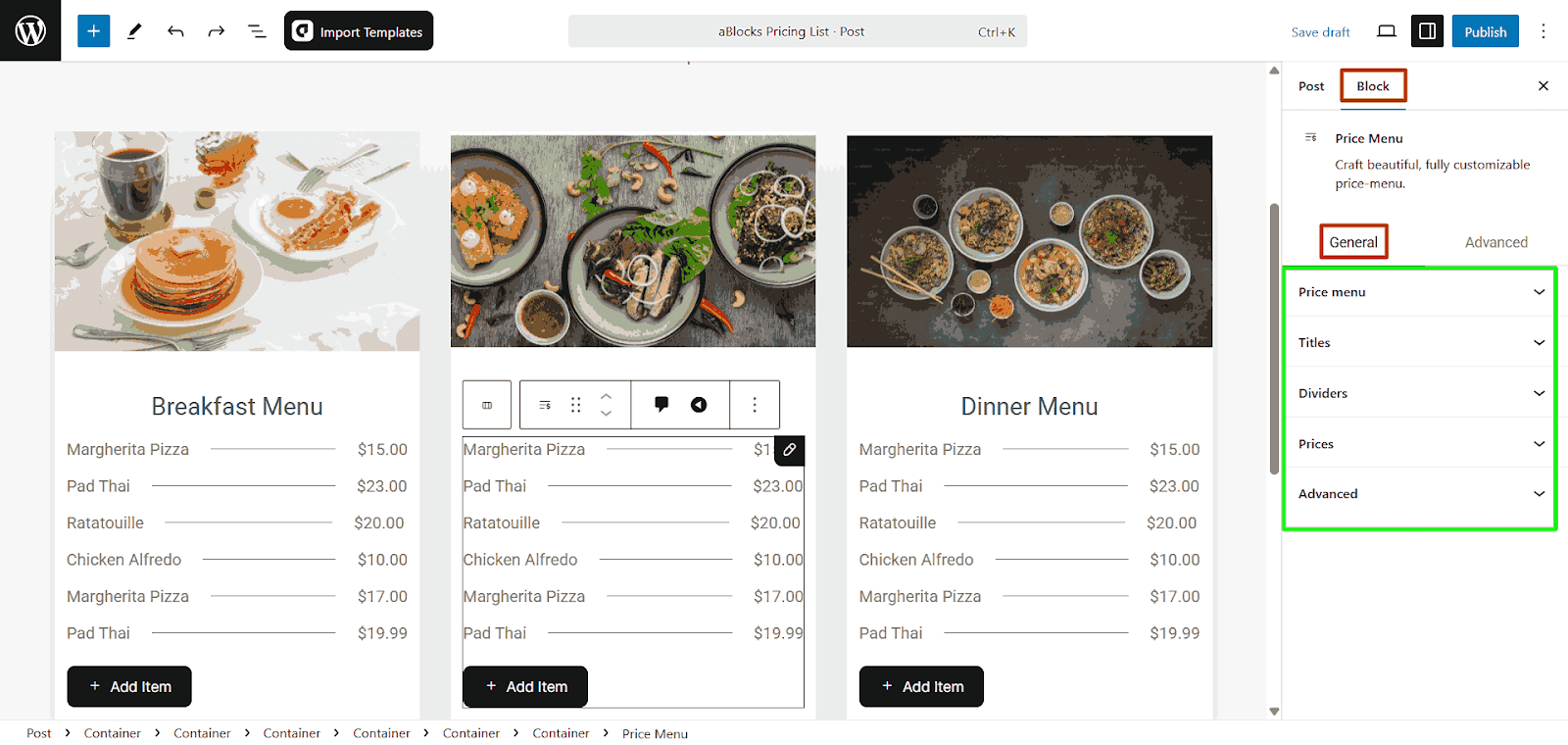
Customization options available:
- Price menu
- Titles
- Dividers
- Prices
- Advanced
Let’s describe them one by one.
Price Menu
The Price Menu block in aBlocks helps you create structured pricing lists with two customization sections. Content Settings control layout, spacing, alignment, icons, descriptions, and dividers. Style Settings adjust typography, colors, backgrounds, and borders.
Content
- Column Gap: Adjust the space between pricing columns using a slider. You can also enter a specific value in the input box and measure it in px, rem, or em
- Items Direction: Choose how the pricing items are displayed:
- Row: Items are arranged horizontally.
- Column: Items are listed vertically.
- Alignment: Control how the text aligns within the pricing menu
- Gap Around Elements: Adjust the spacing between each menu item. This helps improve readability and ensures the layout doesn’t feel cluttered.
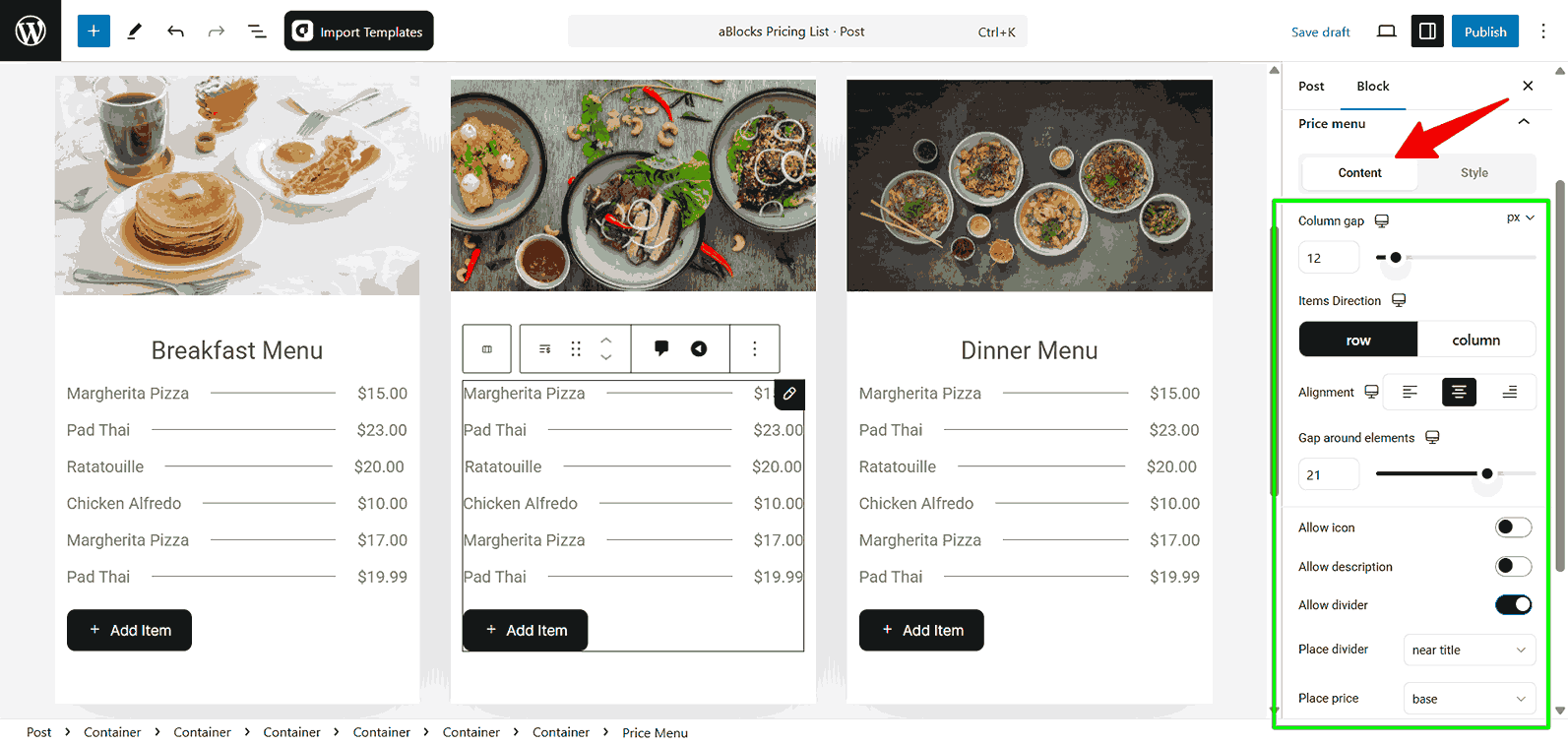
- Allow Icon: Toggle this option to enable or disable icons next to each menu item. Icons can be useful for visually distinguishing different types of items.
- Allow Description: Enable or disable descriptions for menu items. When activated, this option allows you to add extra details below each item’s name.
- Allow Divider: Show or hide a divider between the item name and price. The divider helps visually separate the text and price for better clarity.
- Place Divider: Select where the divider appears. Options available: Near title, Under price, Under description.
- Place Price: Choose how the price is positioned relative to the menu item text. Options like base help align it properly.
Style
- Background Color: Set a background color for the pricing list.
- Padding: Adjust the spacing inside the price menu using px, rem, or em. Customize padding for top, right, bottom, and left individually.
- Border Style: Choose from solid, dashed, or dotted borders.
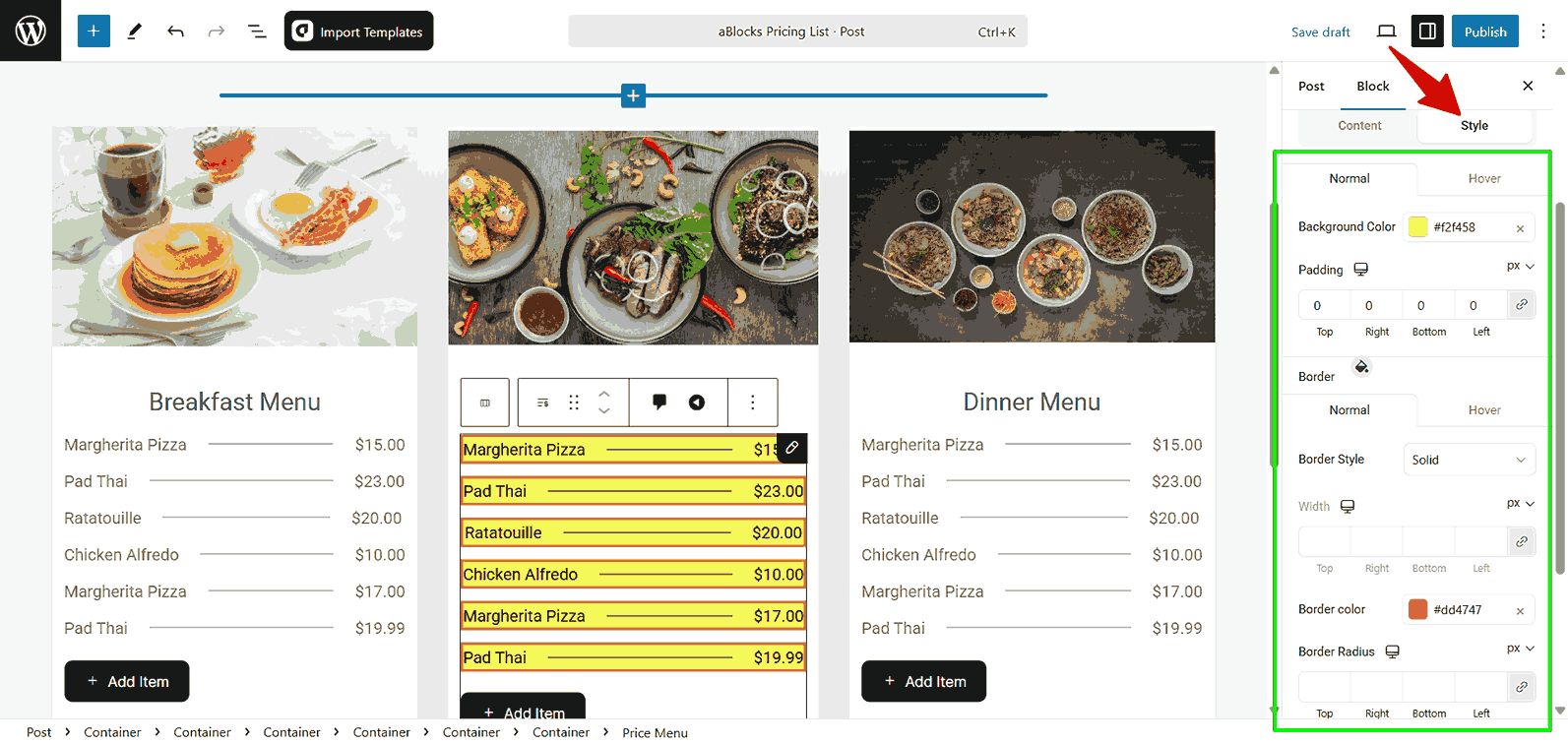
- Border Width: Set the thickness of the border on each side separately.
- Border Color: Pick a color for the border.
- Border Radius: Round the corners of the price menu by adjusting the radius for each side.
Titles
Select the title tags and customize the title style: color, typography, text-shadow, and text-stoke from the titles section.
Content
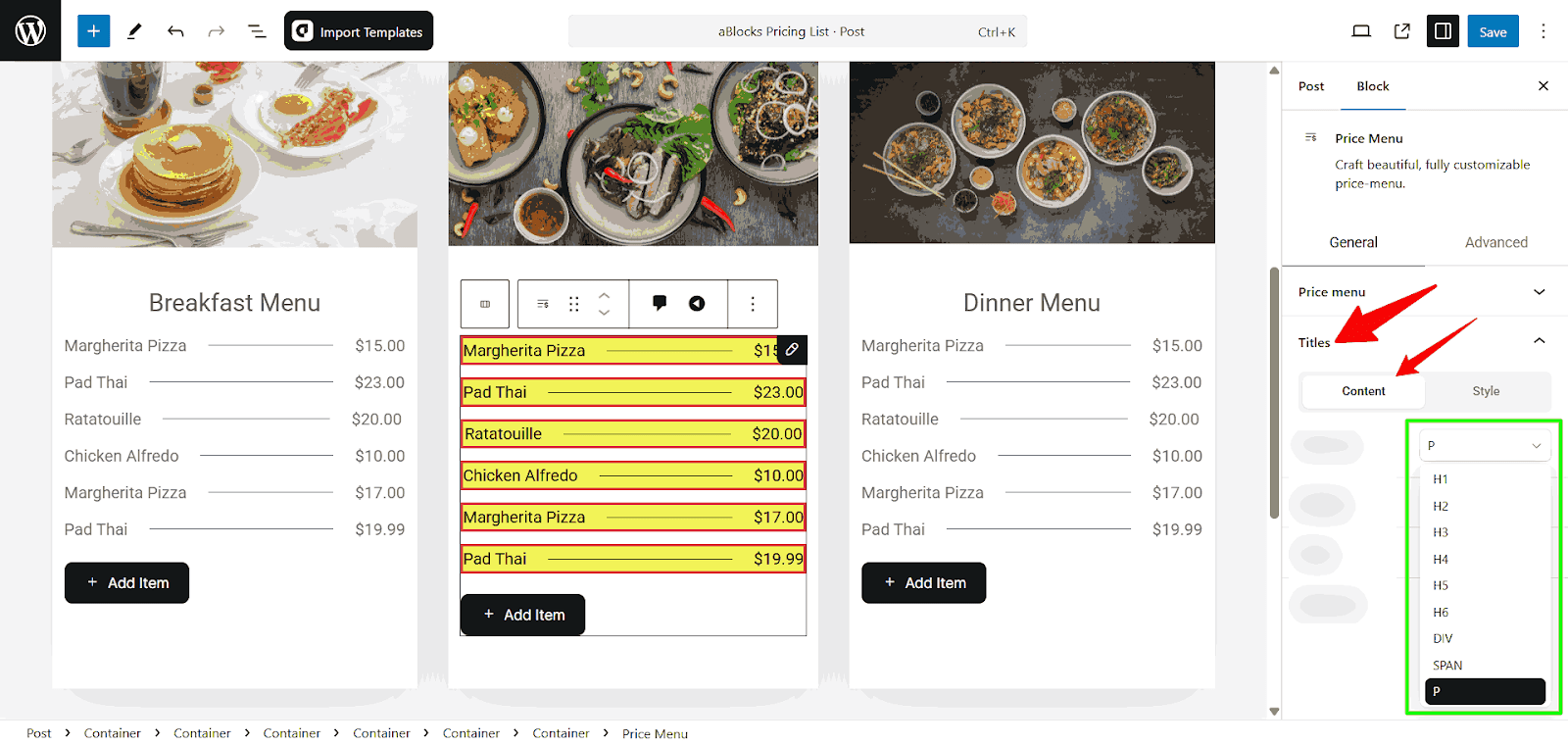
- HTML Tag: Select the appropriate HTML tag like: H1, H2, p, span, div, and others to structure the price display properly.
Style
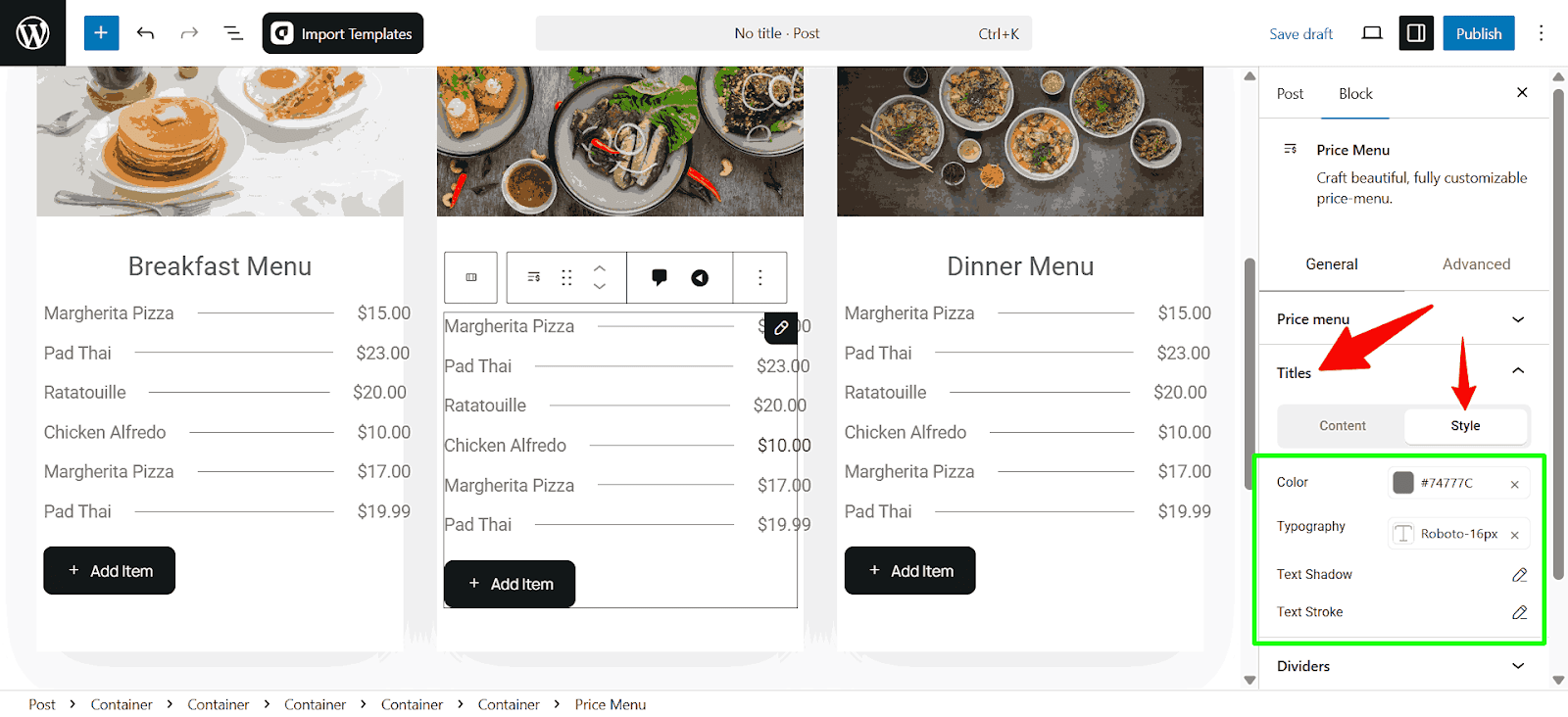
- Color: Select the color of your title to match your brand.
- Typography: Customize the size, weight, font family, decoration, line-hight and others. To learn more, read our aBlocks typography settings doc
- Text Shadow: add the text-shadow to the title.
- Text Stroke: Add an outline effect to enhance text readability.
Dividers
Dividers visually separate menu items, making the pricing list easier to read. You can customize both the Content and Style of dividers to match your design preferences.
Content
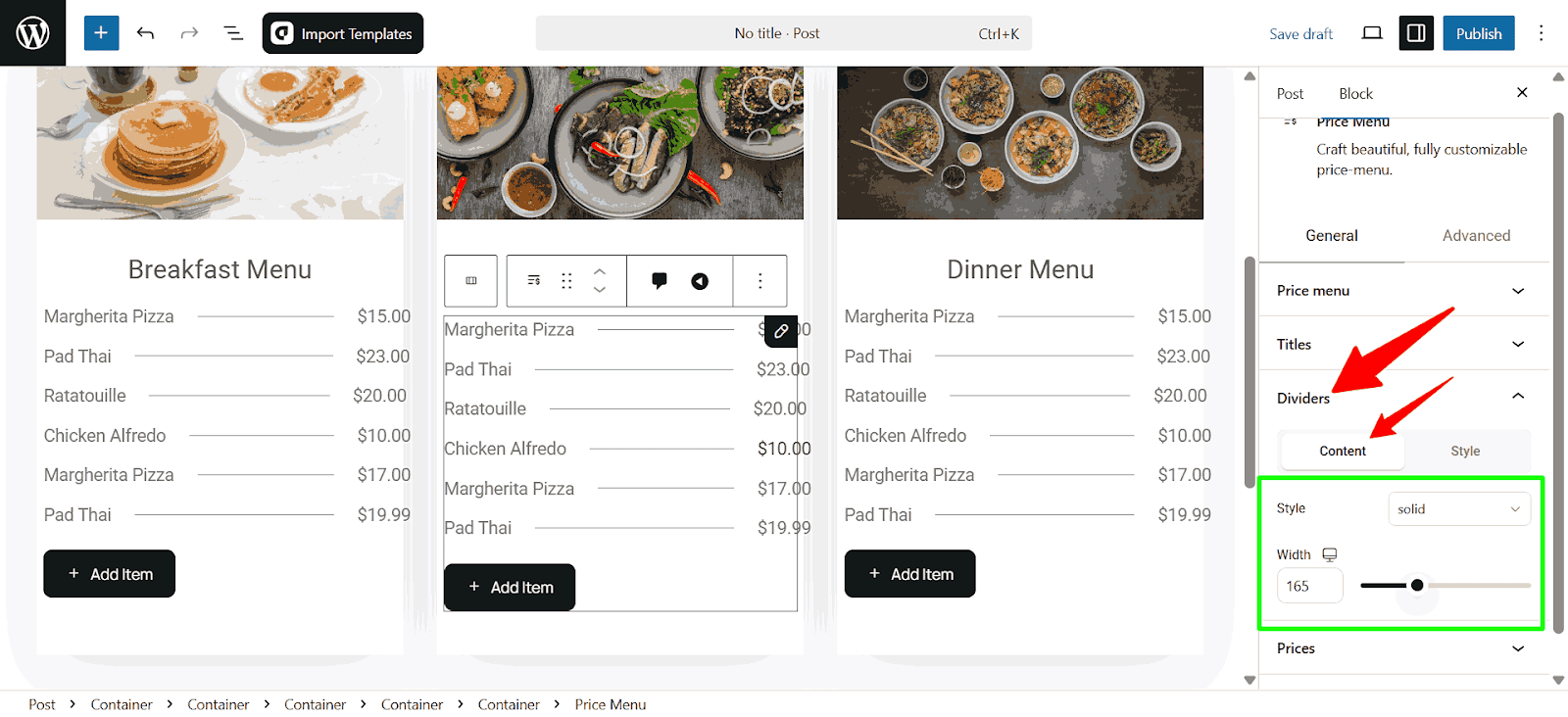
- Style: Choose from different divider styles like solid, dashed, square, slashes, pluses, dotted and others.
- Width: Adjust the length of the divider using a slider or by entering a custom value.
Style
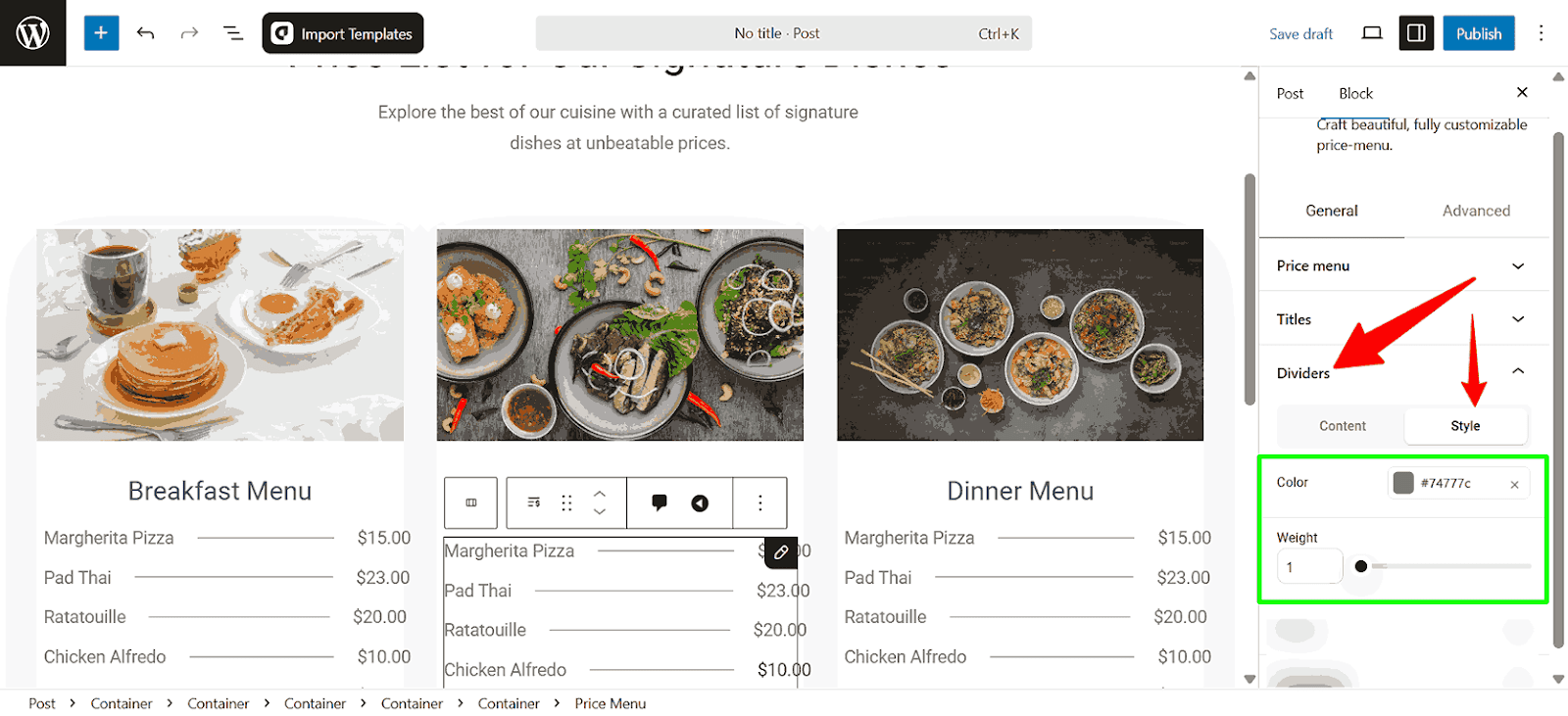
- Color: Select a custom color for the divider to match the design.
- Weight: Adjust the thickness of the divider for better visibility.
Prices
The Prices section allows you to control how price values are displayed. You can modify both the Content and Style to maintain consistency with your design.
Content
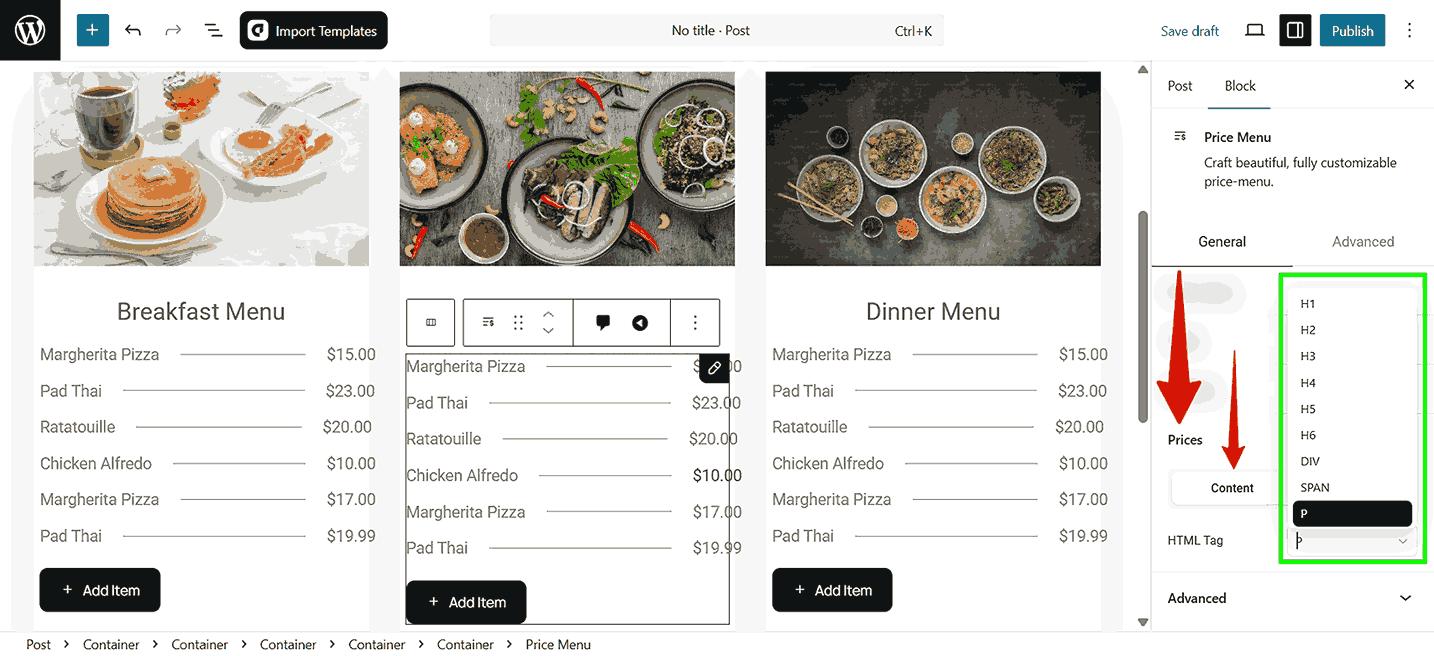
- HTML Tag: Select the appropriate HTML tag, like H1, H2, p, span, div, and others, to structure the price display properly.
Style
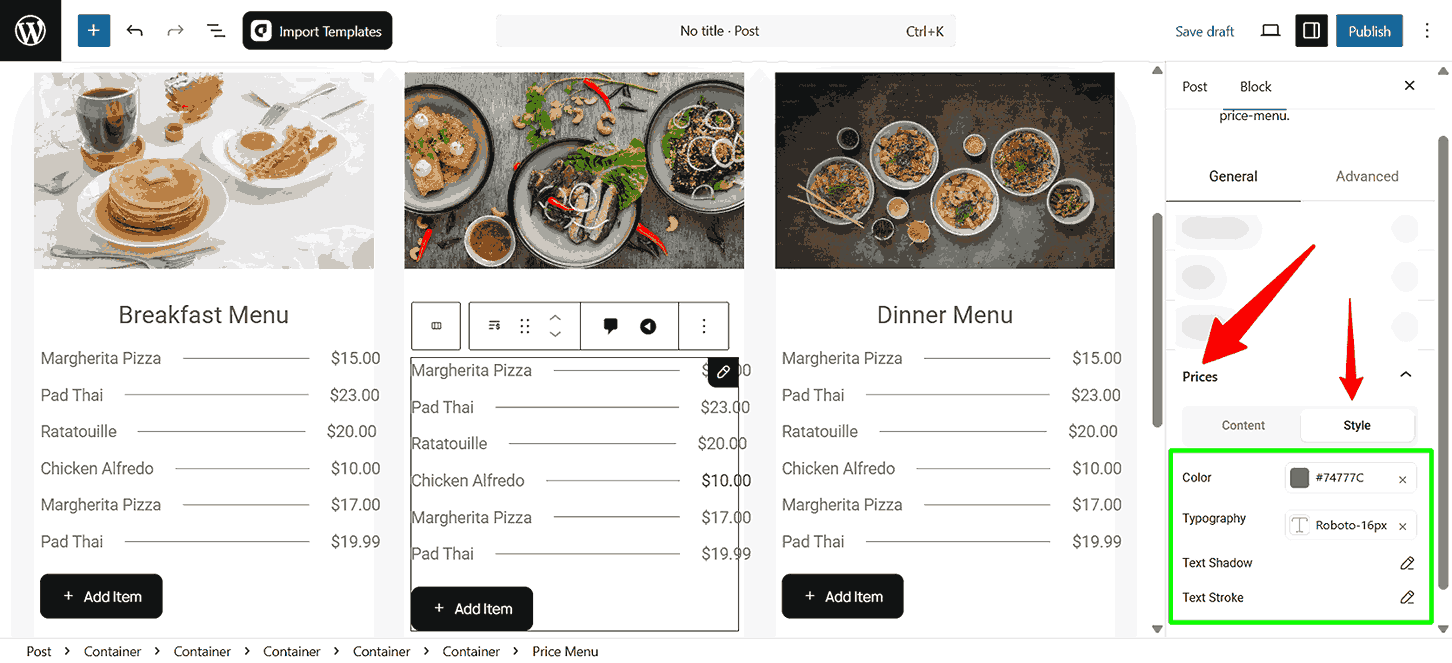
- Color: Choose the text color for the prices.
- Typography: Customize the font style, size, and weight.
- Text Shadow: Apply a shadow effect to the price text.
- Text Stroke: Add an outline effect to enhance text readability.
Conclusion
The aBlocks Price Menu block offers a powerful and user-friendly way to display your pricing information in WordPress. With its extensive customization options for layout, design, and content, you can create a pricing list that’s both visually appealing and easy to navigate, without writing a single line of code. Whether you’re showcasing services, food items, or product packages, the Price Menu block helps present your offerings clearly and professionally.