





Use the SVG Draw Block in Gutenberg to animate SVG graphics on your WordPress page. Paste or upload your SVG, then control how it draws with animation options. This guide shows you how to set it up and customize it step by step.
How to Add the SVG Draw Block
Open your WordPress dashboard and choose the page or post where you want to add the SVG Draw block.
Click the (+) icon to open the block selection panel.
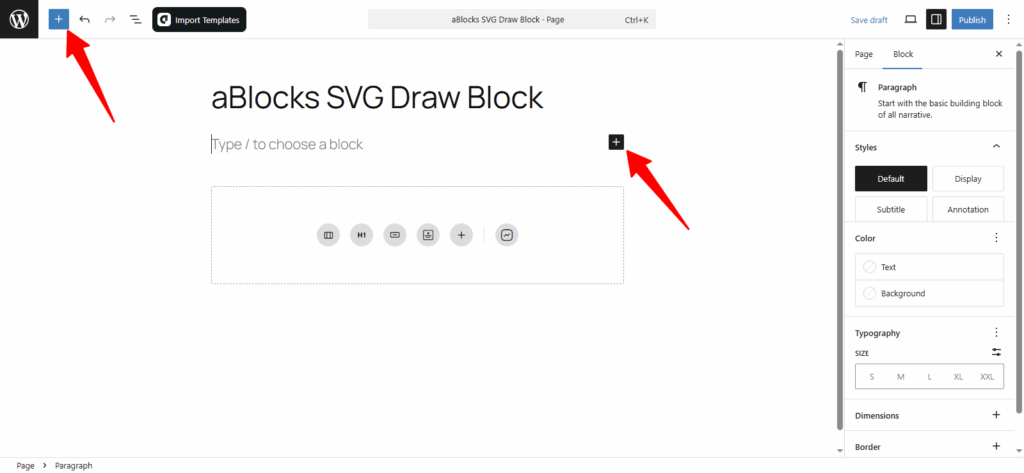
You’ll see all available aBlocks blocks. Scroll to find the SVG Draw Block, or type SVG DrawBlock in the search bar for faster access.
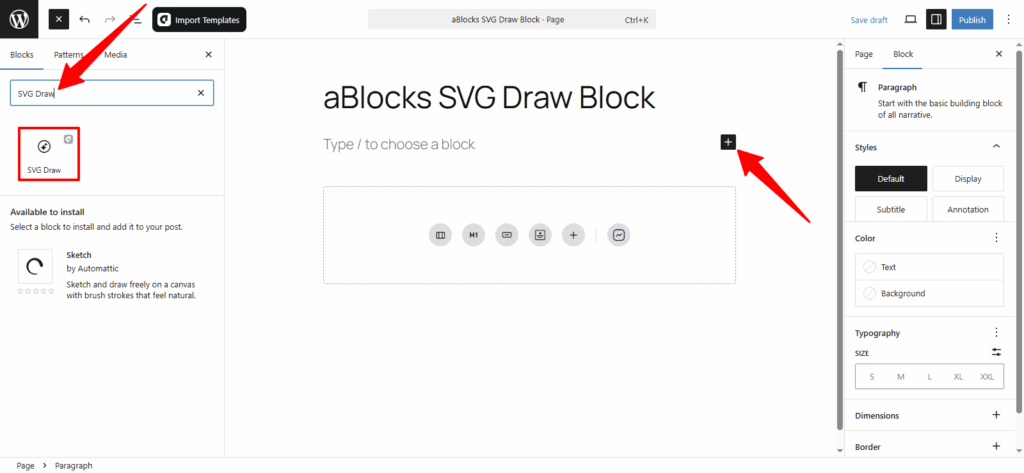
Select the aBlocks SVG Draw Block and click to add it to your page. Then, start customizing it to match your site’s look and feel.
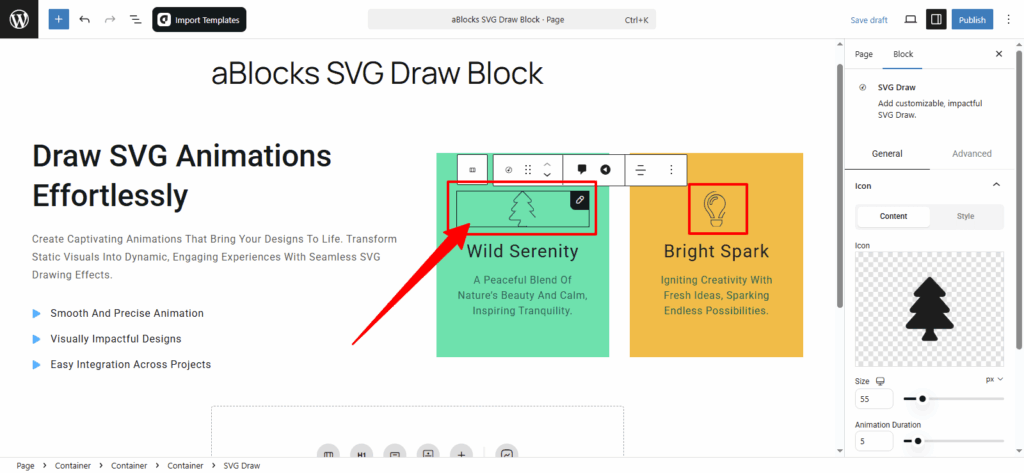
Customize the aBlocks SVG Draw Block
We’ll walk you through how to use and customize the aBlocks SVG Draw Block step by step.
Go to the right sidebar, then click Block > General. You’ll find one main section:
- Icon
Let’s explore this option step by step.
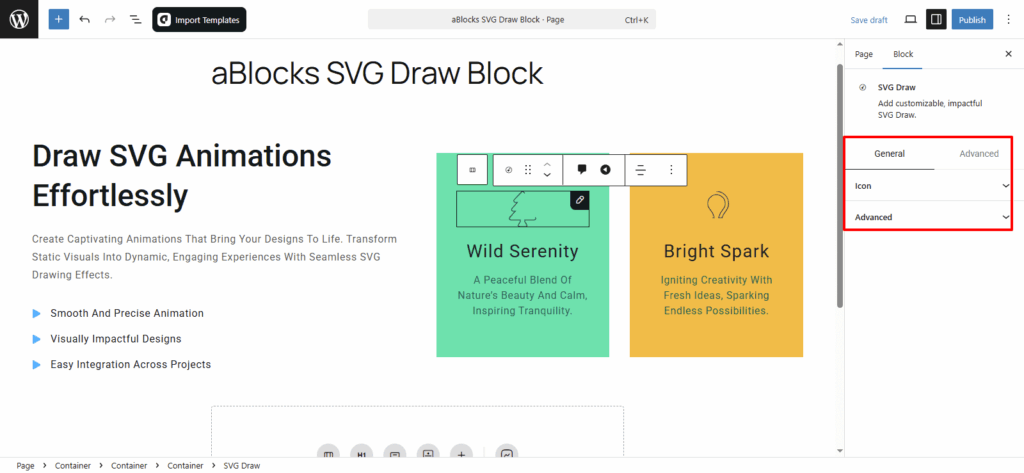
Icon
This section has two main parts — Content and Style.
Each part gives you different settings to control how your SVG Draw looks and behaves.
Content
In the Content tab, you’ll find settings to control how your SVG draw works. Each option lets you change how it looks and behaves. Below, we’ll explain each setting one by one.
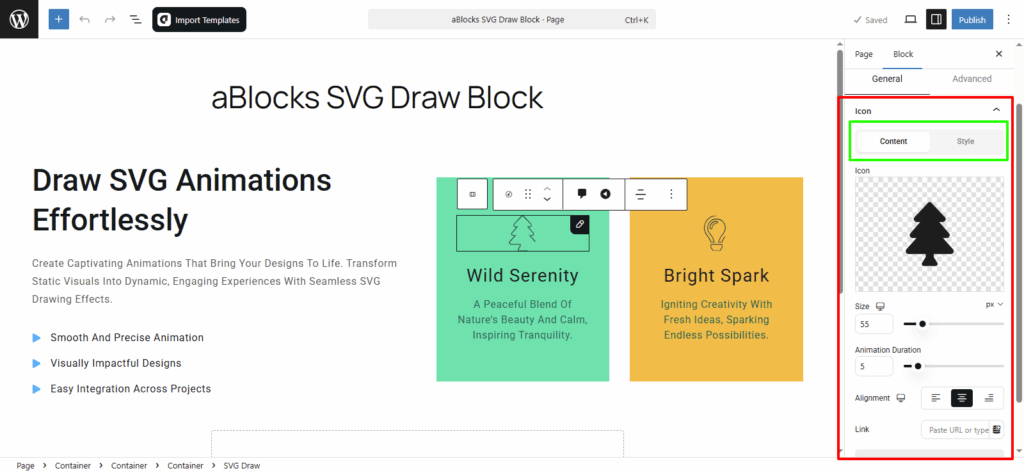
Icon: In this section, you’ll see the SVG icon you’ve added. If you want to remove it, click the delete icon inside the icon box. To add a new icon, simply click on the icon box and paste your desired SVG code.
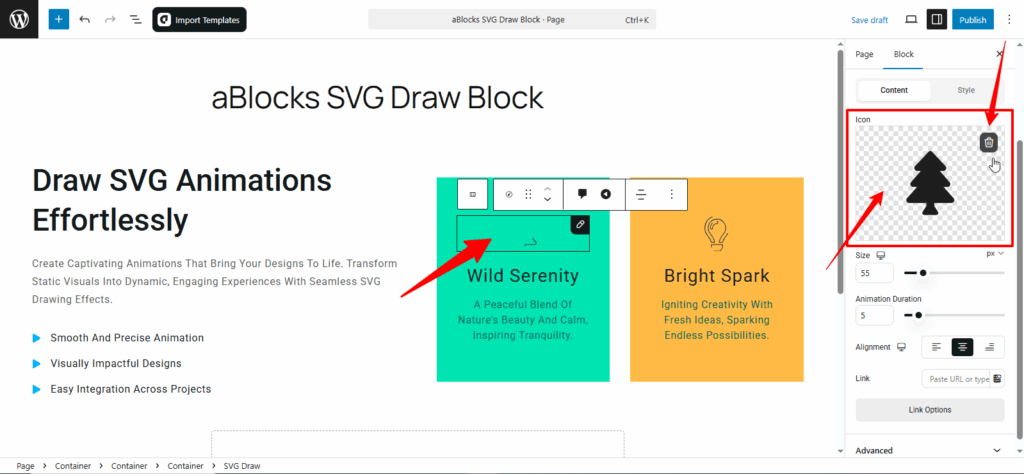
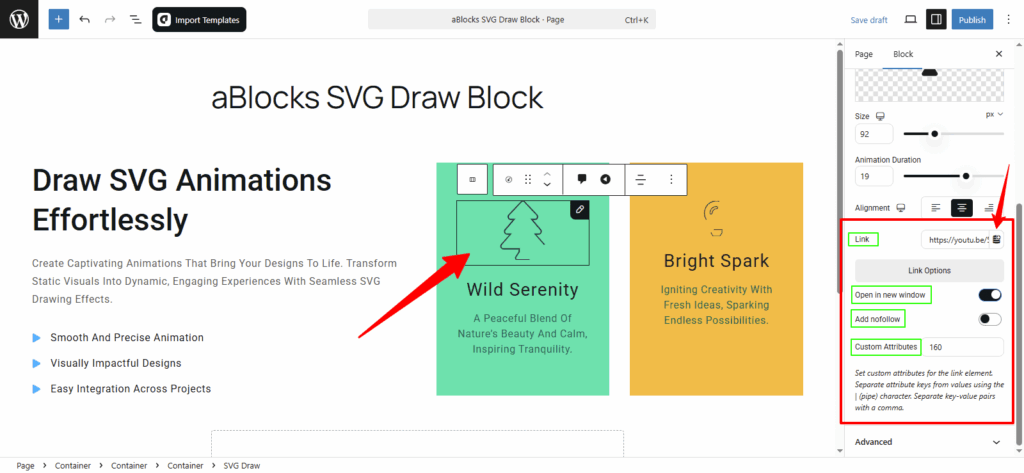
Size: From here, you can increase or decrease the size of your SVG icon.
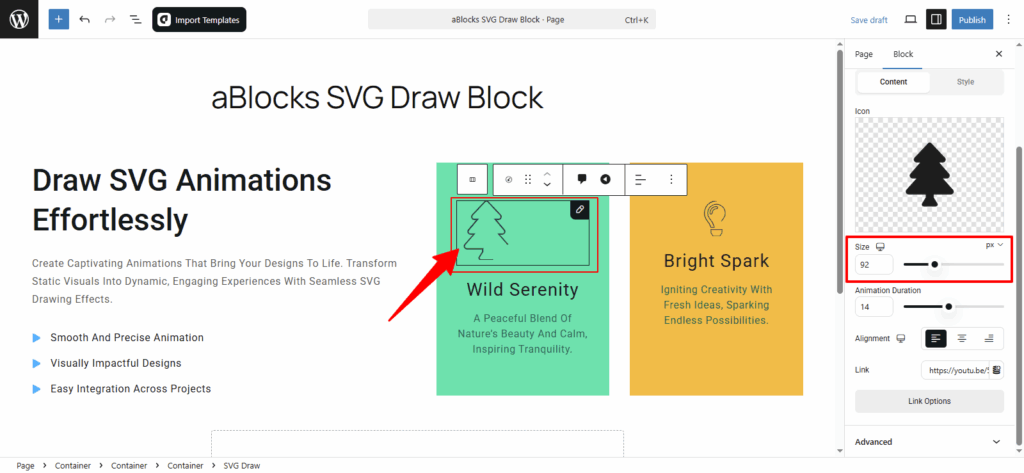
Animation Duration: This controls how long the icon animation takes. You can adjust the duration as needed.
Alignment: Set the alignment of your icon to left, center, or right.
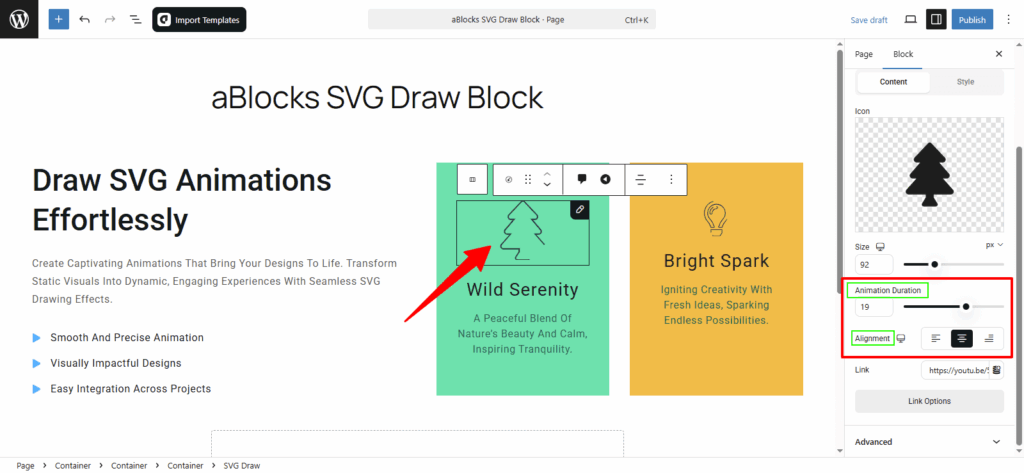
Link: You can add any link to the icon. Next to the link field, you’ll see a dynamic content icon—use it as needed.
To learn more, check the aBlocks Dynamic Content documentation.
Below the link field, you’ll find more link options:
- Open in new window: A toggle button lets you turn this on or off to open the link in a new tab.
- Add nofollow: Use the toggle to mark the link as nofollow or dofollow.
- Custom Attributes: You’ll see a text box where you can add your own custom attributes if needed.
Style
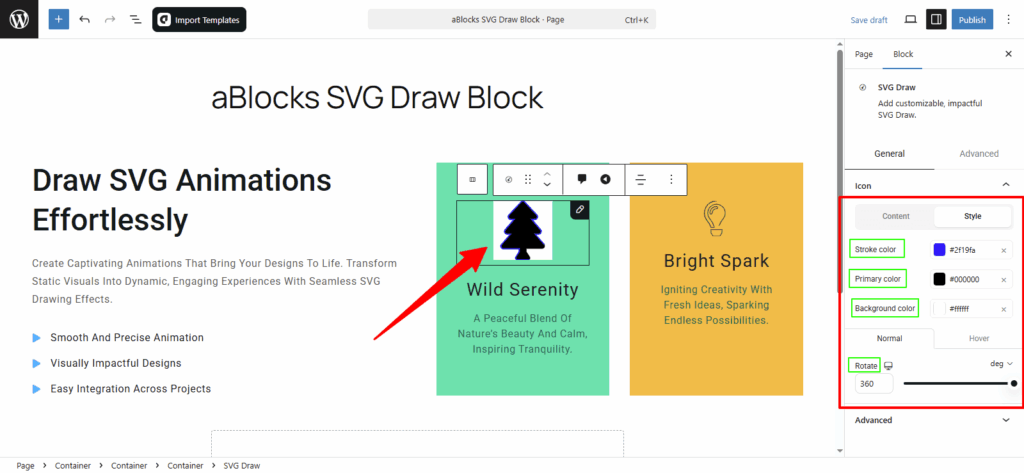
In this section, you’ll find several customization options to change the look of your SVG icon. Here’s a breakdown:
- Stroke Color: Easily change the stroke color of your SVG icon.
- Primary Color: Adjust the main color of the SVG icon as needed.
- Background Color: Choose and change the background color of the SVG icon.
Below these, you’ll see two tabs: Normal and Hover.
In both tabs, you’ll find a Rotate option that lets you control how much the icon rotates. You can increase or decrease the rotation value as you like.
If you want to explore more about icon features beyond the SVG Draw icon section, check out the aBlocks Icon Block documentation. It covers everything you need to know about using and customizing icons with the Icon Block.
Conclusion
The aBlocks SVG Draw Block makes it easy to bring your SVG graphics to life with smooth animations right inside the WordPress Gutenberg editor. Whether you’re adding a logo, icon, or illustration, this block gives you full control over how it looks and behaves — from stroke and color to timing and effects.
If you need any help, feel free to contact our support team. We’re here to assist you.