





The aBlocks Progress Tracker block helps you visually represent progress in various formats. You can use it to display skill levels, project completion percentages, or any other progress-based data. It is the ultimate solution for tracking project progress, task completion, and team collaboration. This guide will walk you through everything you need to know, from setup to advanced features, ensuring you maximize the potential of the aBlocks Progress Tracker.
In this documentation, I will guide you through the steps to add and customize a progress tracker on your page or post using the aBlocks Progress Tracker block. This guide will help you effectively present progress-based data in a visually appealing and structured way.
Adding the aBlocks Progress Tracker Block
Go to your WordPress dashboard and open the page or post where you want to add the progress tracker. If needed, start a new one.
Click the (+) icon to browse the available blocks.
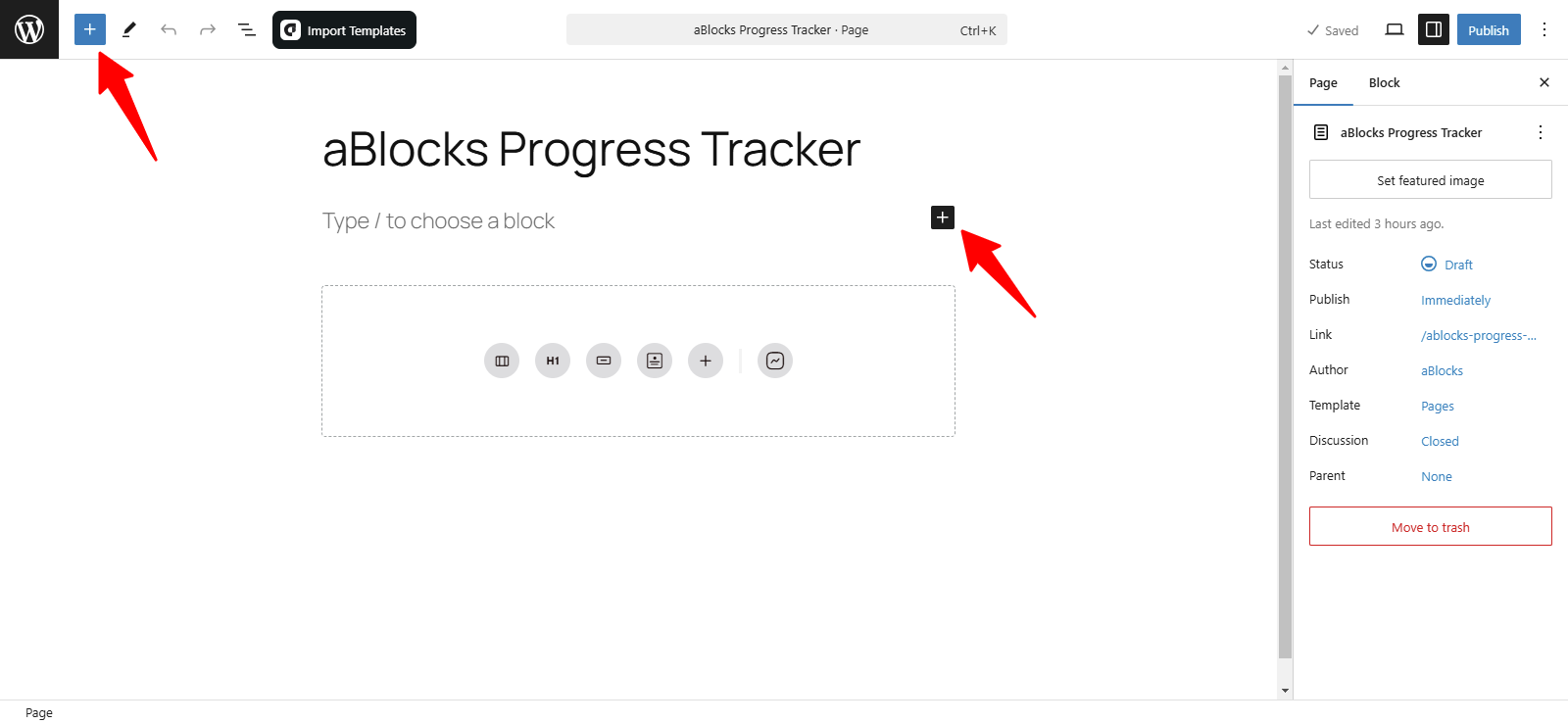
After clicking the (+) plus icon, you will see a list of available aBlocks. To add the Progress Tracker Block, you can either search for aBlocks Progress Tracker in the search bar or scroll through the list to find it. Another option is to click the (+) icon directly within your page editor and select the Progress Tracker Block from the available options.

Next, choose the aBlocks Progress Tracker Block from the list. Click on the Progress Tracker to add it to your page or post. Once added, you can customize it to align with your content and design preferences.
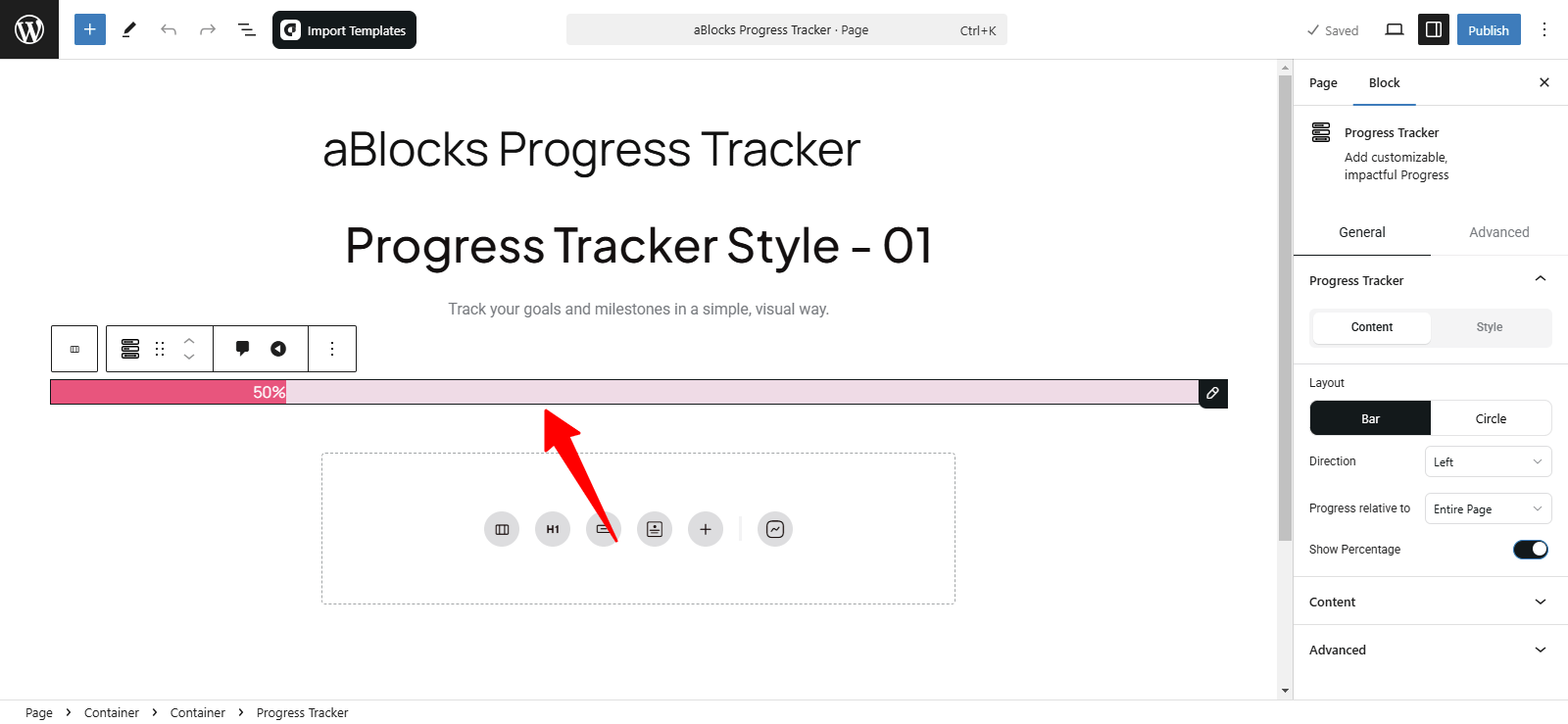
Customize the aBlocks Progress Tracker Block
This guide will help you effectively use and customize the aBlocks Progress Tracker Block with easy-to-follow steps.
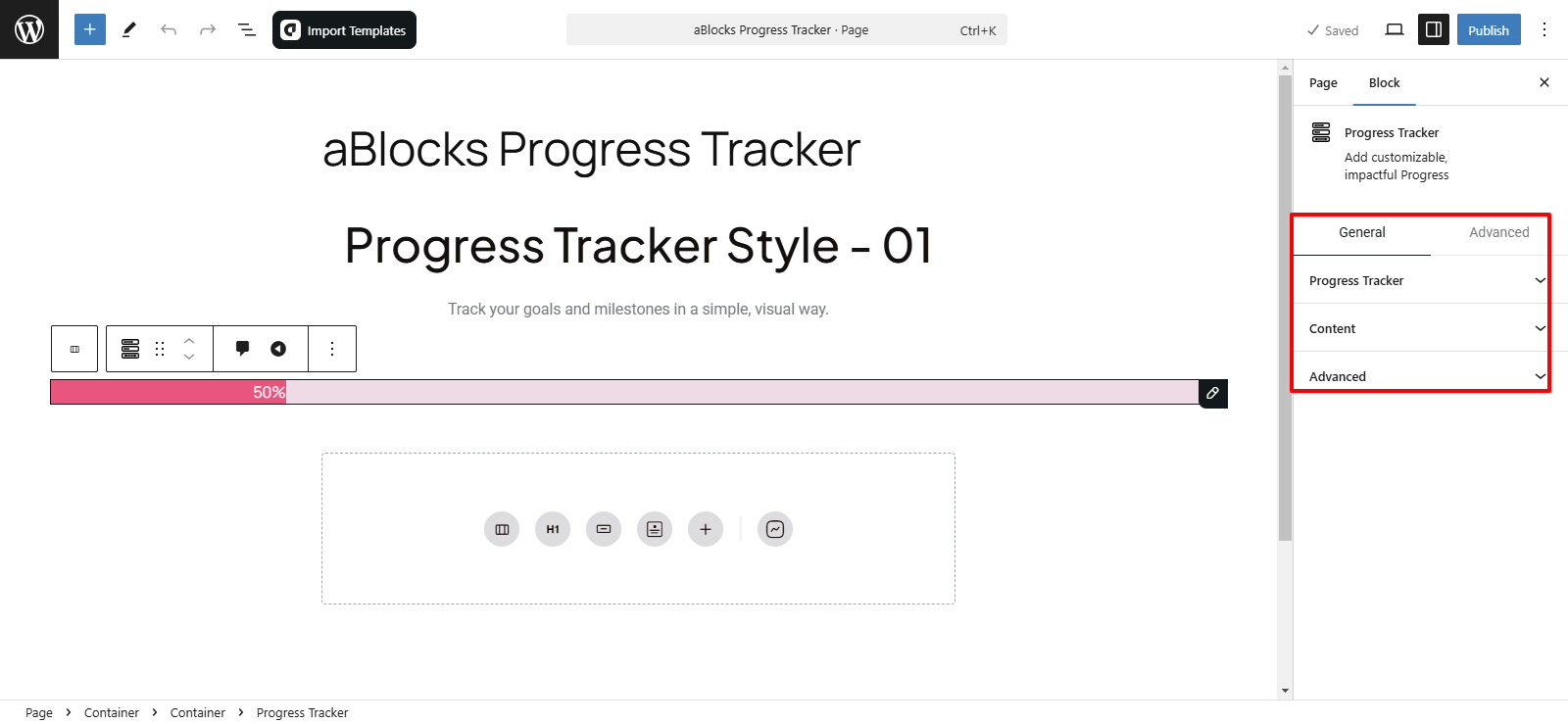
To personalize the Progress Tracker Block, go to the right-side settings panel and navigate to Block > General > Advanced. Here, you’ll find key customization options:
- Progress Tracker
- Content
By adjusting these settings, you can create a visually appealing and functional progress tracker that keeps users engaged.
Progress tracker
In the Progress Tracker block, you will find two main customization options: Content and Style. Let’s first explore the Content section.

Content
The Content section of the Progress Tracker block includes several customization options: Layout, Direction, Progress Relative To, and Show Percentage. Let’s explore them one by one.
Layout: You can choose between two layout styles for the progress tracker:
- Bar – Displays progress as a horizontal bar.
- Circle – Shows progress in a circular format.
Note:
When you select the Circle layout, a Progress Color option will appear in the Style section. From there, you can easily customize the progress color. The changes will be visible when you preview the progress tracker.
Direction: Adjust the movement of the progress tracker. Set it to Left to Right or Right to Left based on your design preference.

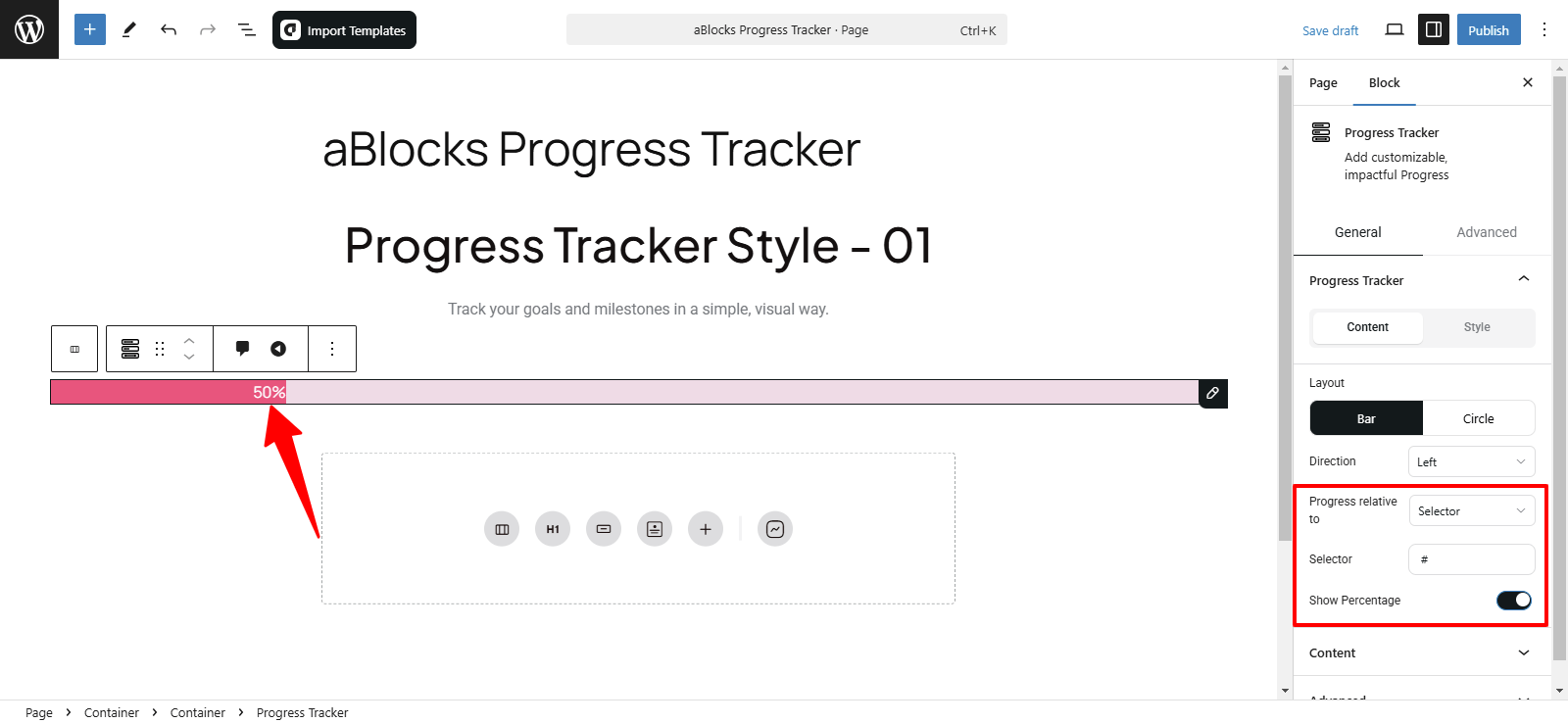
Progress Relative To: In this section, you can choose how the progress is calculated. There are two options:
1. Entire Page: Tracks progress based on the user’s scroll position throughout the entire page.
2. Selector: The Selector option allows you to track progress for a specific section instead of the entire page. When you enable this option, a Selector Name input box will appear.
How to Set Up a Selector:
- Open aBlocks Advanced Settings.
- Locate the CSS ID input box.
- Enter a unique ID (e.g., my-section).
- In the Selector Name box, enter the same ID with a # symbol (e.g., #my-section).
- Save the settings.
Example Usage:
Suppose you have a Paragraph Block and want to track progress within that section only. You need to:
- Add the Progress Tracker inside the Paragraph Block.
- Assign a CSS ID to the paragraph (e.g., my-section).
- Enter #my-section in the Selector Name box.
- Save the settings.
Now, the progress tracker will measure scrolling only within the paragraph section. You can see the effect in the preview.
Show Percentage: A toggle button lets you show or hide the percentage value. If turned on, the percentage will be displayed inside or next to the tracker. If turned off, no percentage will be visible.
Style
The Style section offers various options to adjust the appearance of your progress tracker. Below is a step-by-step breakdown:
- Progress Color – Change the color of the progress bar.
- Background Color – Adjust the background color of the tracker.
- Height – Increase or decrease the height based on your design needs.
Border Customization
- Border Style – Choose a border style that fits your design.
- Width – Adjust the thickness of the border.
- Border Color – Change the color of the border.
- Border Radius – Control how rounded the edges appear.
These settings help you fine-tune the tracker’s look for a seamless design.
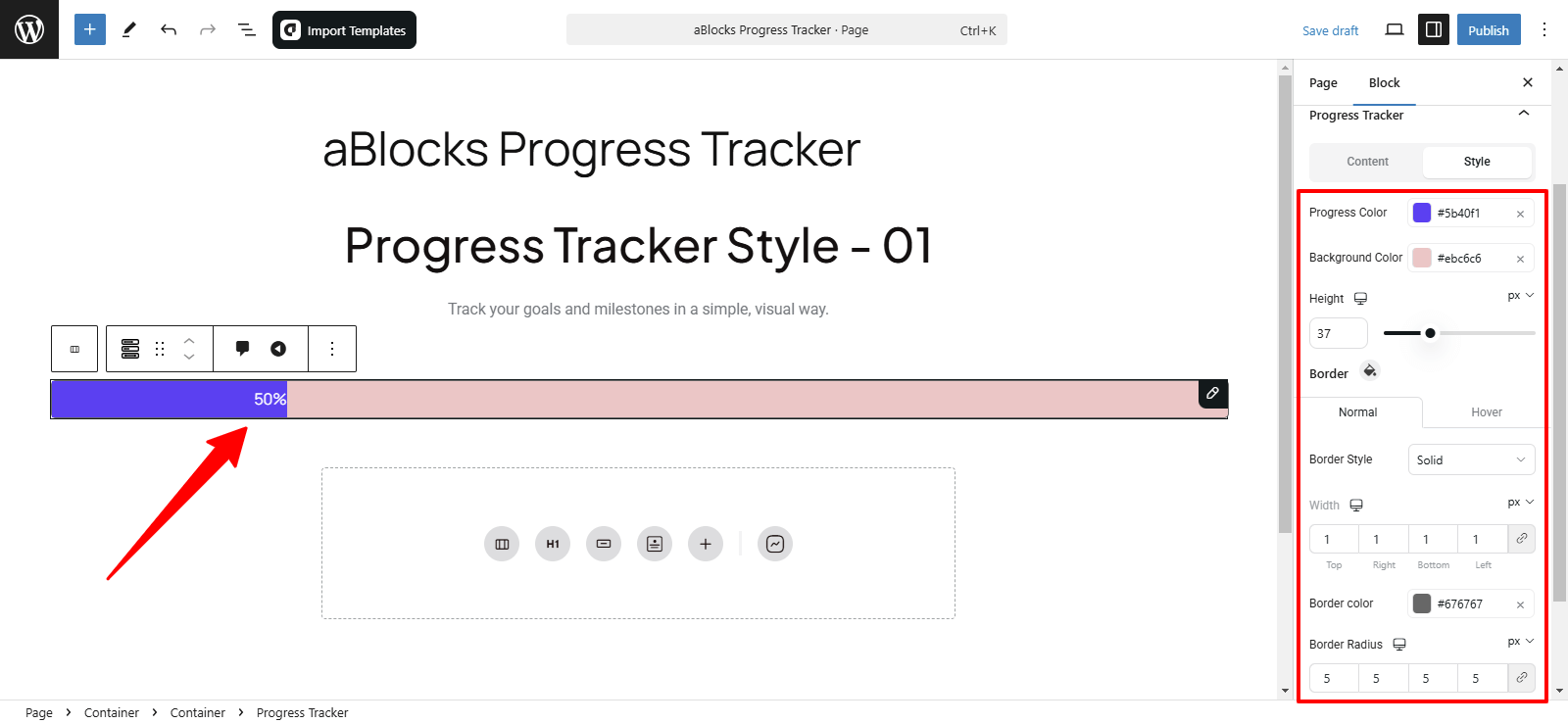
Content
In the Content section, you have four more customization options for the progress tracker. Let’s explore them one by one:
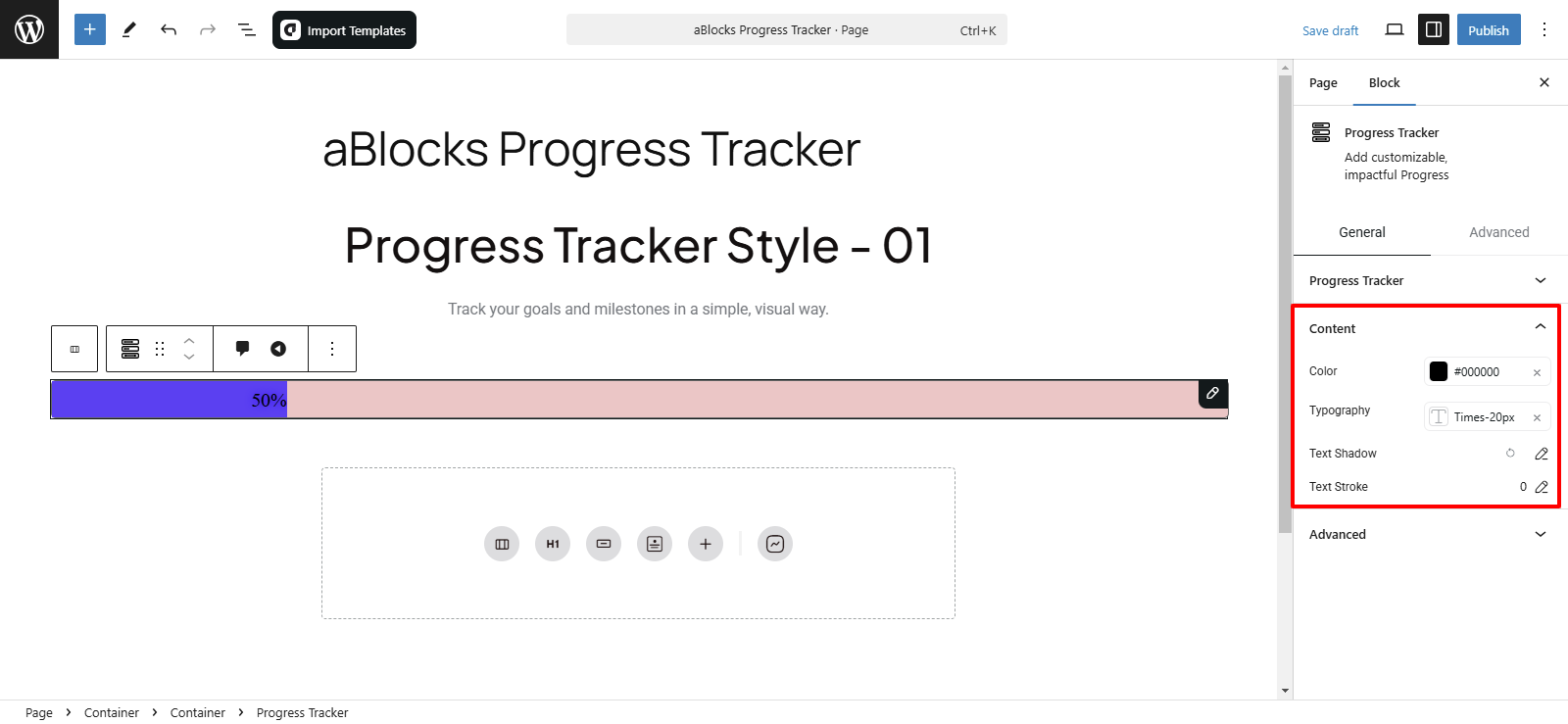
Color: This option allows you to change the color of the percentage text displayed on the tracker.
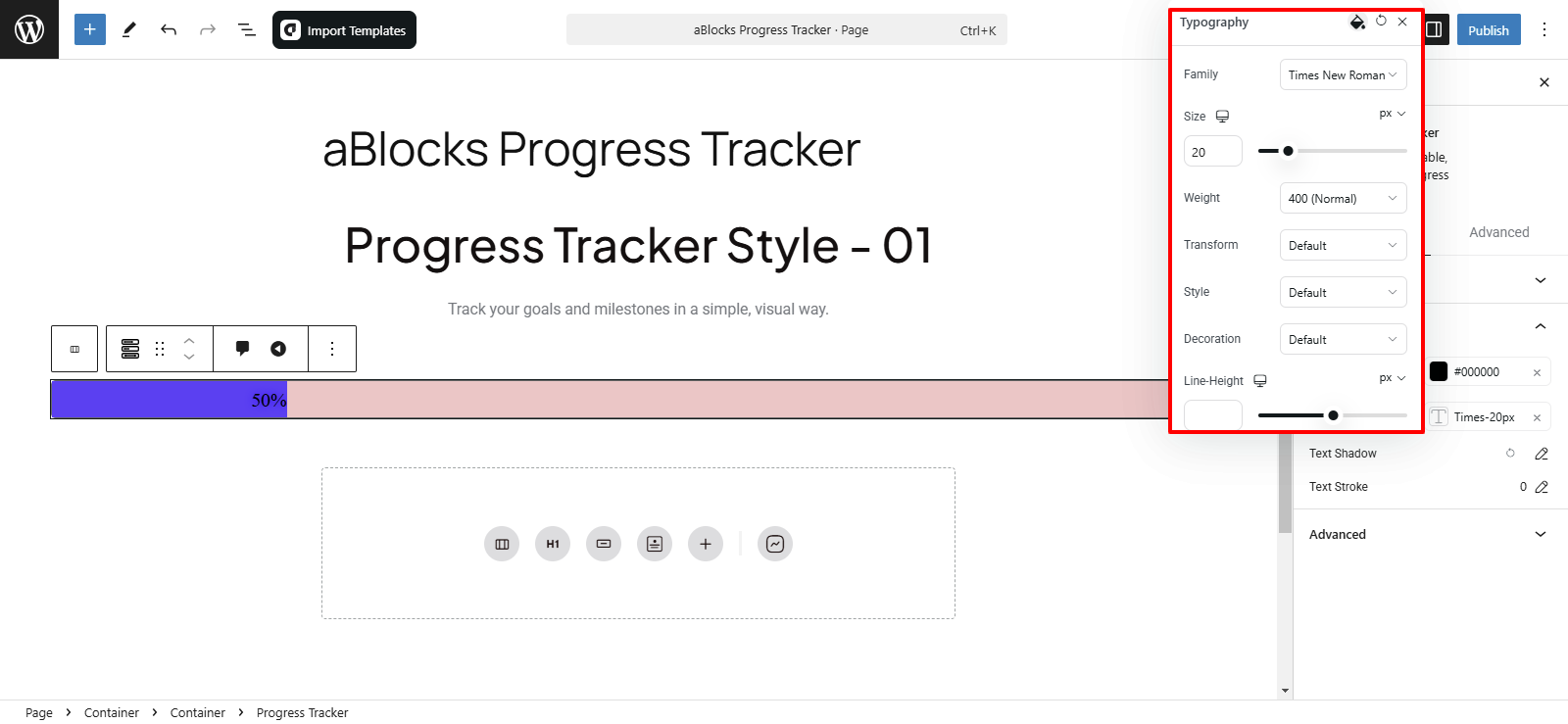
Typography: In this section, you’ll find several customization options: Family, Size, Weight, Transform, Style, Decoration, Line Height, Letter Spacing, and Word Spacing. You can easily customize these options to match your design preferences.
For detailed instructions, check the aBlocks Typography Settings Documentation.
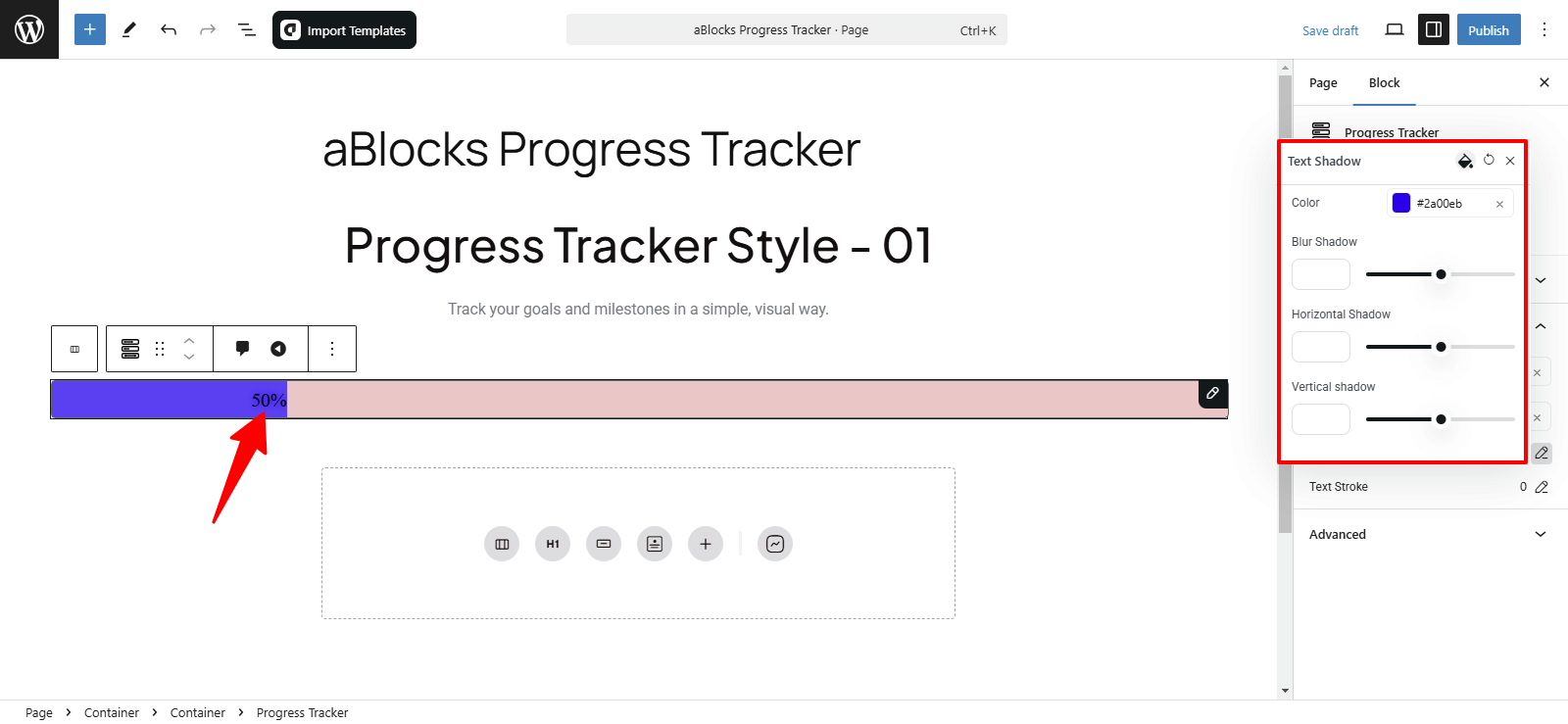
Text Shadow: In this section, you can customize the following options for adding a shadow effect to your text:
- Color – Change the shadow color.
- Blur Shadow – Adjust the blur intensity of the shadow.
- Horizontal Shadow – Move the shadow horizontally (left or right).
- Vertical Shadow – Move the shadow vertically (up or down).
You can easily adjust each option to suit your design style.
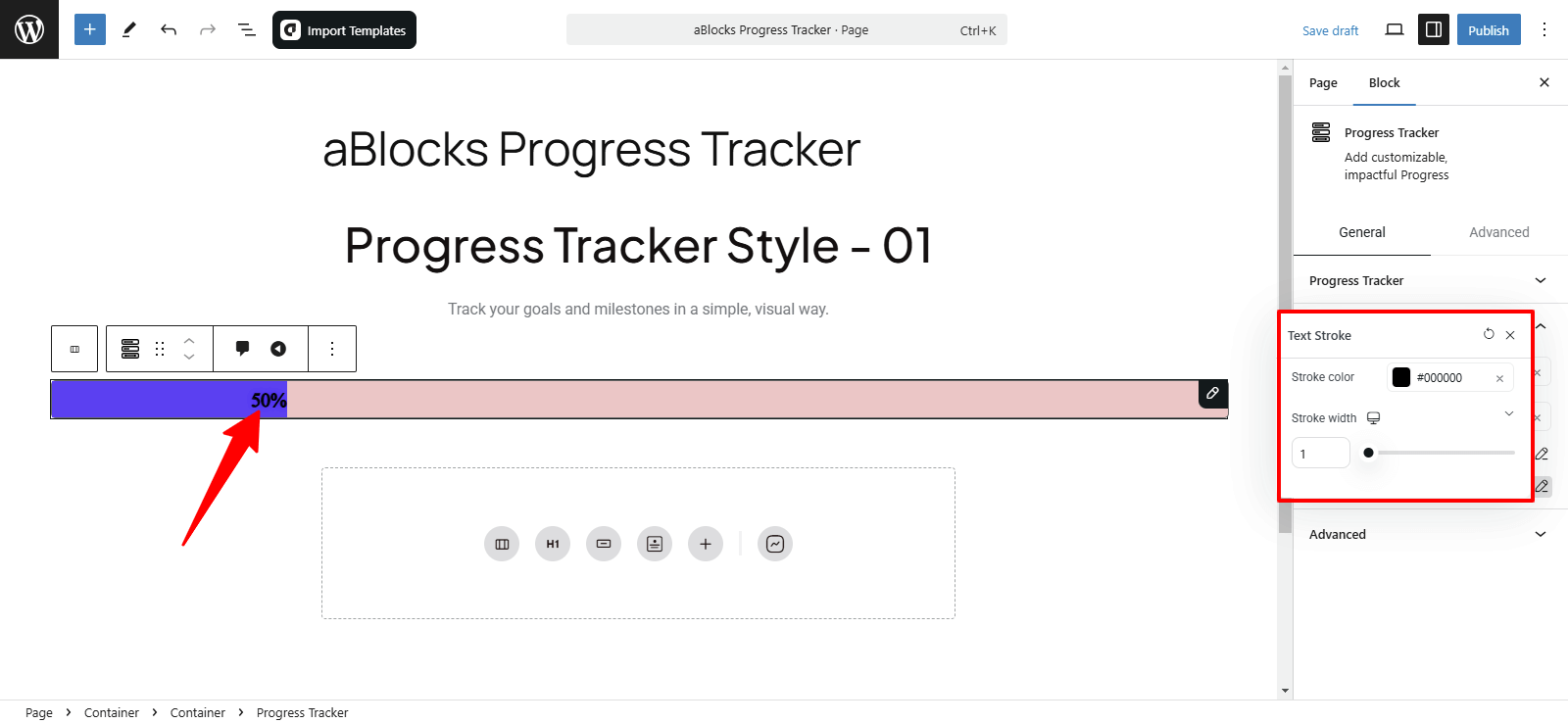
Text Stroke: Here you can customize two options for adding a stroke to your text:
- Stroke Color – Choose the color of the text stroke.
- Stroke Width – Adjust the width of the text stroke.
For more detailed customization options related to Stroke Width and Text Stroke, refer to the aBlocks Text Stroke and Text Shadow Documentation.
Conclusion
The aBlocks Progress Tracker block provides an easy way to display progress in bar or circle formats. With customizable options for colors, text, and shadows, you can tailor it to your design needs.
For further assistance, don’t hesitate to contact our support team!