





The aBlocks Coupon Block allows you to create stylish and interactive discount coupons directly on your WordPress website. With a range of customizable options in coupon block, you can easily design and display engaging coupon offers to boost conversions.
In this documentation, I will guide you through the steps to add and customize a coupon on your page or post using the aBlocks Coupon Block. This guide will help you design and showcase discount offers in a visually appealing and structured way to maximize their effectiveness.
Add aBlocks Coupon Block
Log in to your WordPress dashboard and open the page or post where you want to add the coupon. If needed, create a new one.
Click the (+) button to access the block options.
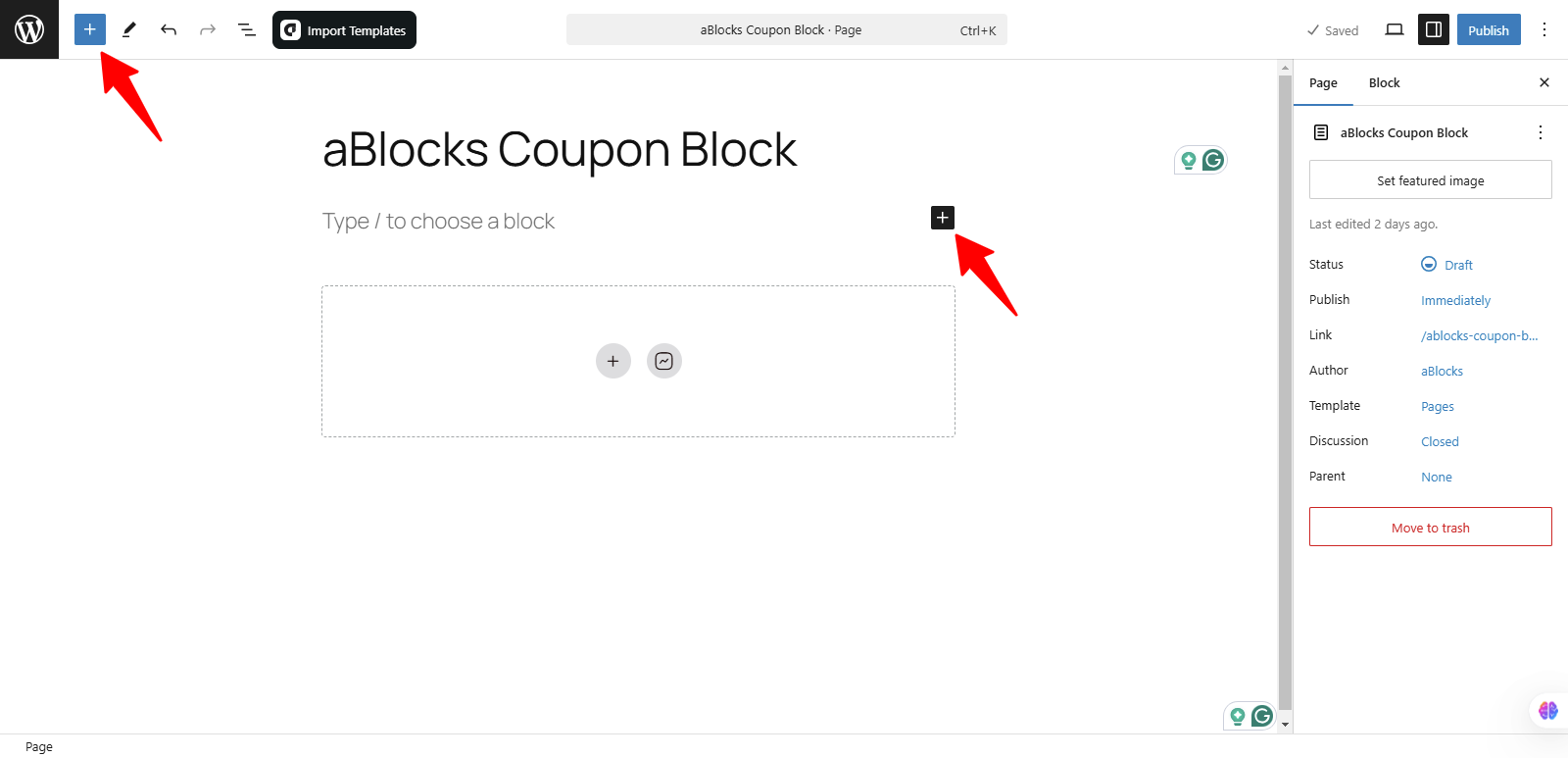
When you click the (+) plus icon, a list of all available aBlocks will appear. To add a Coupon Block, simply search for aBlocks Coupon Block in the search bar. Alternatively, you can directly click the (+) icon within your page editor and select the Coupon Block from there.
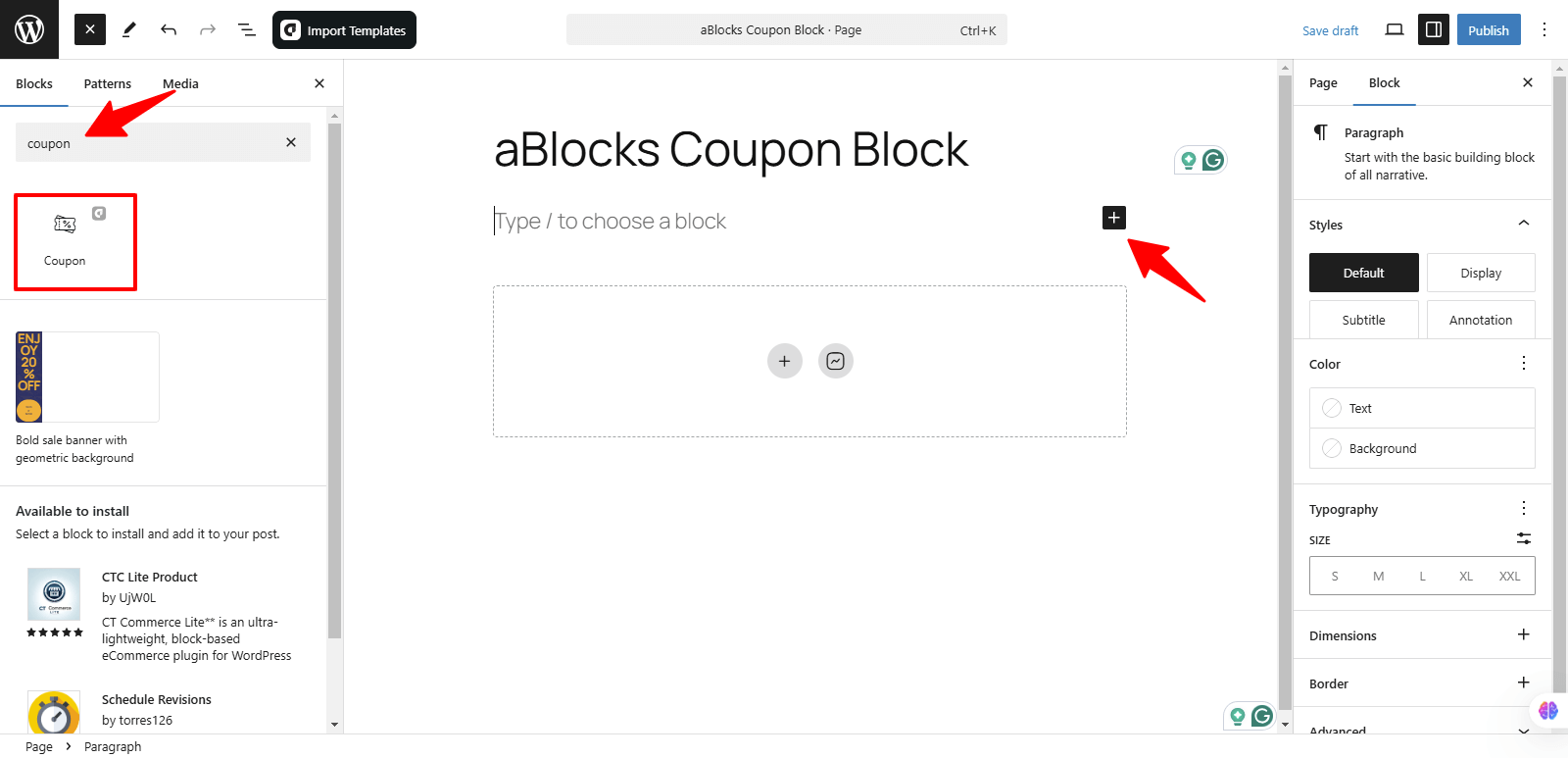
Now, select the aBlocks Coupon Block from the list. Click on the Coupon Block, and it will be added to your page or post. You can then customize it as needed to fit your website branding match.
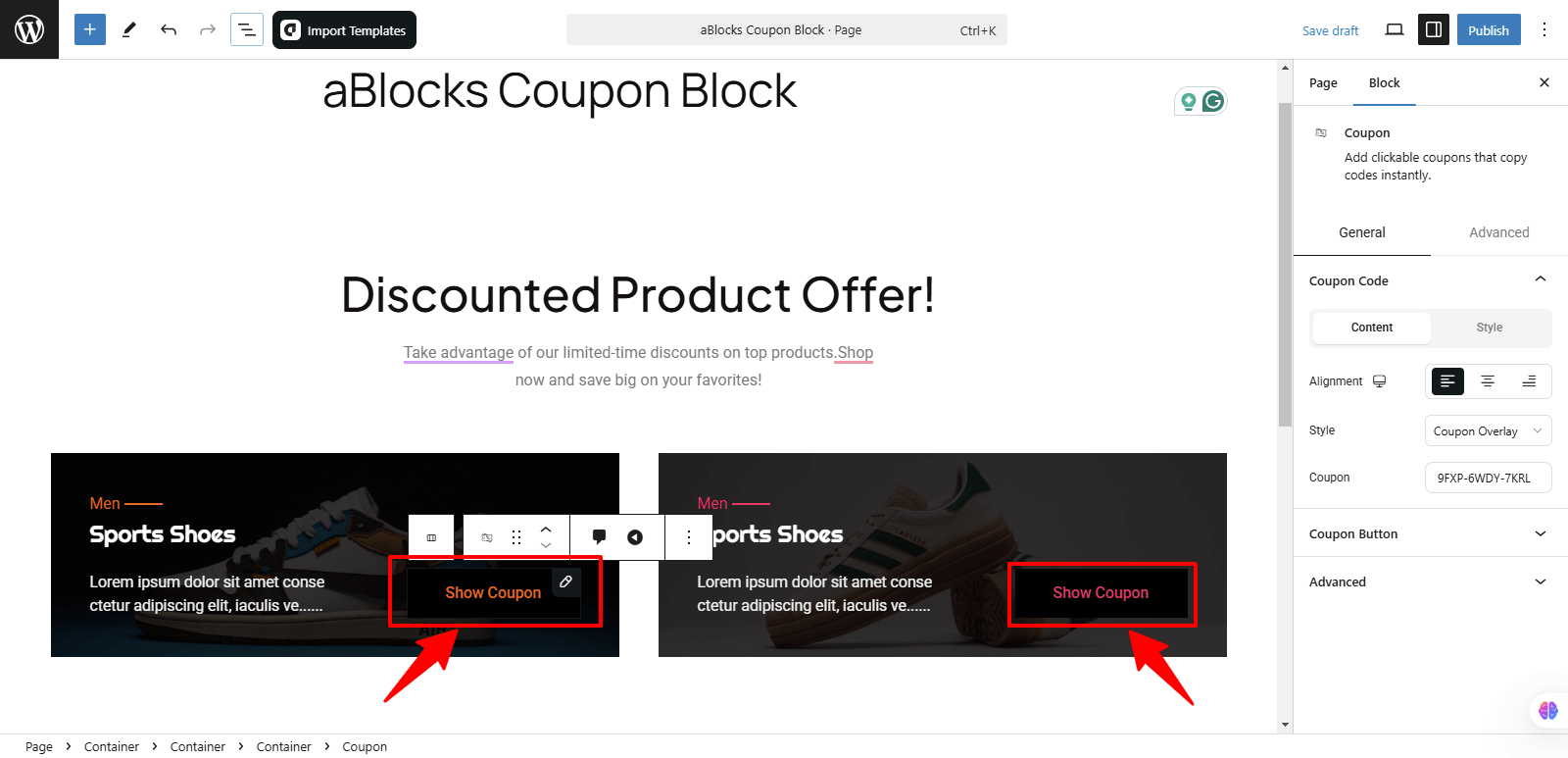
How to Customize the aBlocks Coupon Block
We will walk you through the usage and customization of the aBlocks Coupon Block with a detailed step-by-step guide.
To customize the aBlocks Coupon Block, head to the right-side panel and navigate to Block > General. Here, you’ll find three key customization options:
- Coupon Code
- Coupon Button
- Advanced
Let’s dive deeper into each of these options!
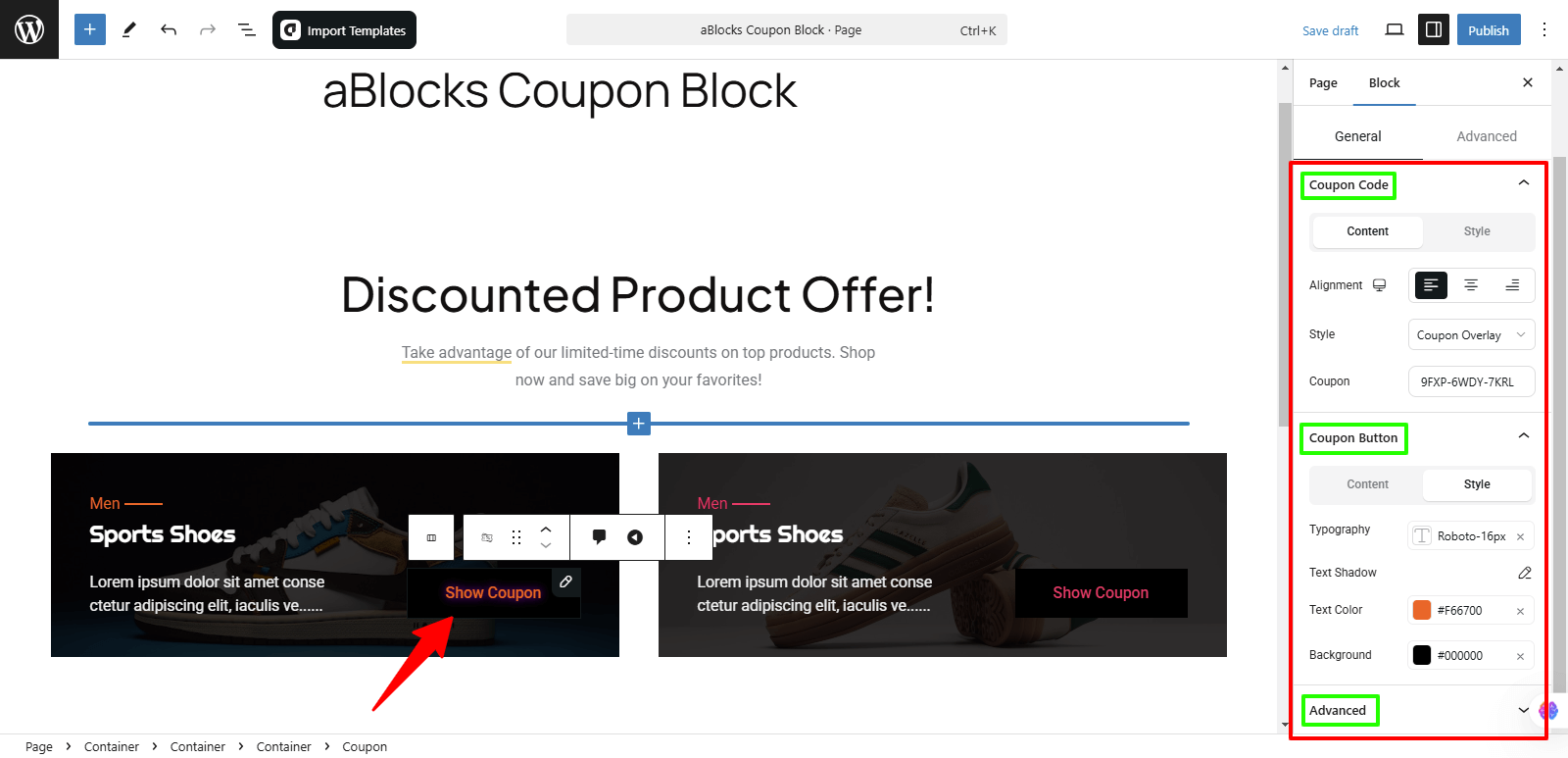
Coupon Code
In the Coupon Code section, you will find two tabs:
- Content
- Style
Let’s explore each tab in detail!
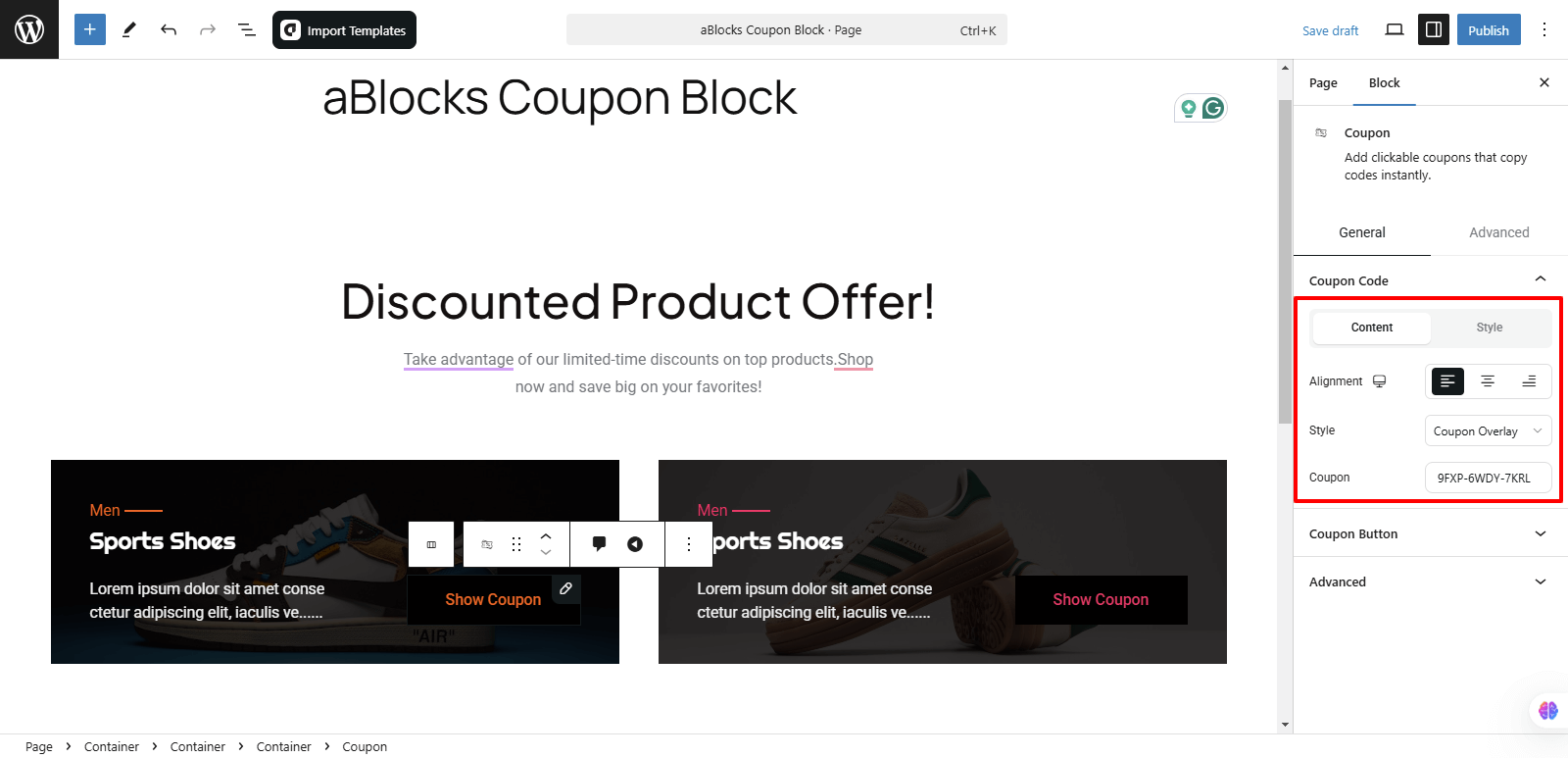
Content
In the Content section, you will find three customization options:
- Alignment
- Style
- Coupon
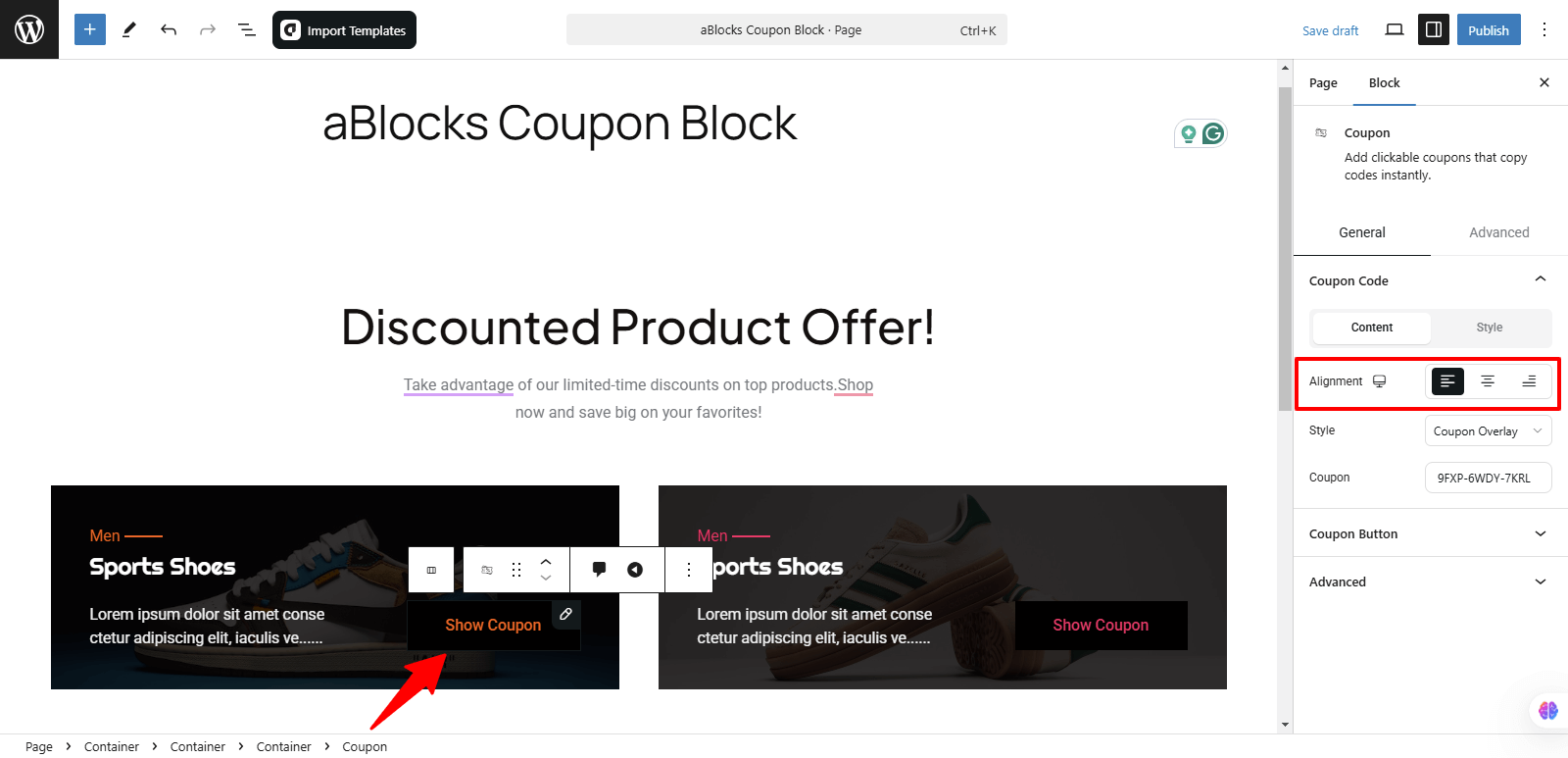
Alignment: The Alignment option allows you to position the coupon code according to your preference. You can align it to the Left, Center, or Right to match your design and layout needs.
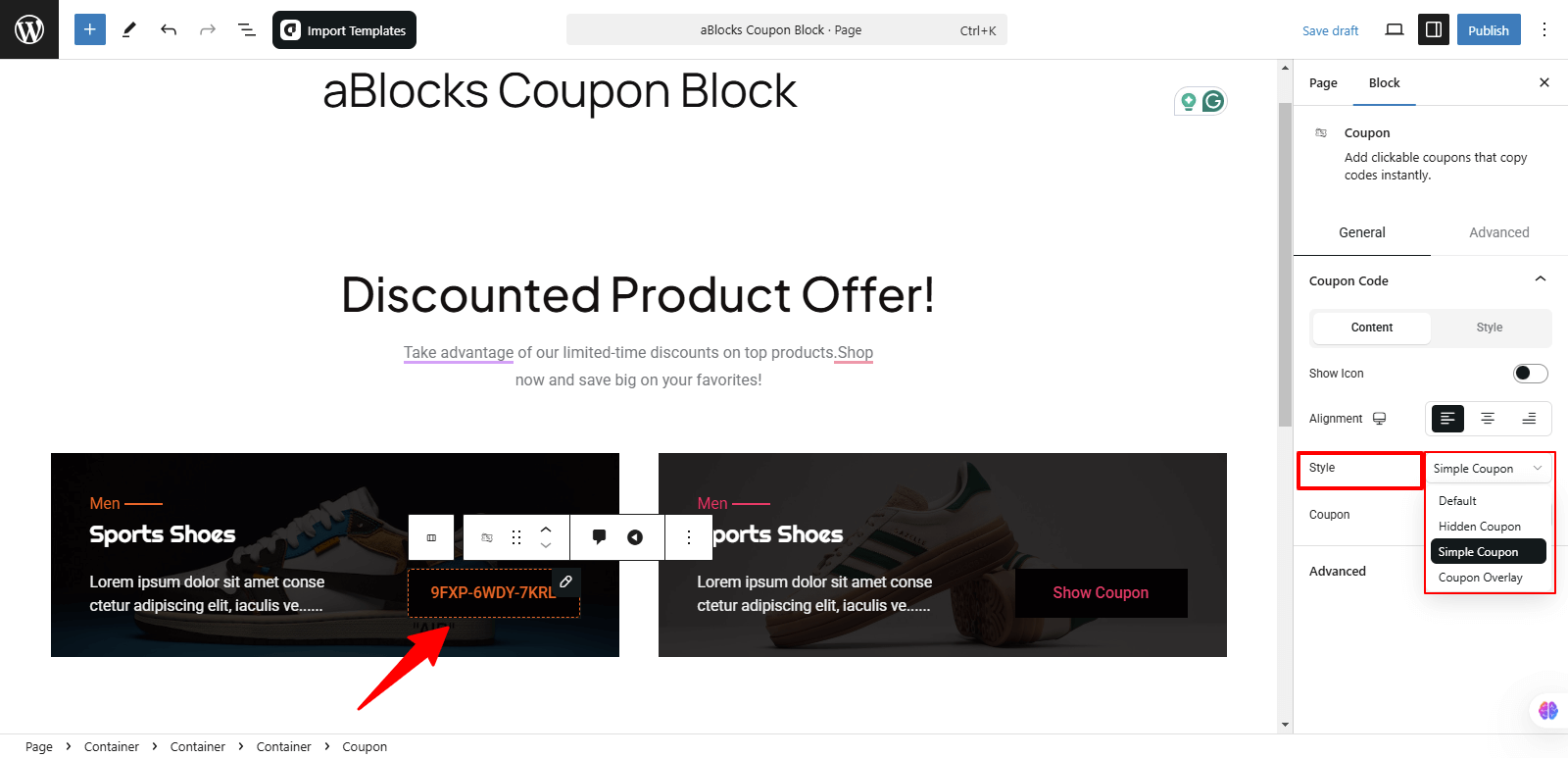
Style: The Style option lets you choose from different preset styles for displaying the coupon. You can select from:
- Hidden Coupon – Keep the coupon code hidden until the user interacts.
- Simple Coupon – Displays the coupon code in a clean and minimal design.
- Coupon Overlay – Shows the coupon in an overlay format for a more dynamic look.
Pick the style that best suits your design.
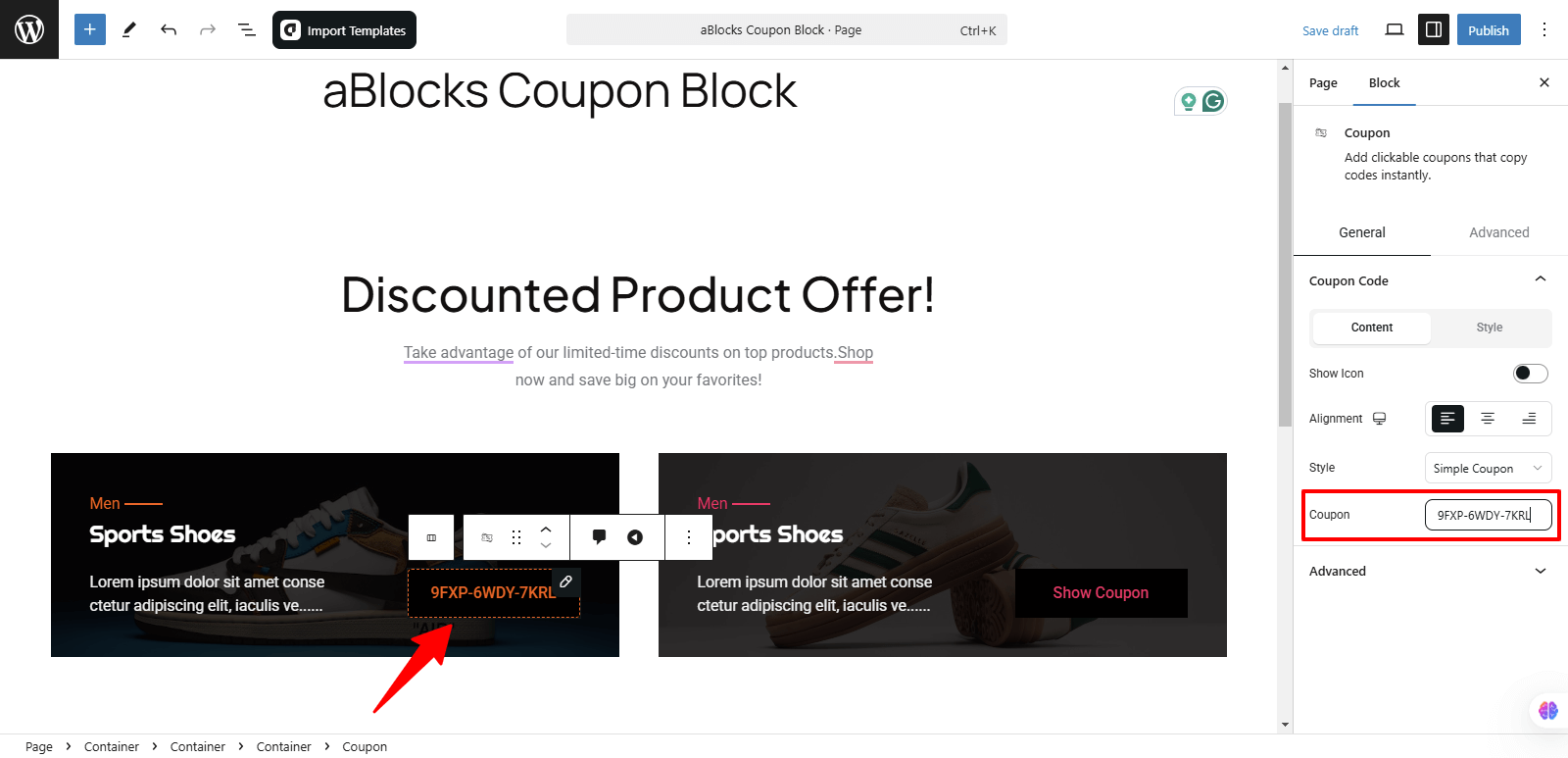
Coupon: The Coupon option allows you to easily set the actual coupon code text. Simply enter your desired code, and it will be displayed based on the selected style and alignment. This helps ensure your visitors can quickly copy and use the coupon as needed.
Style
In the General section, the second option is Style, which provides various customization settings to enhance the look of the aBlocks Coupon Block.
Let’s go through each setting step by step to help you create a visually appealing coupon design!
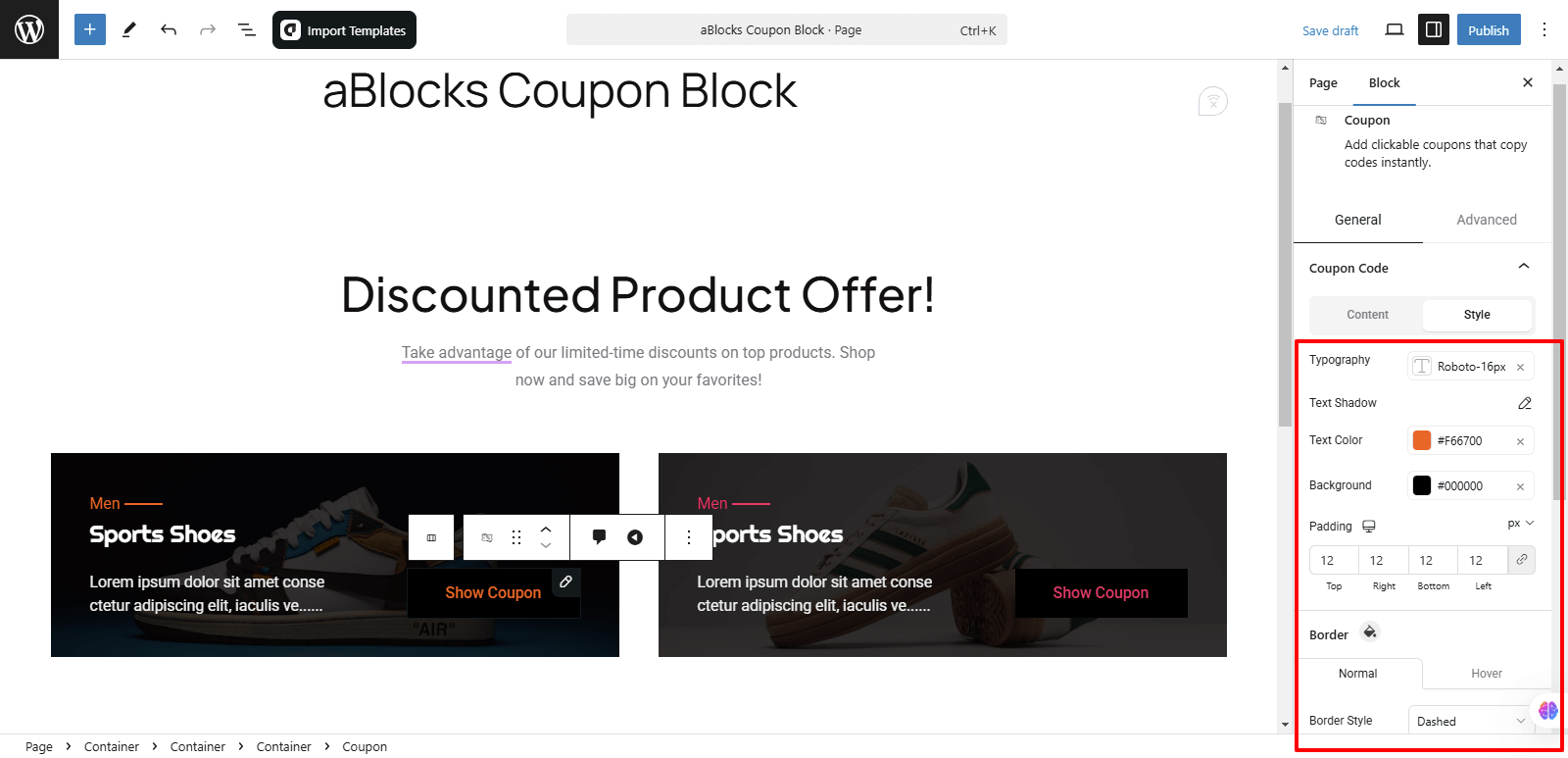
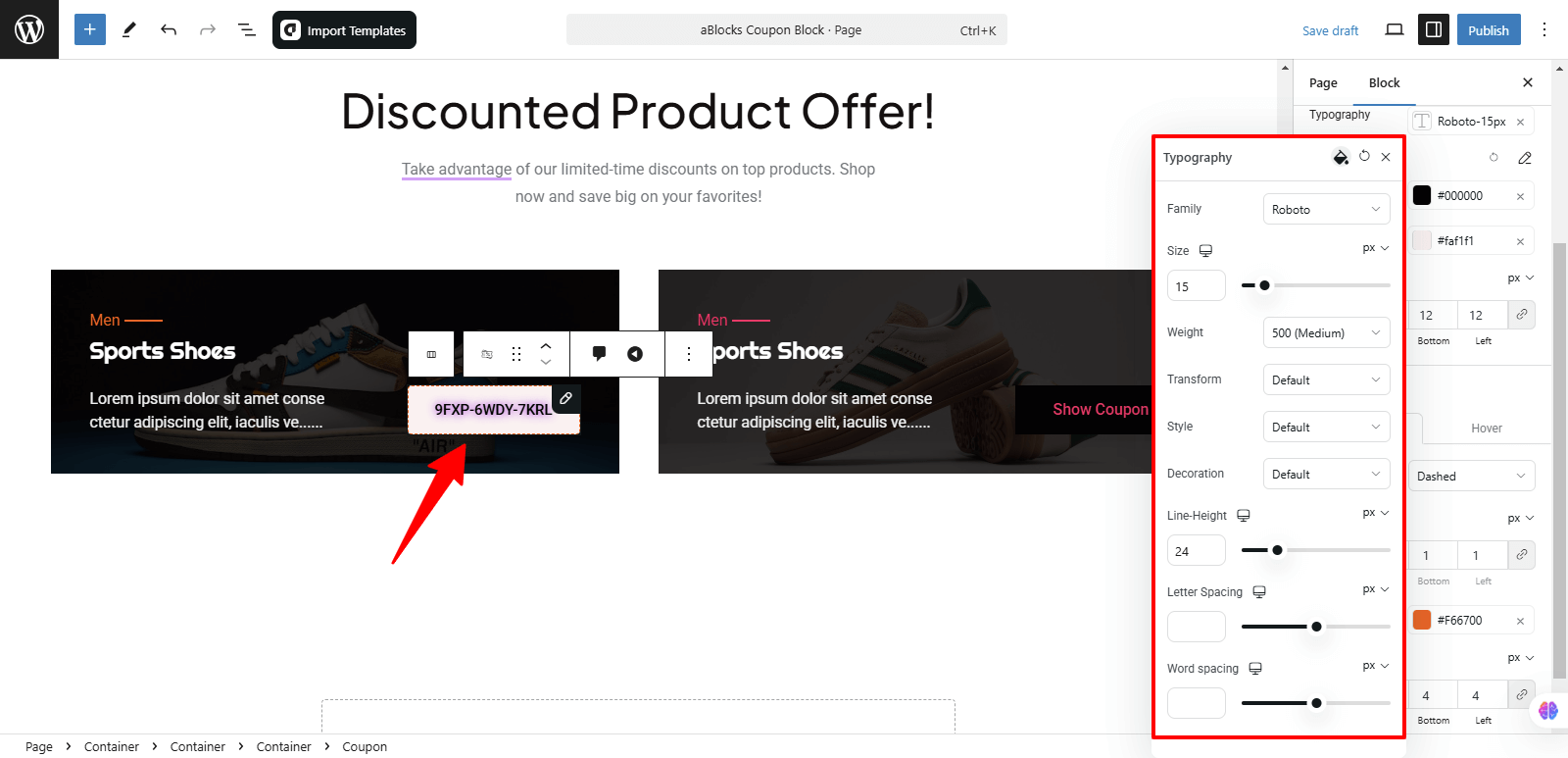
Typography: The Typography section offers advanced customization options to refine the text appearance within the aBlocks Coupon Block. Clicking on the Typography Default option reveals several settings, including:
- Family – Choose the font type.
- Size – Adjust the font size for better readability.
- Weight – Modify the thickness of the text.
- Transform – Convert text to uppercase, lowercase or capitalize.
- Style – Apply italic or normal text styles.
- Decoration – Add underline, overline, or strikethrough effects.
- Line Height – Adjust the spacing between lines for better text flow.
- Letter Spacing – Control the space between individual letters.
- Word Spacing – Set spacing between words for improved readability.
For more details on typography settings, check out our aBlocks Typography Settings Documentation!
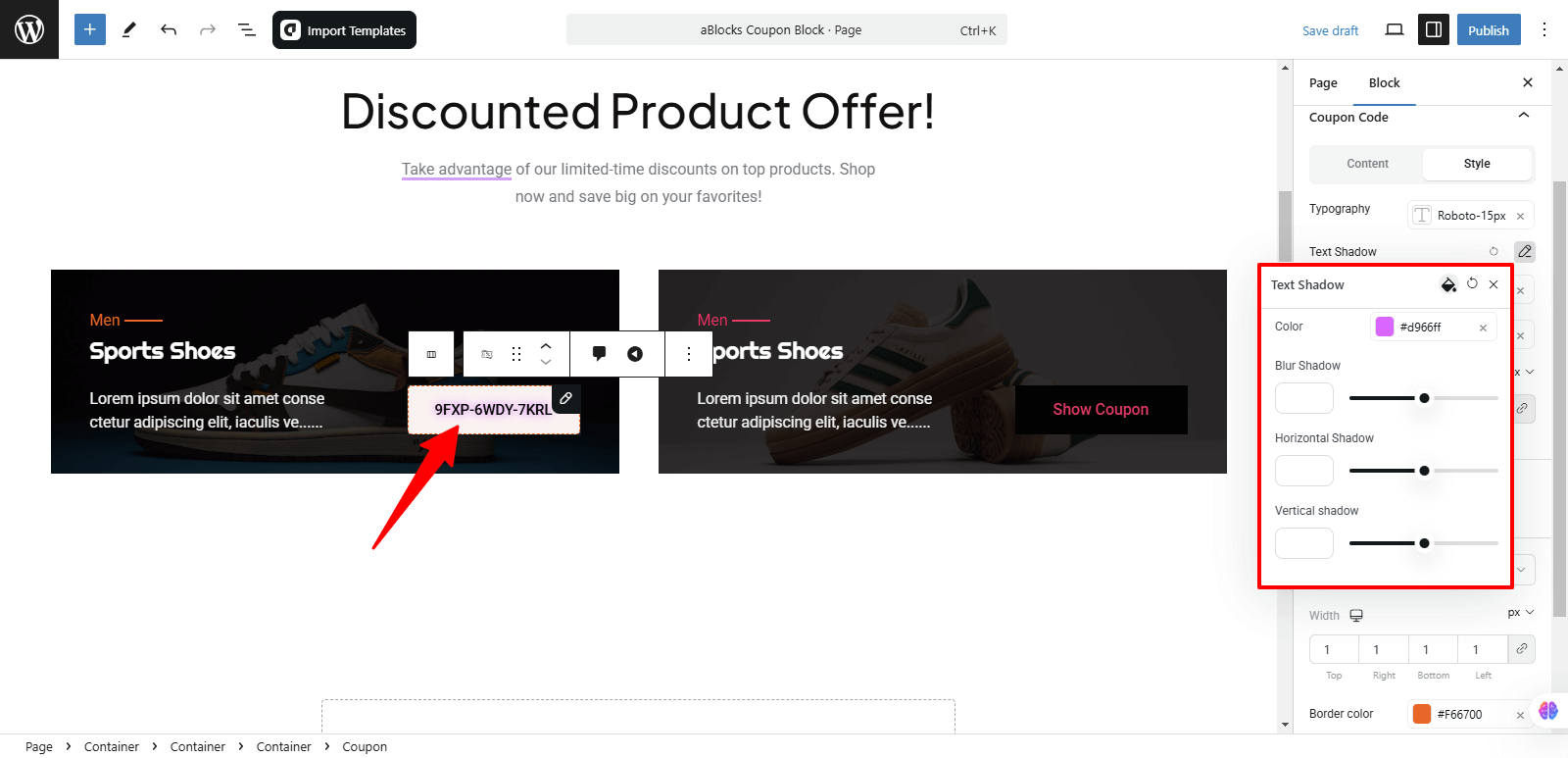
Text Shadow: The Text Shadow section offers four customization options to enhance the text appearance in your coupon design:
- Color – Select a shadow color that complements your style.
- Blur Shadow – Adjust the blur intensity to create a soft or sharp shadow effect.
- Horizontal Shadow – Move the shadow left or right for depth and contrast.
- Vertical Shadow – Shift the shadow up or down to enhance visibility.
These options help you add a stylish and dynamic look to your coupon text. For more details on Text Shadow settings, check out our aBlocks Text Stroke and Text Shadow Documentation.
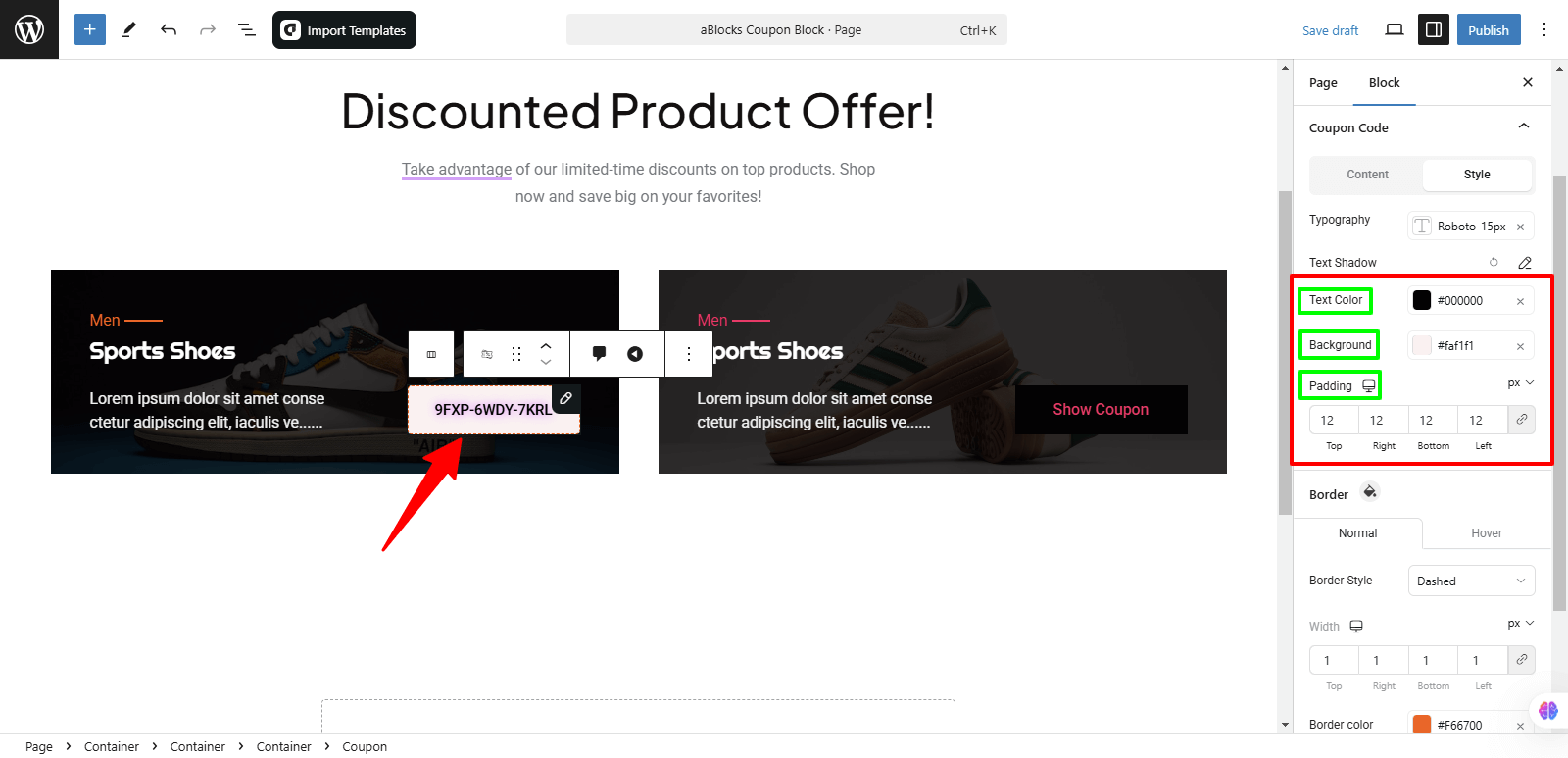
Text Color: Customize the coupon text color to match your design.
Background: Set a background color or gradient to enhance the coupon’s visual appeal.
Padding: Adjust the padding to control the space between the coupon content and its edges.
Border
To customize the border of your Coupon Block, go to Coupon Code > Style > Border in the settings panel. There, you’ll find a dedicated Border section with various customization options, allowing you to tailor the look and feel to your preference.
In the Border section, you will first notice the Normal and Hover options. These allow you to customize the border appearance for both default and hover states. Now, let’s go through each customization option one by one:
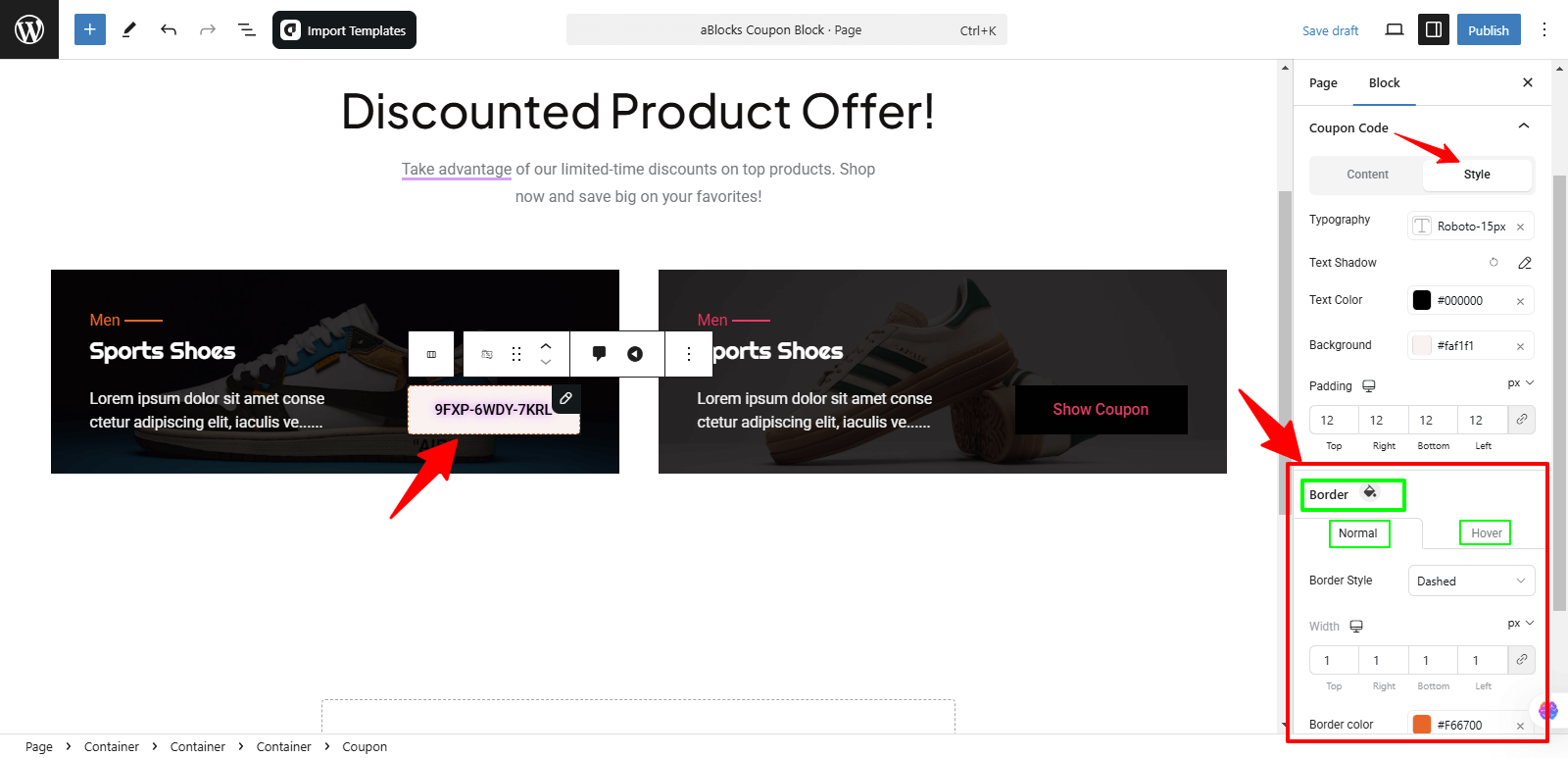
Normal
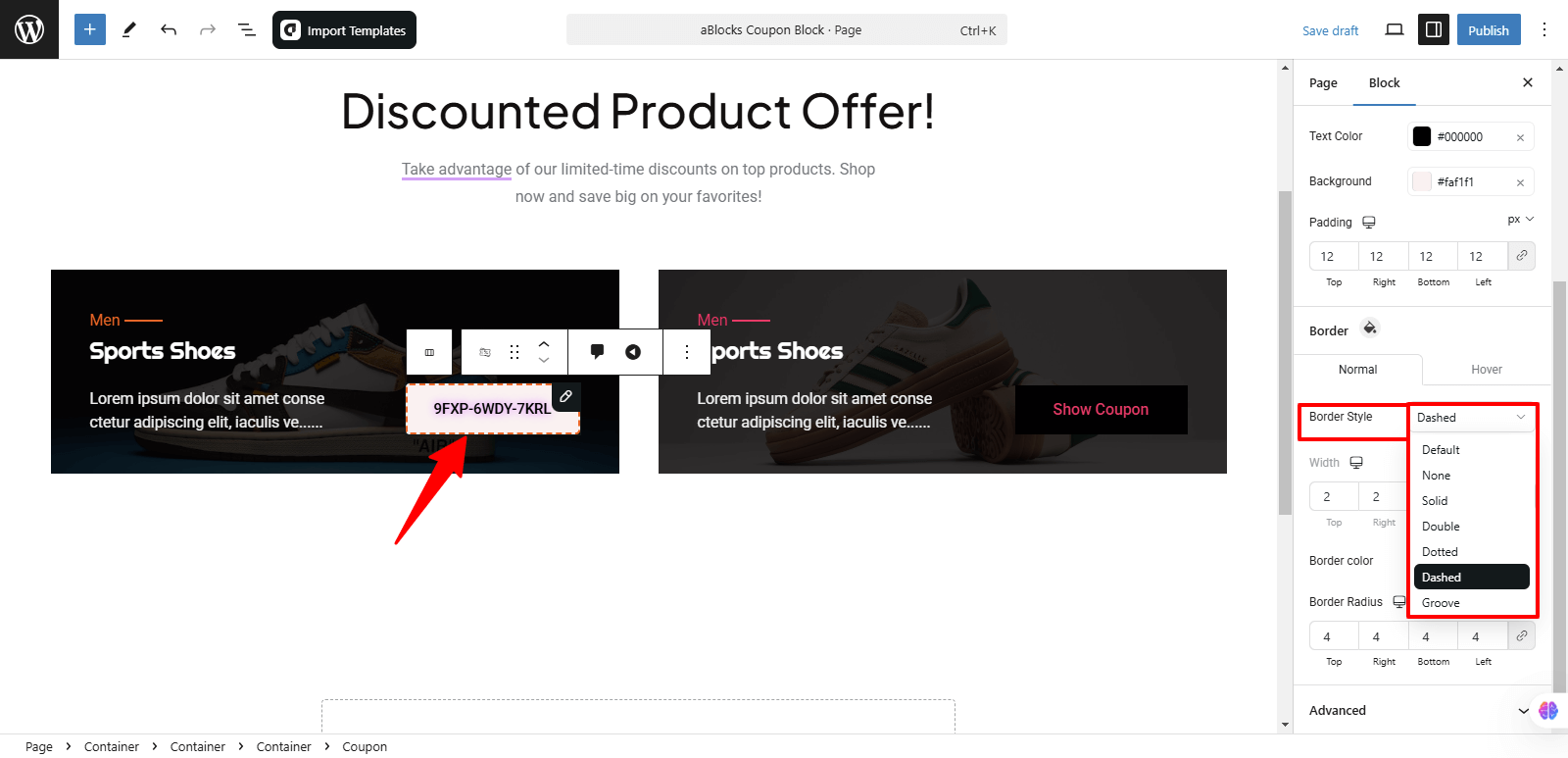
Border Style: In this section, you will find multiple border style options to customize the appearance of your Coupon Block. These include:
- None – Removes the border entirely, giving a clean, borderless look.
- Solid – Applies a single, continuous line around the coupon.
- Double – Creates a dual-line border, adding a more decorative effect.
- Dotted – Displays a border made up of small dots, giving a playful or creative touch.
- Groove – Adds a 3D grooved effect, making the border appear slightly embossed.
Each style offers a unique visual impact, allowing you to choose the one that best fits your design preferences.
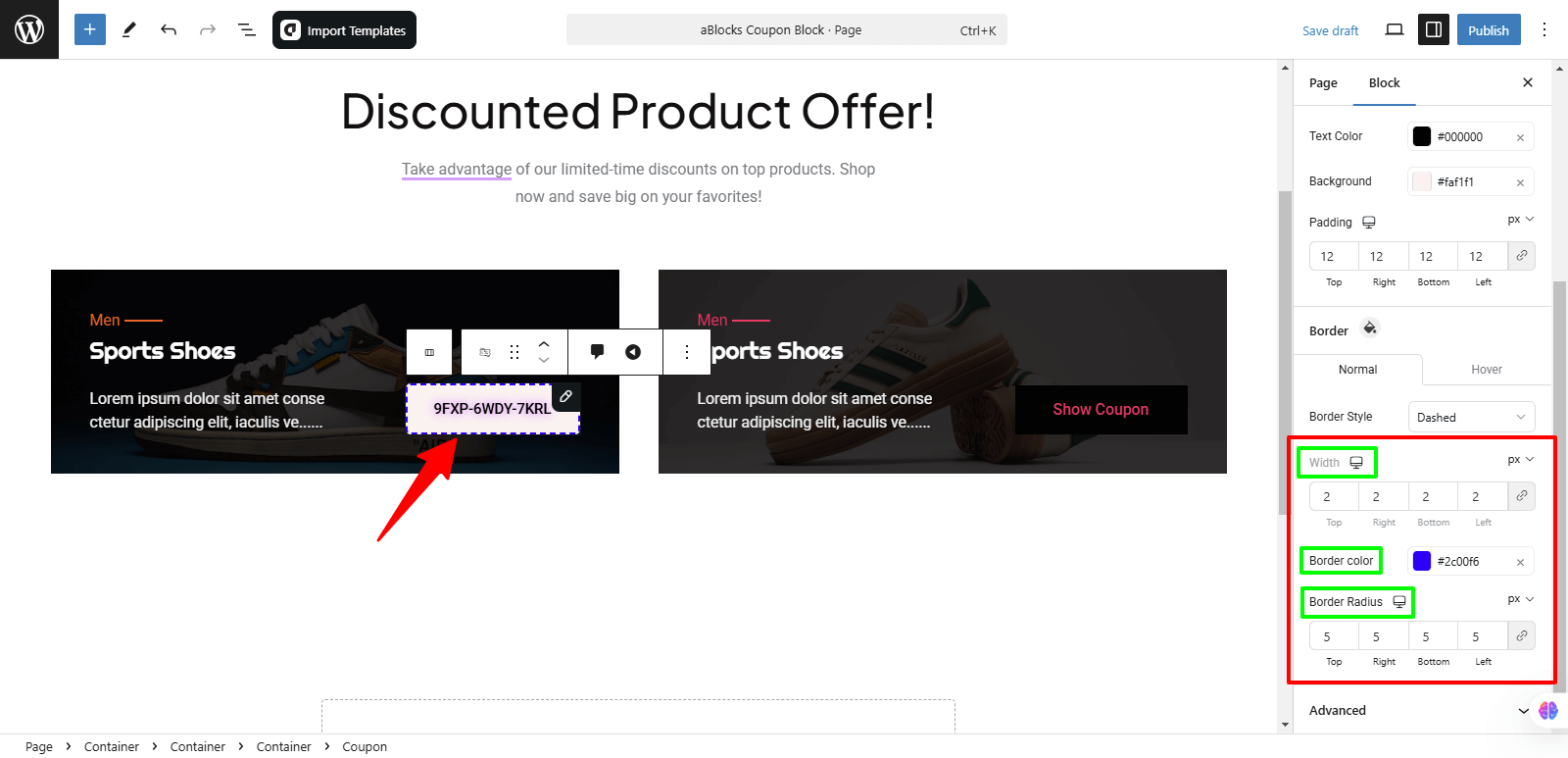
Widht: This option allows you to adjust the thickness of the border. To create unique styles, you can set a uniform width for all sides or customize the Top, Right, Bottom, and Left borders individually. A thicker border makes the coupon stand out, while a thinner one keeps it subtle.
Border Color: The Border Color option allows you to set the color of your coupon’s border, helping it blend with or stand out from the overall design.
Border Radius: The Border Radius option allows you to control the curvature of the coupon’s corners. You can set a uniform radius for all four corners to maintain a consistent look. Alternatively, you can customize each corner (top-left, top-right, bottom-left, bottom-right) individually to create a unique and creative design.
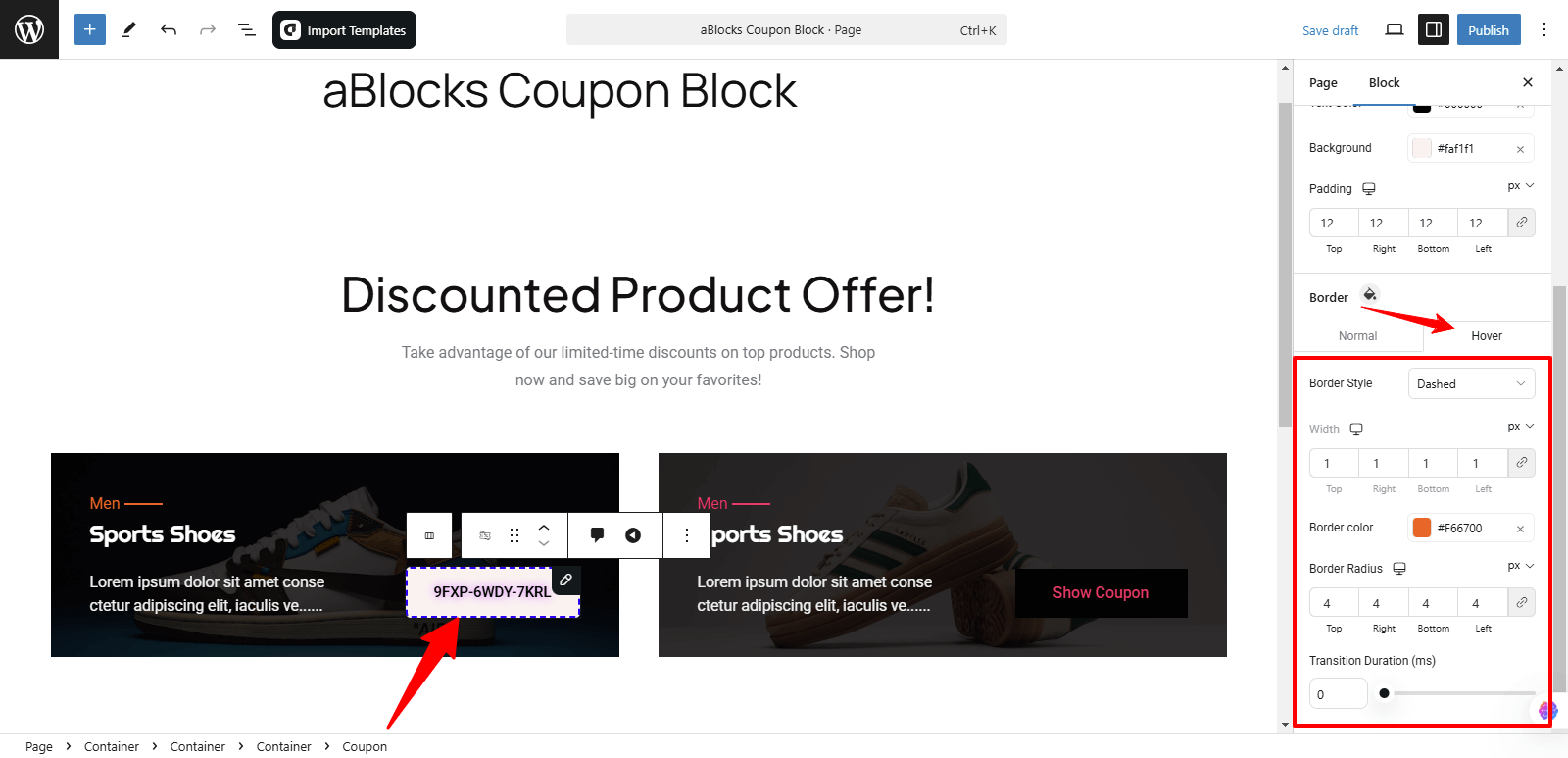
Hover
The Hover option provides the same customization settings as the Normal state. You can adjust the border Border Style, Width, Border Color, Border radius, and Transition Duration (ms) to create a different look when users hover over the coupon. This allows you to add interactive effects, making the design more engaging and dynamic.
Coupon Button
In this section, you will find two main options:
- Content
- Style
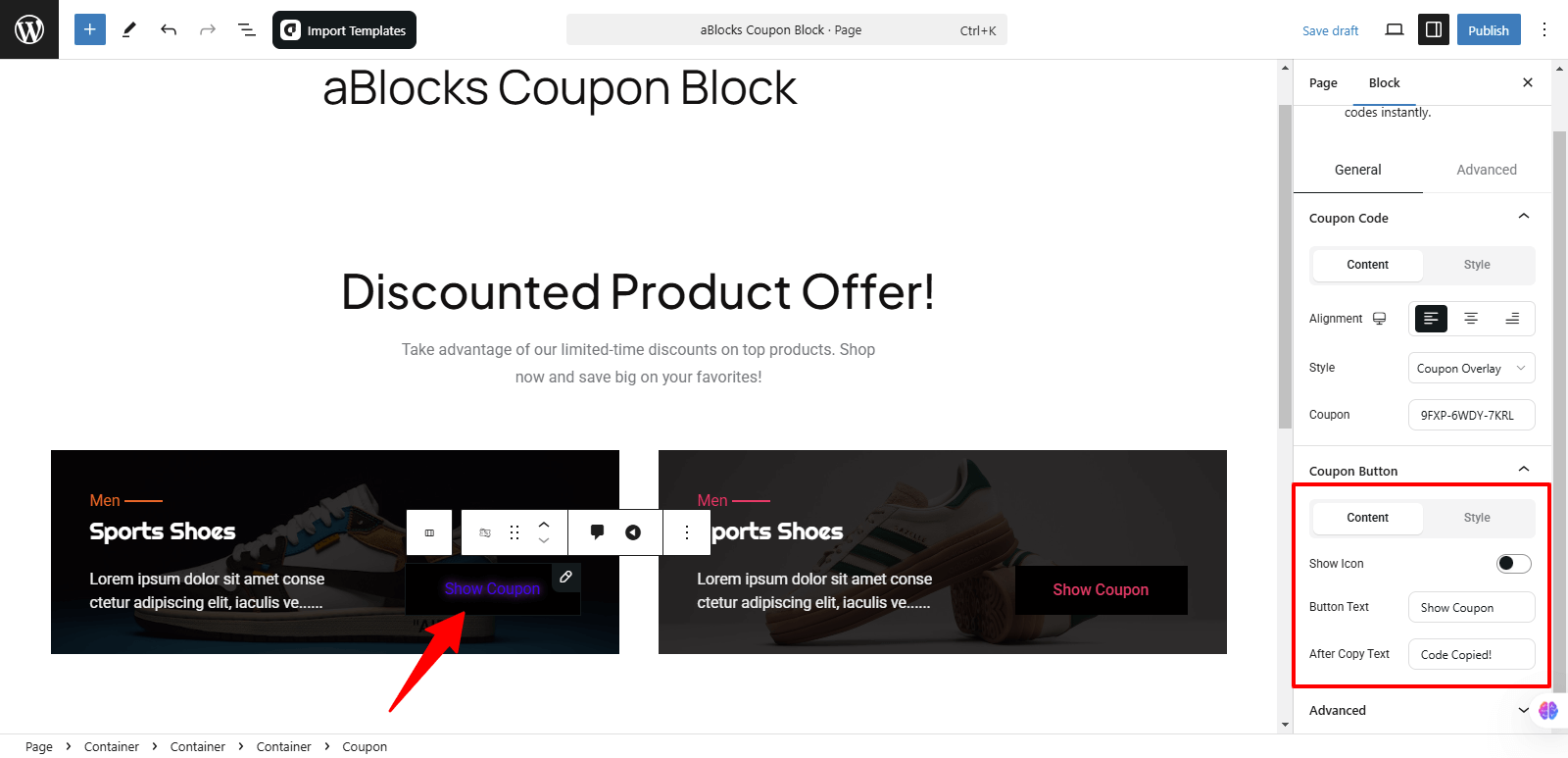
Content
In the Content section, you will find three customization options:
- Show Icon
- Button Text
- After Copy Text
These options help you personalize the coupon button for a better user experience.
Show Icon
This option allows you to enable or disable an icon on the coupon button to enhance its appearance.
Once enabled, you will see a new section called Icon Name, where you can choose a specific icon to display on the button, making it more visually engaging and user-friendly.
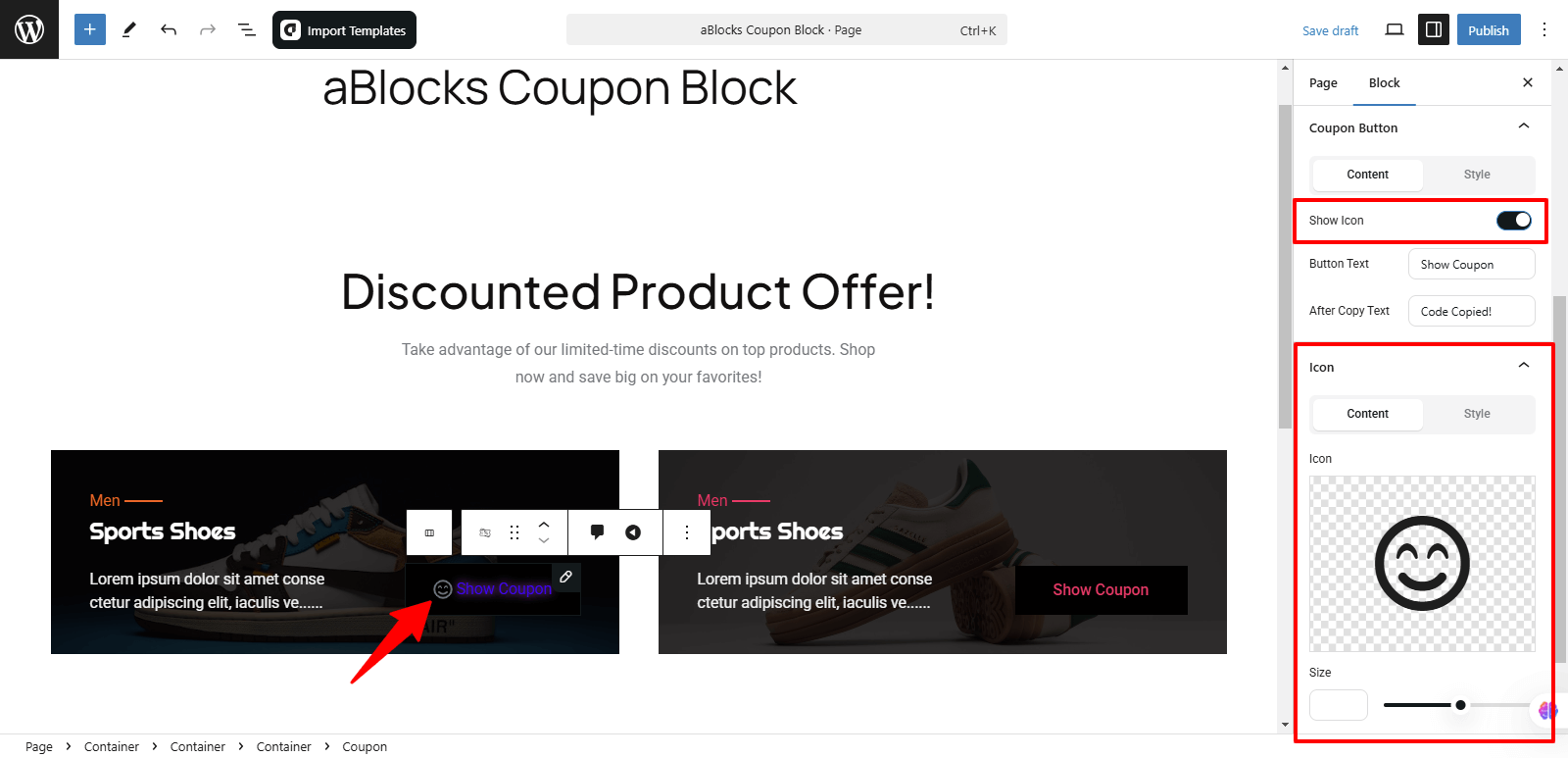
Icon
In this section, you will find two customization options:
- Content
- Style
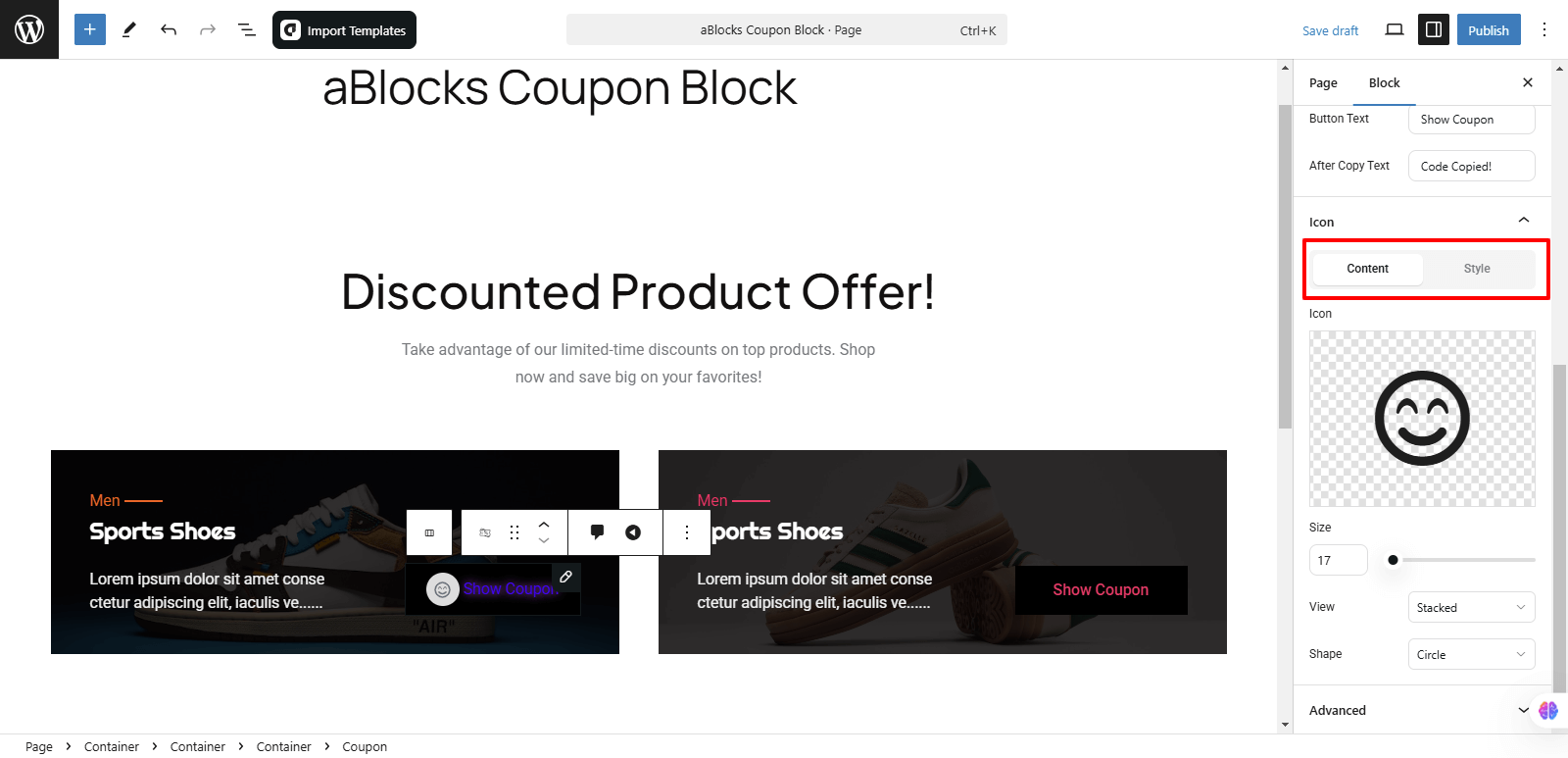
Content
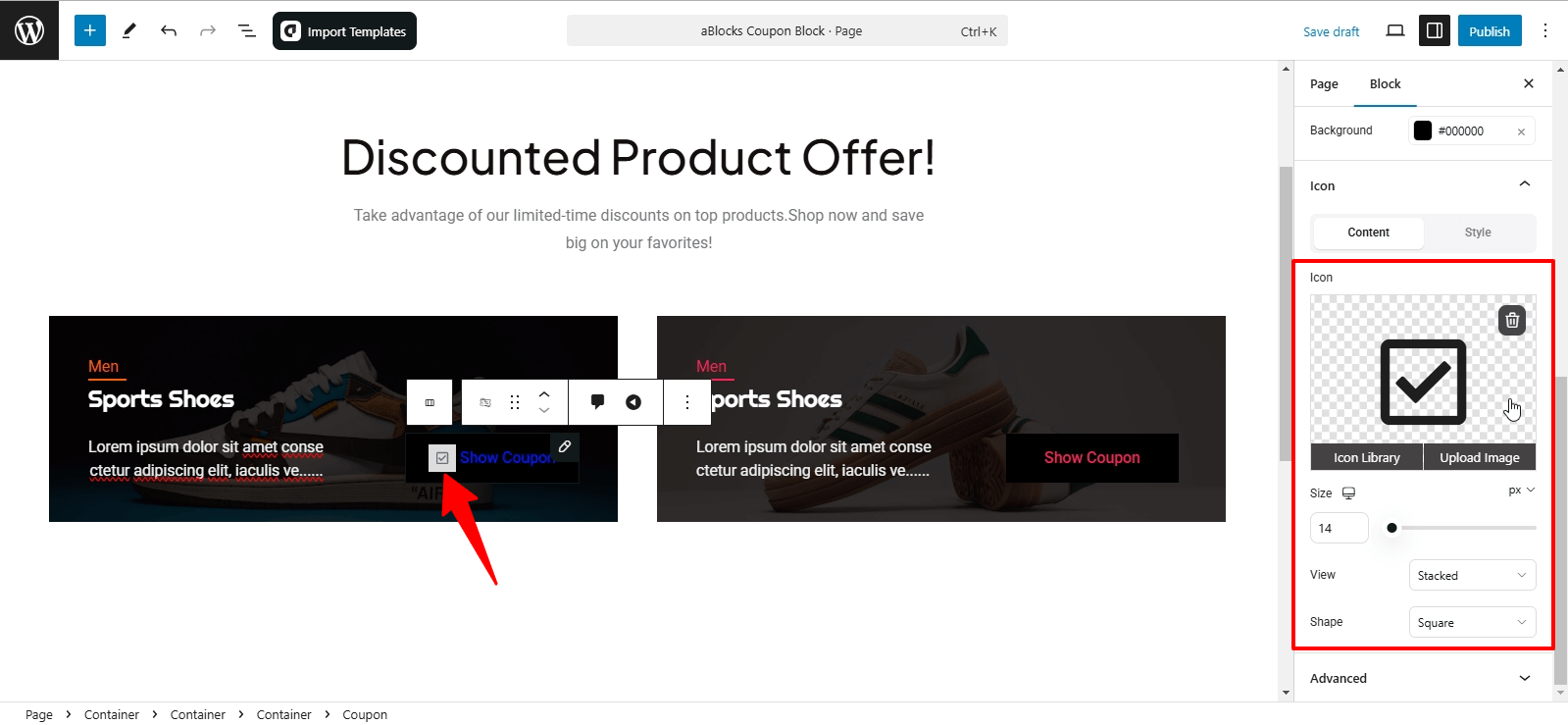
In this section, you will find several customization options:
- Icon – Upload an icon from the Icon Library or upload a custom image.
- Size – Easily adjust the icon size to fit your design.
- View – Choose between Stacked and Framed views for different visual styles.
- Shape – Select the icon shape as Circle or Square to match your design preference.
These options allow you to fully customize the icon for a unique and visually appealing look.
If you want to learn more about icons, you can read our How to Use aBlocks Icon Block for WordPress documentation.
Style
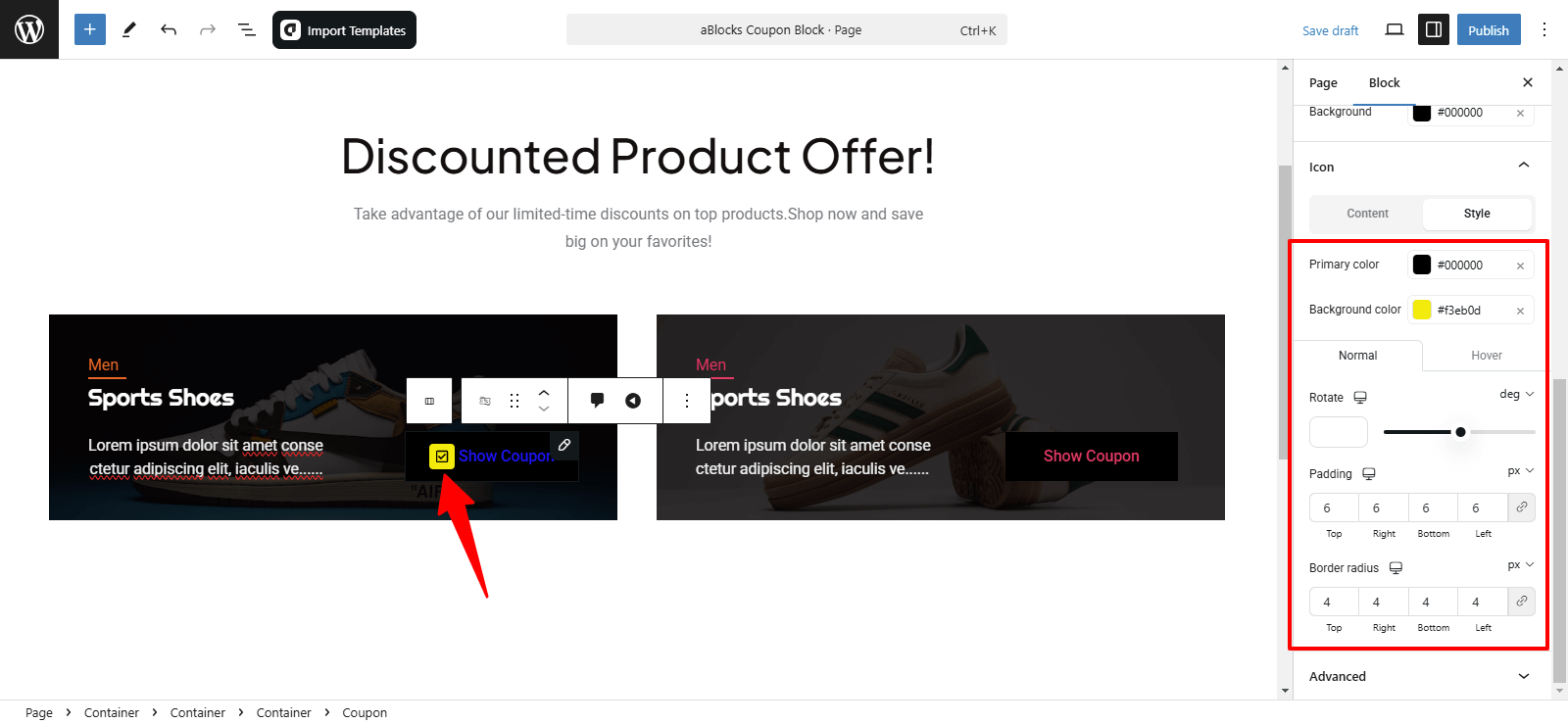
The Style section provides various customization options to enhance the look of your coupon:
- Primary Color – Change the main color of the icon easily.
- Background Color – Modify the background color of the icon.
Normal & Hover
You will also find customization options under Normal and Hover states:
- Normal – Adjust settings such as:
- Rotate – Rotate the icon to a specific angle.
- Padding – Add spacing around the icon.
- Border Radius – Control the roundness of the icon edges.
- Hover – The hover settings appear when you hover over the coupon block. It includes the same customization options as the Normal section, with an additional option:
- Transition Duration (ms) – Set how smoothly the transition effect happens when hovering over the icon.
These settings allow you to create a visually dynamic and engaging coupon design.
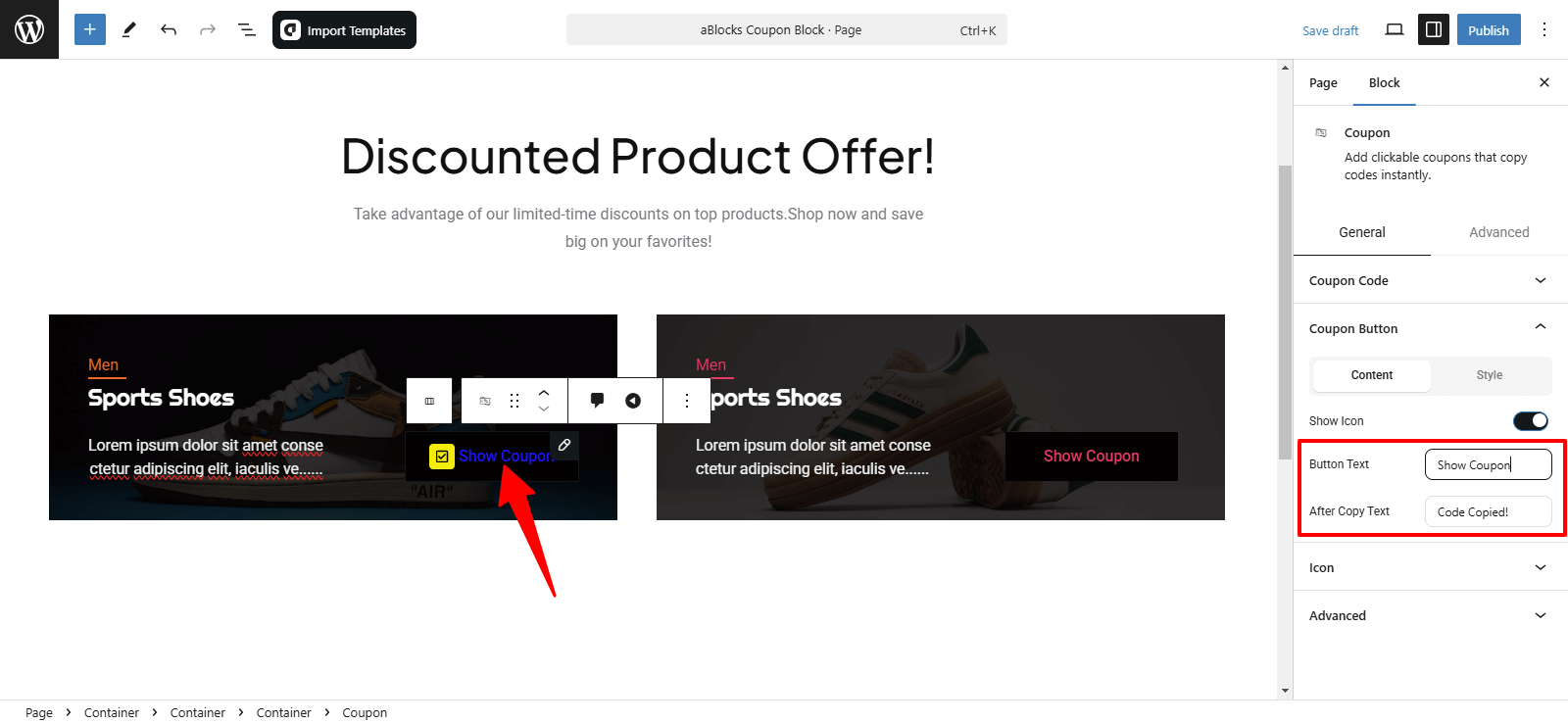
Button Text: You can add or remove any text on the button as per your preference. This allows you to customize the call-to-action, such as “Get Discount,” “Reveal Code,” or “Show Coupon,” to match your design and marketing strategy.
After Copy Text: Once a user clicks the coupon button, the text will automatically change to the value you set in this field. You can customize this message to confirm that the coupon code has been copied, such as “Code Copied!” or any other confirmation text that enhances the user experience.
The aBlocks Coupon Block makes it easy to create and customize stylish discount coupons for your WordPress site. With a range of customization options, including typography, text shadows, colors, and styles, you can design coupons that align perfectly with your brand and enhance user engagement. By following this guide, you can effectively showcase your discount offers and maximize conversions.
If you have any questions or need assistance, our support team is always here for you. Feel free to reach out, and we’ll be happy to help.