





aBlocks Image comparison Blocks lets you showcase before-and-after images interactively. These blocks are ideal for design previews, photo edits, product comparisons, and more. This documentation covers setup, customization options, and best practices to help you integrate image comparison slider seamlessly into your WordPress site.
Add aBlocks Image Comparison Block
Open your WordPress dashboard and click to edit a page or post. Navigate to the section where you want to add the aBlocks image comparison block. You can also add it to a new page or post.
Click the plus (+) icon to add a new block.

Search for “Image Comparison” in the search option and select the aBlocks Image Comparison block. The blocks will appear on your page.
Save time and get started instantly! With the aBlocks Demo Importer, you can add a fully designed Image Comparison Block in just one click!
Customize Image Comparison Block
When you take the aBlocks image comparison block you will see the option to upload an image before and after. Upload the images that you want to compare. You can select the images from your media library also you can upload images from your device.

To customize the image comparison go to the right-side panel under Block > General. Here, you will see three different options to customize the toggle:
- Settings
- Handle
- Advanced
Let’s describe one by one:
Settings
The aBlocks Image Comparison block allows you to compare two images interactively by dragging a slider. This block offers customizable settings to tailor the appearance and functionality to suit your needs.
- Orientation: Controls the direction of the comparison slider.
- Horizontal: The slider moves left-to-right or right-to-left.
- Vertical: The slider moves top-to-bottom or bottom-to-top.
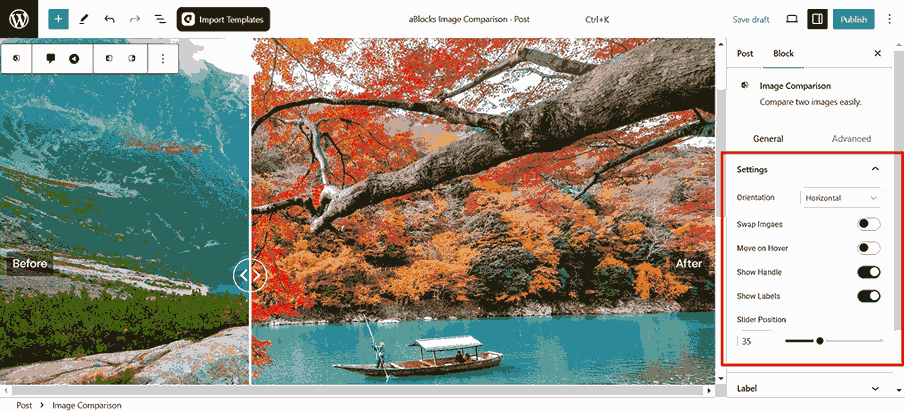
- Swap Images: Switches the positions of the two images being compared
- Move on Hover: Enables automatic slider movement when the mouse hovers over the block.:
- Show Handle: Displays or hides the slider handle. When turned on, the user can see and interact with the handle.
- Show Labels: Adds labels to indicate which image is displayed on each side of the slider.
- Slider Position: Sets the initial position of the comparison slider.
Label
The Label Settings section in the aBlocks Image Comparison block provides customization options for the labels displayed on the images. These settings allow you to define the appearance and behavior of the labels.
Label Content:
- Before Image Label: Sets the label text for the “Before” image.
- After Image Label: Sets the label text for the “After” image.
- Label Position: Controls the vertical position of the labels on the images. Set it to Middla, Top, and Button.

- Show Only on Hover: When enabled, the labels will only be visible when the user hovers over the block.
- Label with Overlay: A semi-transparent overlay behind the labels is added to improve readability against complex backgrounds.
Label Style
- Text Color: Allows you to customize the text color of the labels.
- Background Color: Sets the background color behind the labels.
- Overlay Color: Adds an overlay effect beneath the labels for better readability.

Label Border Options
Configure the label border settings, including style and radius. You can define border styles for both normal and hover interactions.
- Border Style: Choose the type of border none, solid, double, dotted, dashed, or groove.
- Border Radius: Adjust the corner roundness of the labels, which is customizable for all sides individually.
Handle
The Handle section in the aBlocks Image Comparison block allows you to customize the appearance of the slider handle, including its color, size, and border styling.

- Handle Color: Click the color box to choose a custom color for the slider handle.
- Slider Bar Size: Modify the size of the handle icon using the available input.
- Slider Icon Size: Modify the size of the handle icon using the available input.
- Slider Icon Border Size: Set the border thickness for the slider icon.
Everything you need to know about the aBlocks Image Comparison Block! Easily add and customize a stunning image comparison slider with aBlocks. If you need any assistance, our dedicated support team is always ready to help—reach out anytime, and we’ll resolve any issues for you!