





Dynamic Content in aBlocks enables you to insert data from your WordPress site directly into your block designs. Instead of entering static text, images, or links, you can pull dynamic values like post titles, pages featured images, author names, user data, custom fields, and more — all powered by your existing WordPress content.
This feature is ideal for both template creation and individual block customization. Whether you’re building a blog post layout, a product listing, or a custom user profile page, dynamic content ensures your designs remain reusable, flexible, and content-driven.
Let’s explore how it works using the Button Block as an example.
How to Use Dynamic Content
In aBlocks, any compatible block, like Button can have fields that accept Dynamic Content Tags. For instance, you can dynamically populate the button label, button link, or even assign dynamic attributes based on post or user data.
Here’s how you can use dynamic content with a Button Block:
Add a Button Block
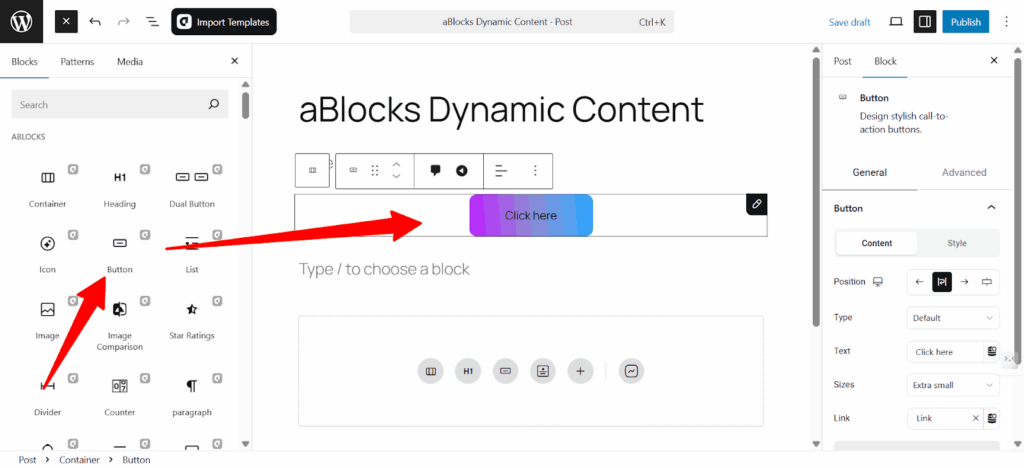
Drag and drop the Button block into your design area as usual.
Enable Dynamic Content
Look for the dynamic icon (⛃) next to the input fields. For the Button block, you’ll typically see it in:
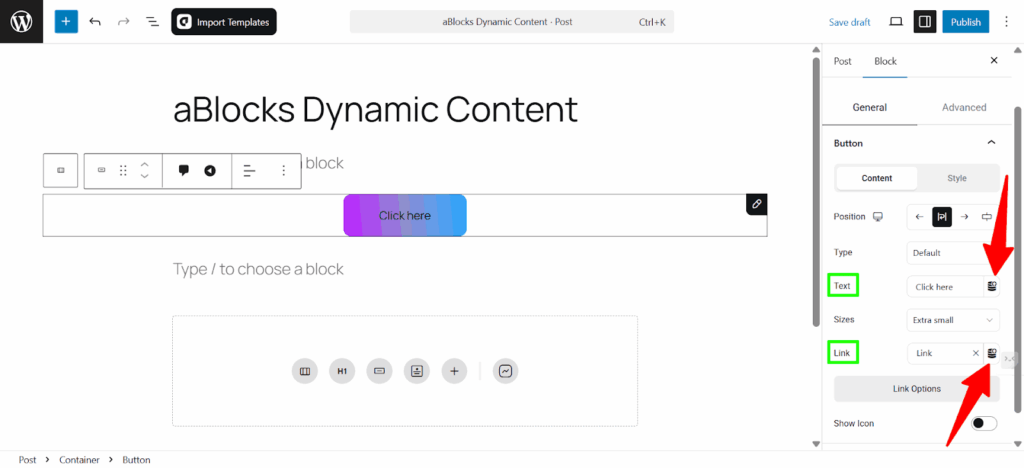
- Button Text
- Button URL
Configure Dynamic Options
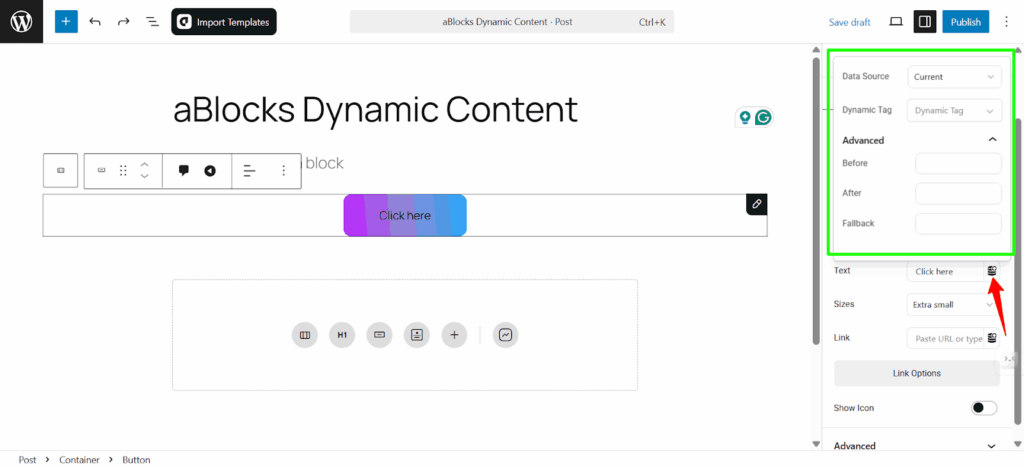
Once clicked, you’ll see Data Source, Dynamic Tags, and under the Advanced, you will see: Before, After, and Fallback. Let’s describe one by one.
Data Source
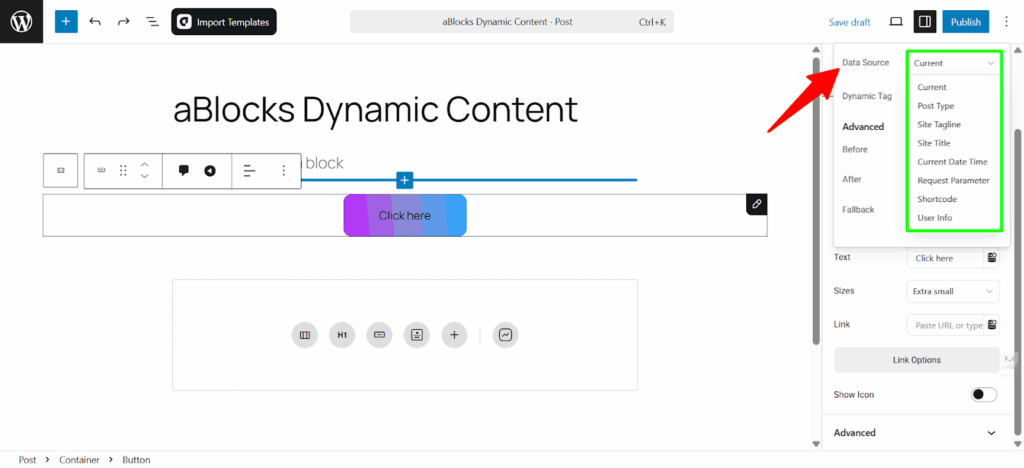
- Current: Fetches data from the current post or page being viewed or edited.
- Post Type: Retrieves data from a specified post or custom post type using a defined post ID.
- Site Tagline: Displays the tagline defined in WordPress general settings.
- Site Title: Displays the title of the site set in WordPress settings.
- Current Date Time: Displays the server’s current date and/or time in a specified format.
- Request Parameter: Outputs a value from a URL or form request using GET or POST
Parameters. - Shortcode: Executes and displays the output of a specified WordPress shortcode.
- User Info: Displays information about the currently logged-in user, such as name, email, or role.
Dynamic Tags
Post
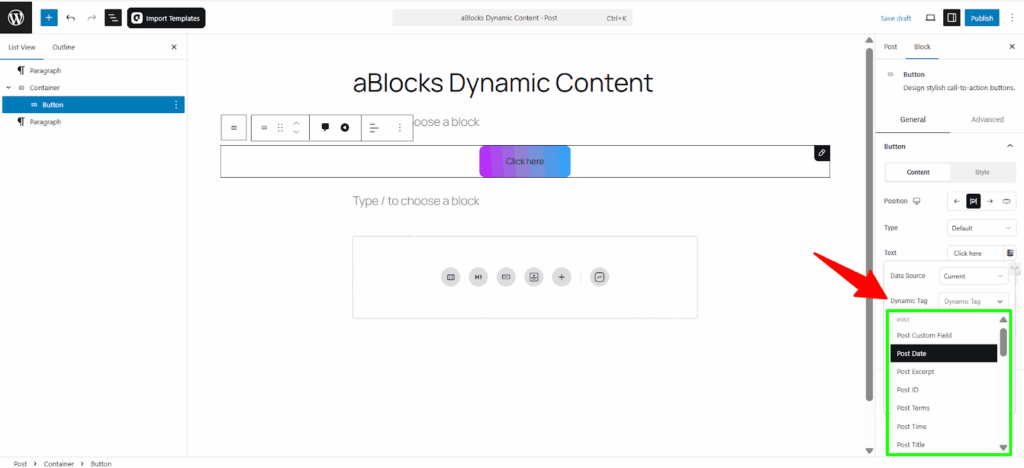
- Post Custom Field: Displays the value of a specified custom field from the current post.
- Post Date: Outputs the publish date of the current post.
- Post Excerpt: Shows the excerpt or summary of the current post.
- Post ID: Displays the ID of the current post.
- Post Terms: Lists taxonomy terms (like categories or tags) assigned to the current post.
- Post Time: Shows the publish time of the current post.
- Post Title: Displays the title of the current post.
Dynamic Tags – Featured Image Data
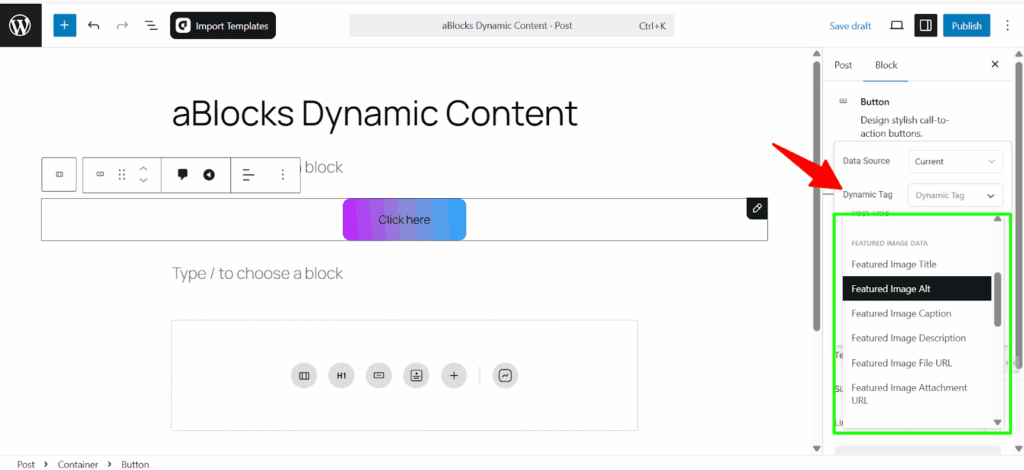
- Featured Image Title: Displays the title of the featured image.
- Featured Image Alt: Outputs the alt text of the featured image.
- Featured Image Caption: Shows the caption attached to the featured image.
- Featured Image Description: Displays the image’s description content.
- Featured Image File URL: Provides the direct URL to the featured image file.
- Featured Image Attachment URL: Links to the attachment page of the featured image.
Author
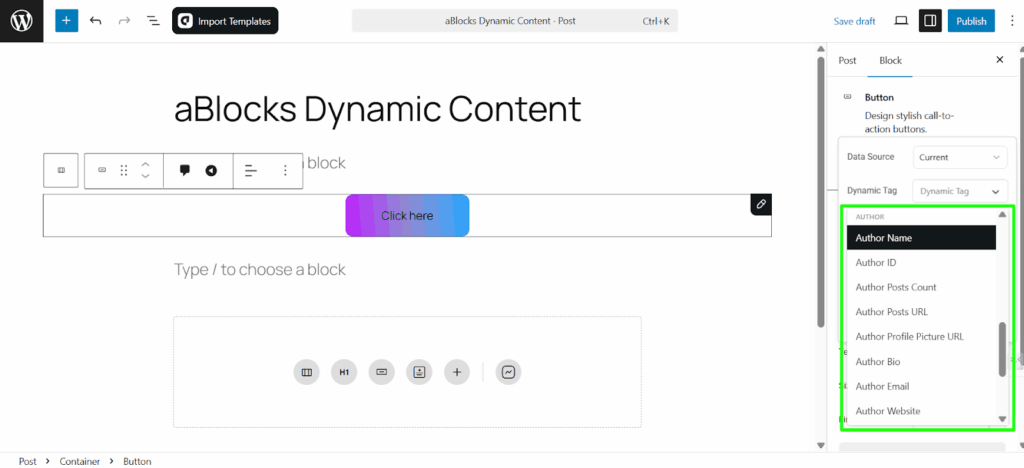
- Author Name: Displays the full display name of the post author.
- Author ID: Shows the numeric ID assigned to the author by WordPress.
- Author Posts Count: Total number of posts published by the author.
- Author Posts URL: URL to the author’s archive page listing all their posts.
- Author Profile Picture URL: Direct URL to the author’s avatar image.
- Author Bio: Outputs the biographical info set in the author’s profile.
- Author Email: Displays the email address of the post author.
- Author Website: URL of the website entered in the author’s profile.
- Author Meta: Returns custom meta field values from the author profile.
- Author First Name: The first name of the author as saved in the profile.
- Author Last Name: The last name of the author as saved in the profile.
- Comments Number: Shows the total number of comments on the current post.
Advanced
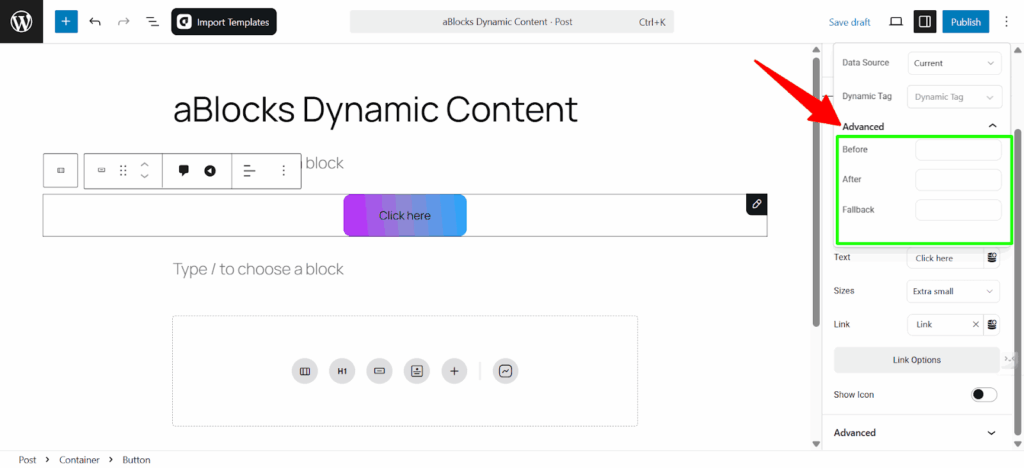
- Before: Add static text before the dynamic value.
- After: Add static text after the dynamic value.
- Fallback: Set a default value to show if the dynamic source is empty or unavailable.
Live Preview
Once you select the dynamic tag, the field will automatically update in real time with preview content based on the current post or page context.
Choose a Dynamic Tag for the Link
After enabling Dynamic Content for a block (like a Button), you can dynamically insert links by selecting the Dynamic Link option. Click the dynamic icon (⛃) beside the Link field and choose from the dropdown.
Here is the complete list of dynamic link options available:
Standard Link Sources
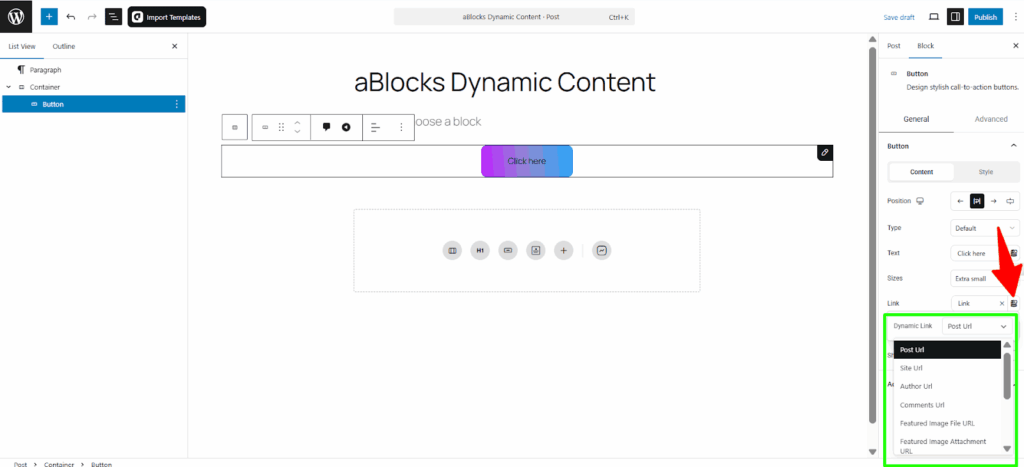
- Post URL: The URL of the current post or page.
- Site URL: The base URL of your WordPress site.
- Author URL: The archive page URL of the post author.
- Comments URL: Links directly to the comment section of the current post.
- Featured Image File URL: Direct URL to the featured image file.
- Featured Image Attachment URL: Links to the attachment page of the featured image.
Under the Internal URL group, you’ll find more structured dynamic sources:
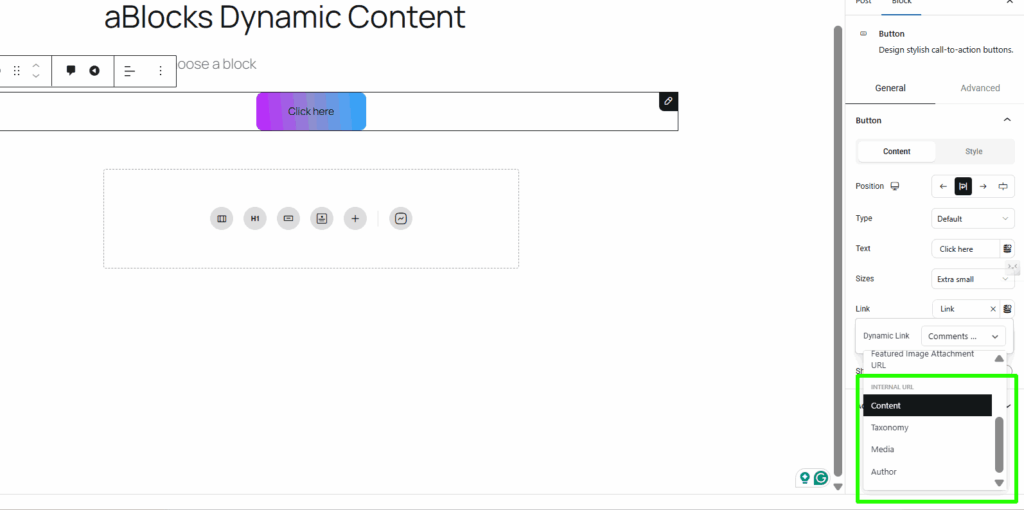
- Content: Allows you to link to internal content types (e.g., other posts or pages dynamically).
- Taxonomy: Provides links to taxonomy archives such as categories or tags.
- Media: Dynamically links to a media file or attachment.
- Author: Directs to the author’s archive or profile depending on context.
Conclusion
By following the steps above, you’ve now seen how to use aBlocks Dynamic Content feature to connect your design elements with live WordPress data. From setting the data source to selecting the correct dynamic tags and link types, you can now build highly customizable, data-driven layouts. This makes your website not only more efficient to manage but also much more dynamic and personalized for your visitors.