





Welcome to the aBlocks Video Block documentation! This guide will help you easily add and customize video blocks on your WordPress website. Whether you’re embedding YouTube, Vimeo, or self-hosted videos, aBlocks makes it simple to enhance your posts and pages.
You can add an aBlocks video block anywhere on your existing or new post and page with aBlocks. Let’s get started!
Add aBlocks Video Block
Let’s start from scratch. First, navigate to your WordPress dashboard and create a new post by clicking Add New Post. A new page will appear.

Click the plus icon (+) from the page or at the top left. All the blocks will appear here. Now search for the video block of aBlocks, then click on the aBlocks Video block to embed the video to your post.

Customize the Video
The video block will be added to your page. To customize it, go to the right-side panel Block>General and explore the vast library of aBlocks video block customization options.

In general, you will see two different options: Content and Style.
Content
In the Content, you can manage the core settings of your video. Let’s describe one by one:
Source: Here, you can select the source of your video. aBlocks allows you to choose from YouTube, Vimeo, and self-hosted video sources.

Link: From the video link option, you can add a link to your video to play it.
Start: Here, you can set a specific time to start your video.
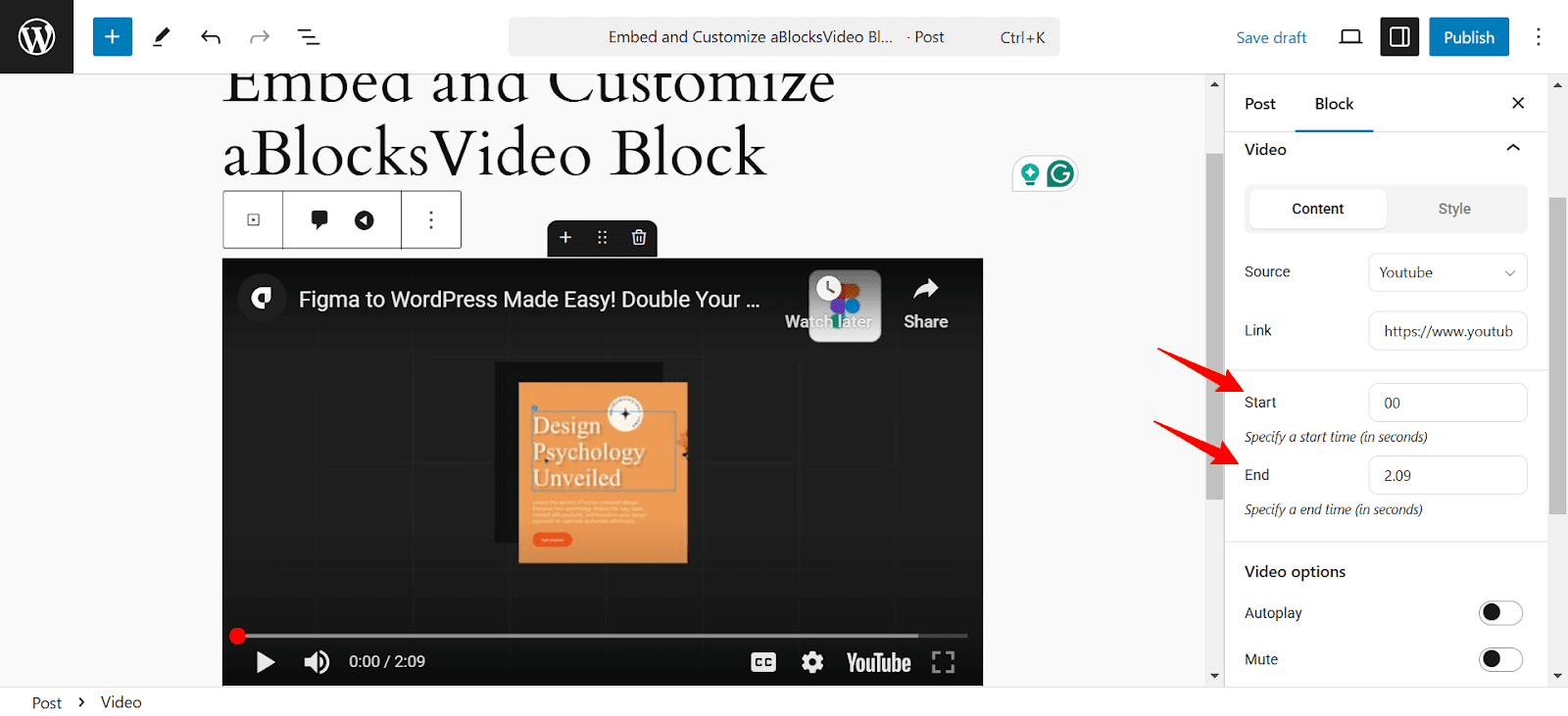
End: Here, you can set a specific time to end your video.
Now comes the Video options.
Autoplay: Enable this option to automatically play the video when a viewer navigates to this section.
Mute: Activate this setting to ensure the video plays without sound upon entering this section.
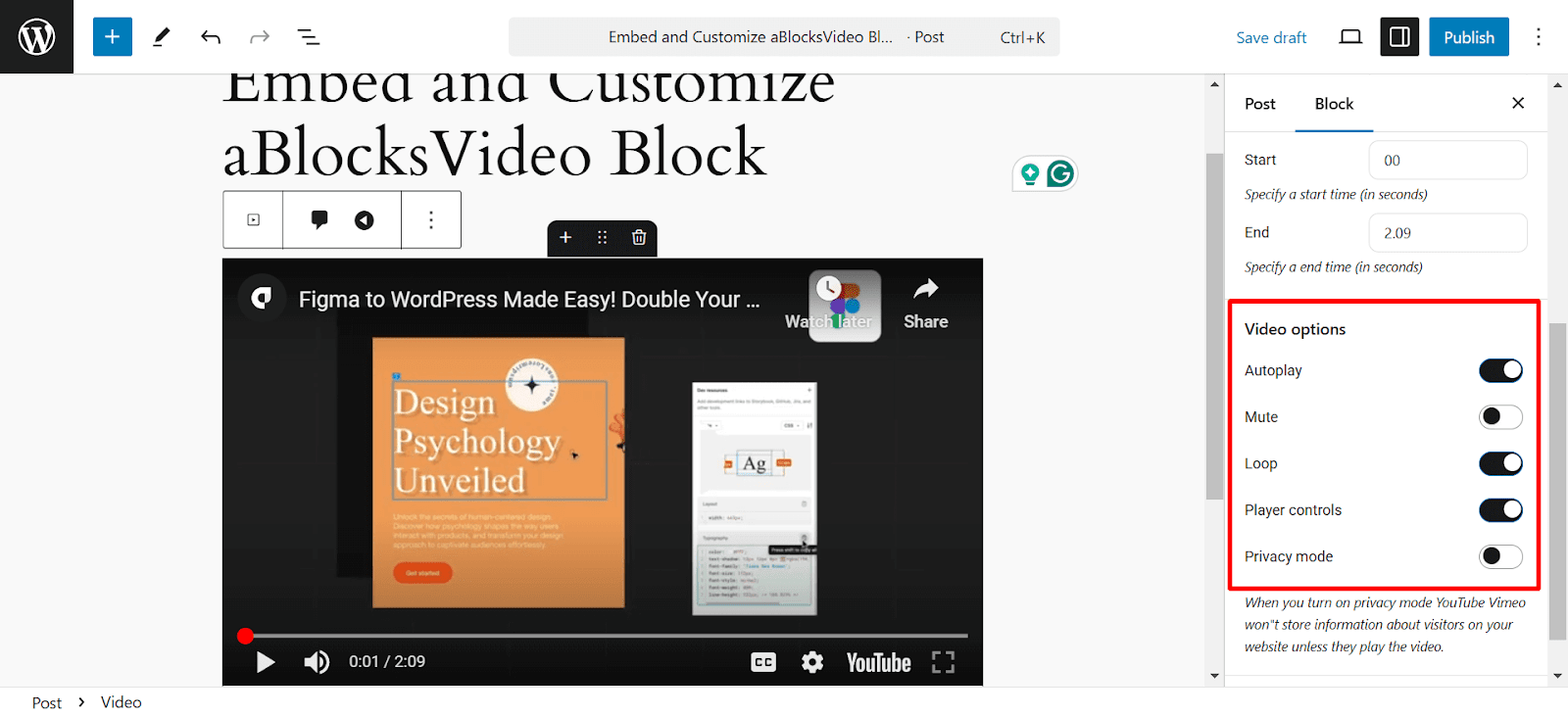
Loop: When enabling this, it automatically plays from the first when the video ends.
Player controls: When you enable this toggle, the users can control YouTube’s default controls: play, pause, sound, fast-forward, and others.
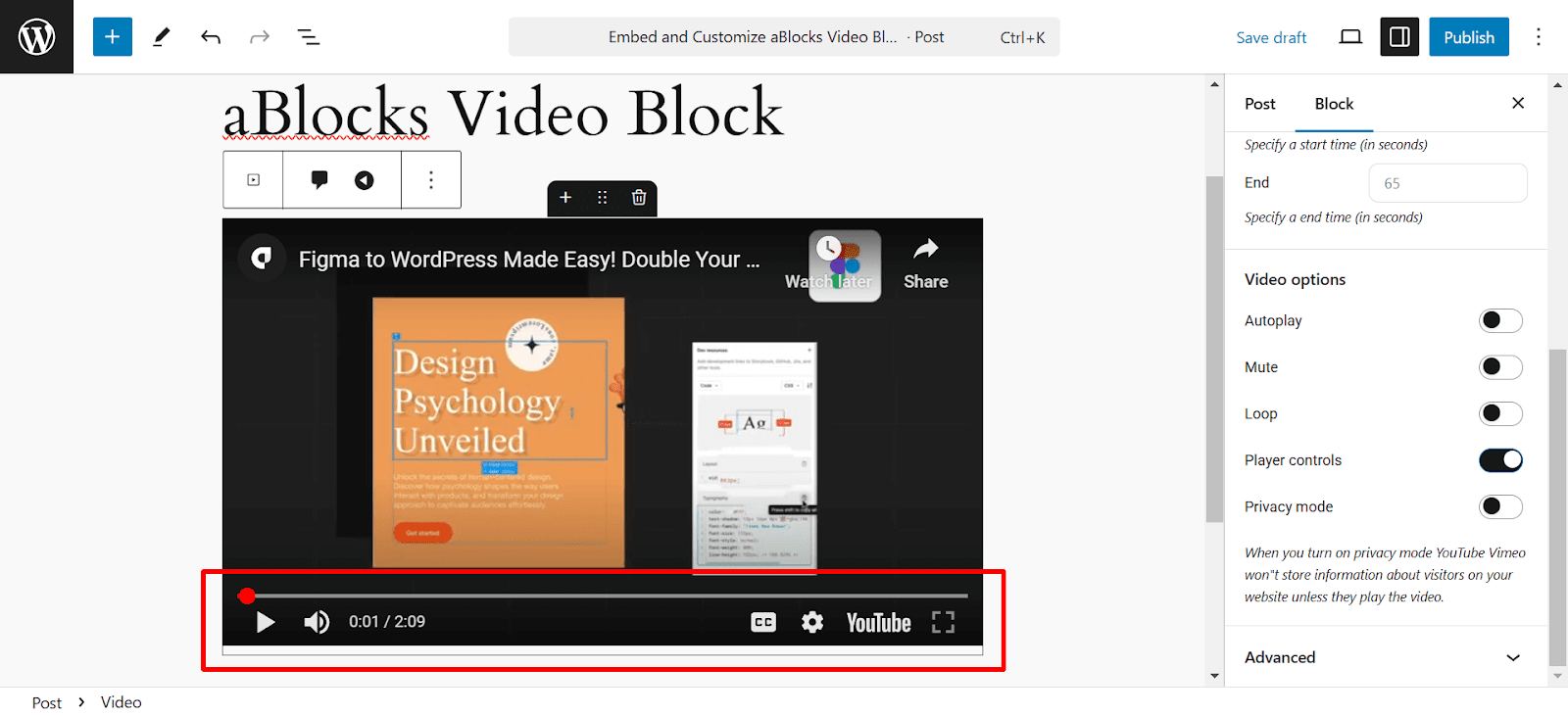
Privacy mode: By enabling Privacy mode, you can avoid the watch later and share option of this video.

Style
In the Style section, You can customize the style of your video. Here’s How:
Aspect ratio: Defines the video’s ratio of height and width
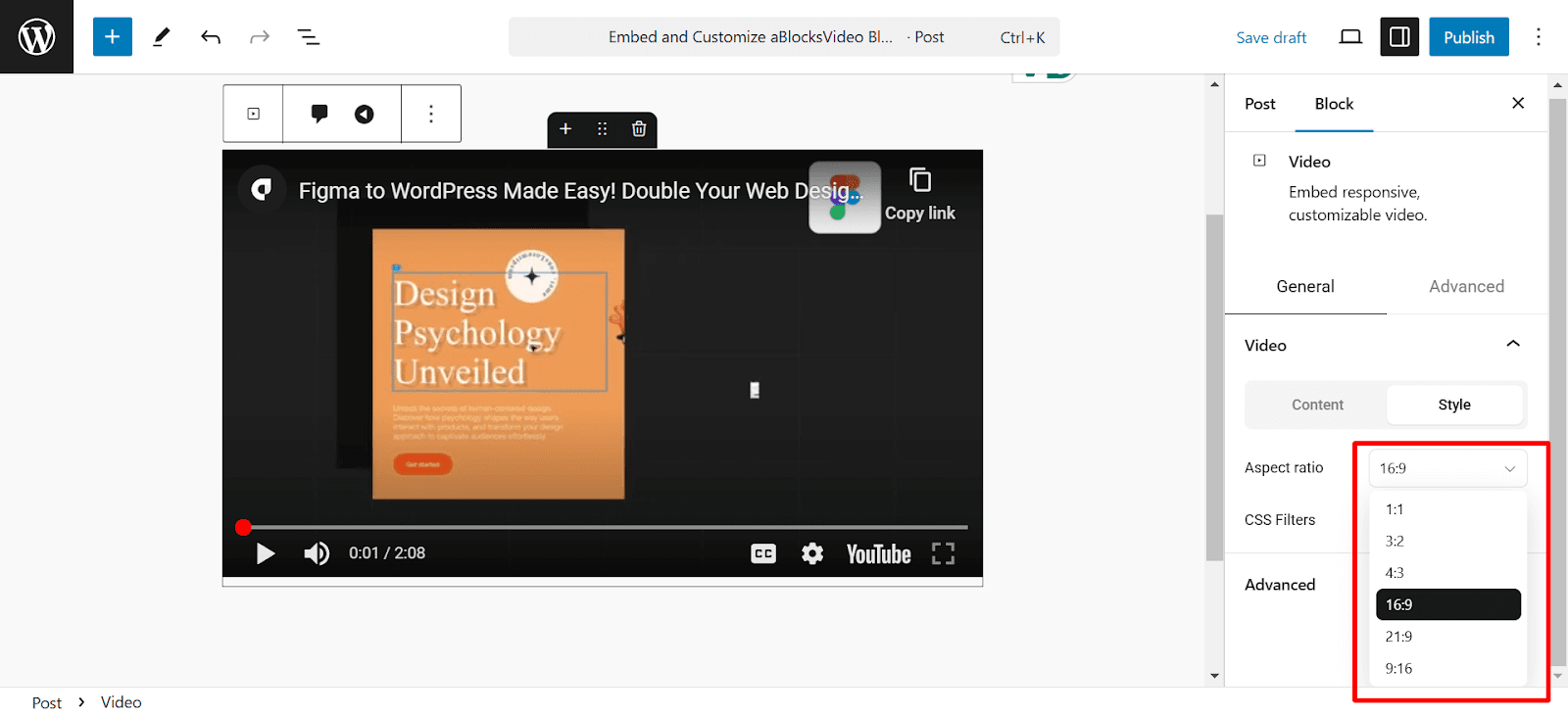
CSS Filters: You can control the Blur, Brightness, Contrast, Saturation, and Hue of the video from here. A desktop icon will appear beside every customization option. Click that to see how the design will appear on other devices and customize it as your own.
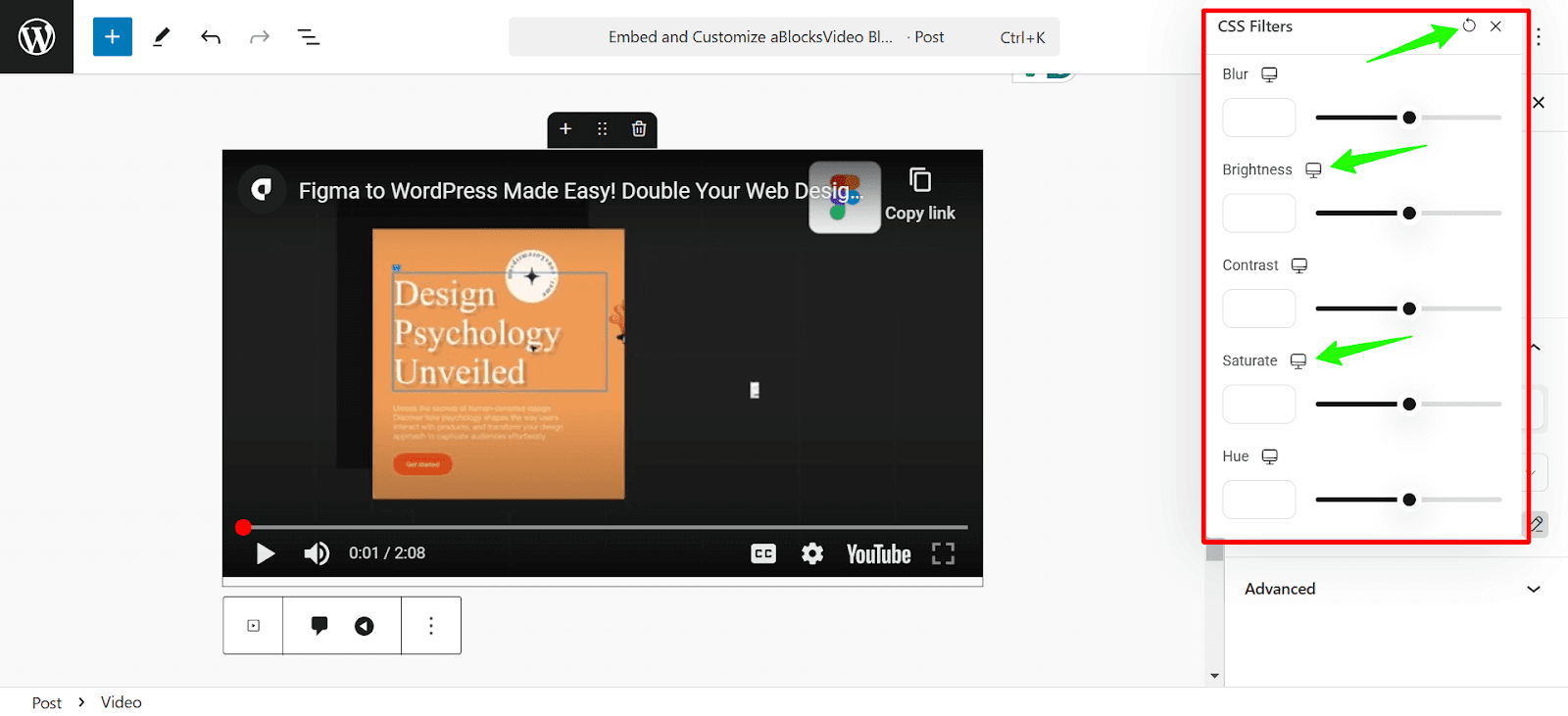
You can also return to the default settings by clicking on the reset icon at the top right corner.
That’s all about the aBlocks video block. Following this step-by-step guideline, you can easily embed and customize aBlocks video block without hassle. If you are still having problems, please create a support ticket. Our dedicated support team is always ready to help you.