





The News Ticker Block by aBlocks helps you display news, updates, announcements, or headlines in a horizontal scrolling format. This block is perfect for keeping your audience informed in real time. Here’s a simple, step-by-step guide to help you use it effectively.
Add the aBlocks News Ticker Block
Open your WordPress dashboard and select the page or post where you want to add a news ticker.
Click the ( + ) icon to open the block options.
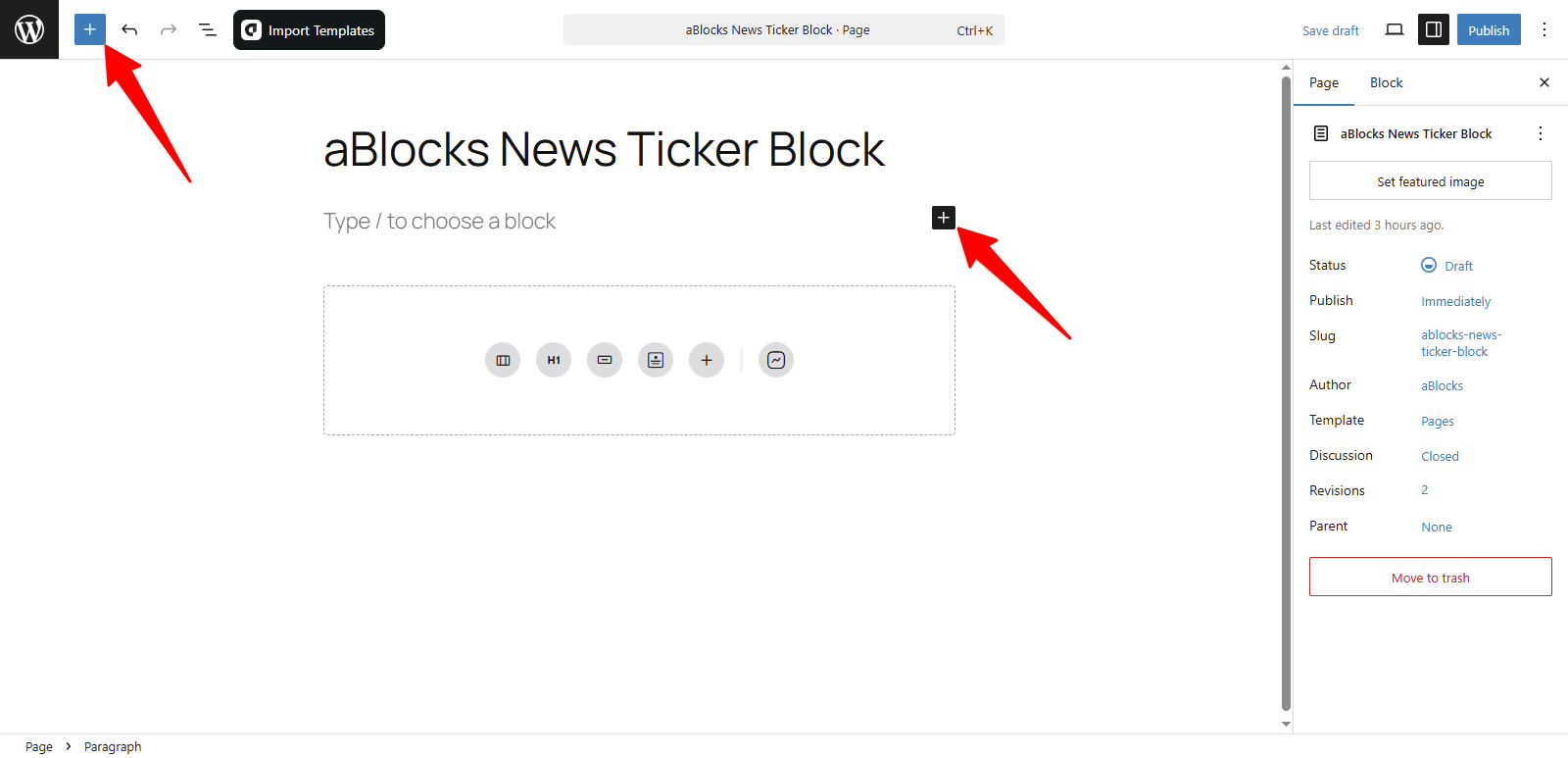
You’ll see all the available aBlocks blocks. Scroll to find the News Ticker Block or type News Ticker in the search bar to find it quickly.
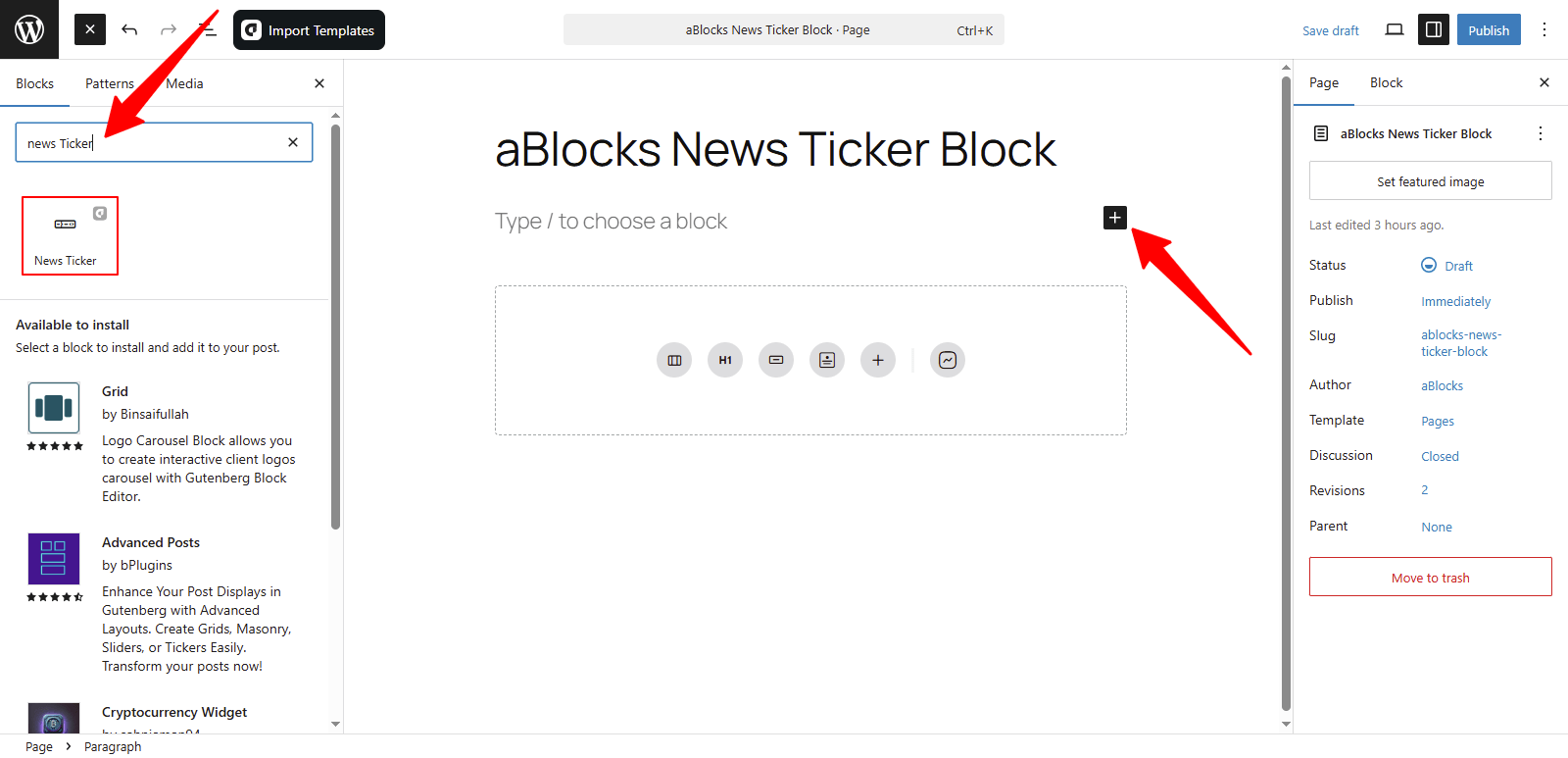
Now, click on the aBlocks News Ticker Block to add it. After that, you can adjust the settings to match your site’s look and feel.
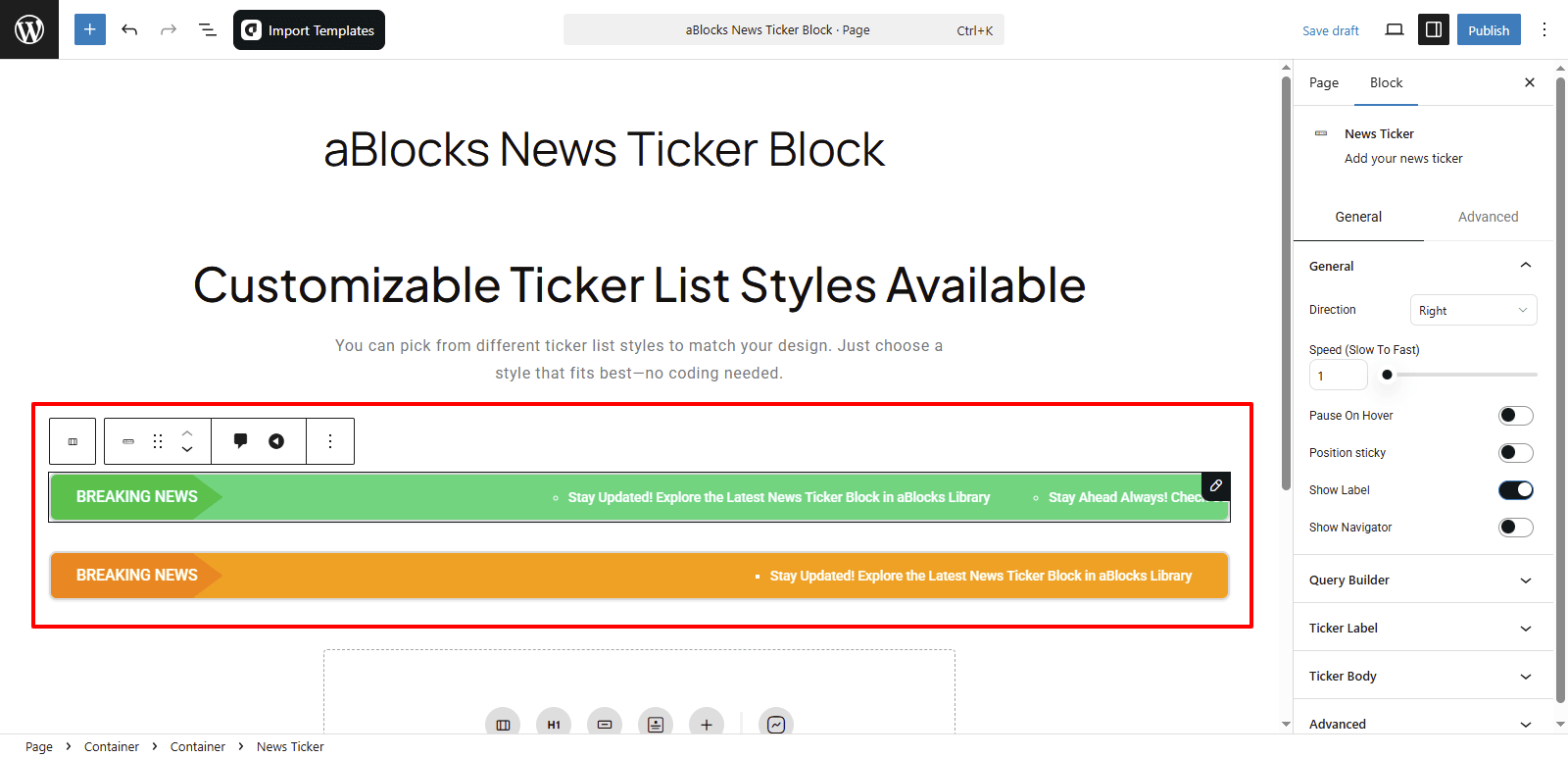
Customize the aBlocks News Ticker Block
We’ll guide you step by step to help you set up and customize the aBlocks News Ticker Block.
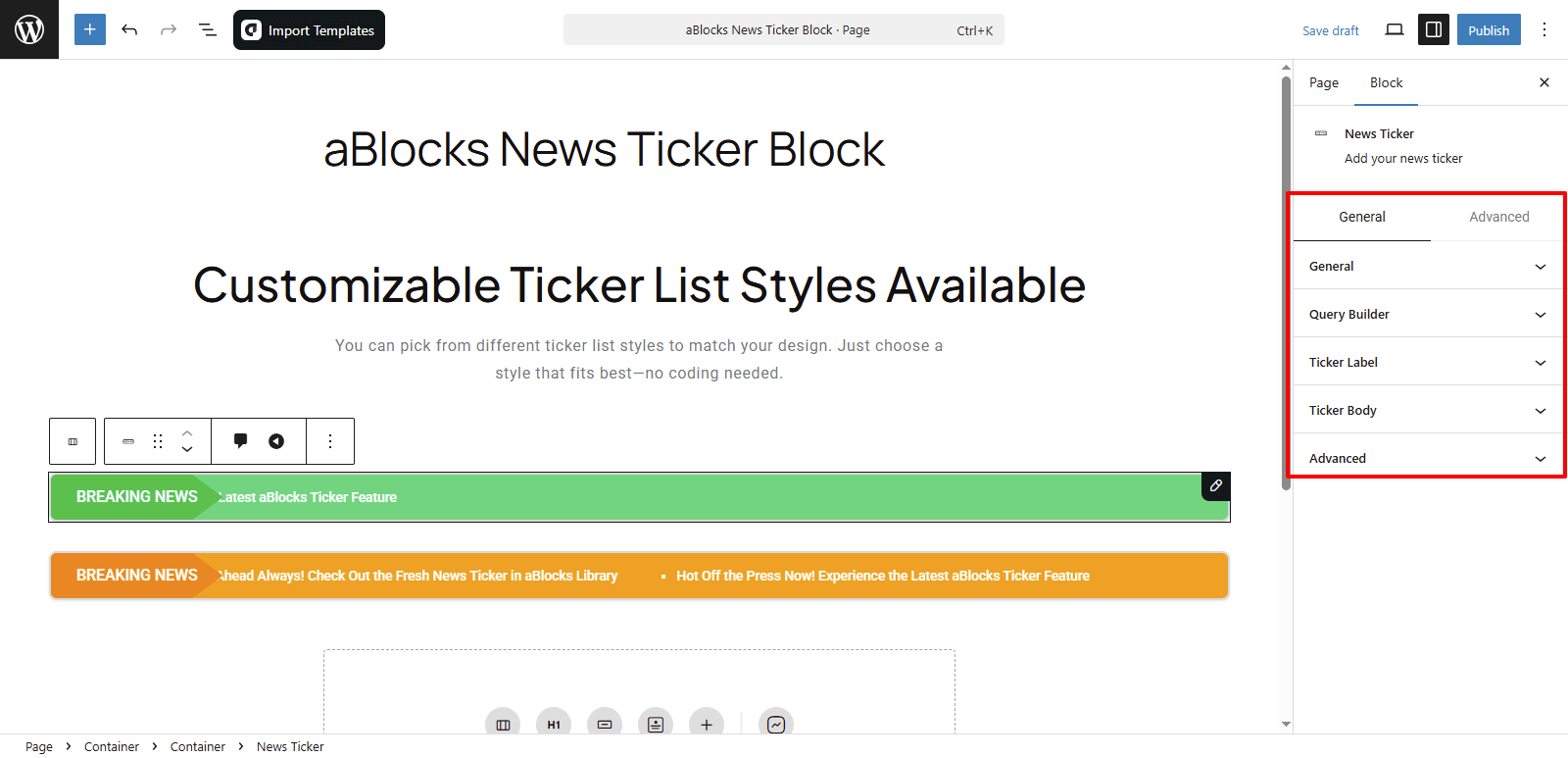
Go to the right panel, then Block > General. You’ll find three main sections:
- General
- Query Builder
- Ticker Body
Let’s explore each option step by step.
General
In the General section, you’ll find several control options to customize how the News Ticker works:
Direction: Choose the scroll direction of your news ticker. You can select Left or Right.
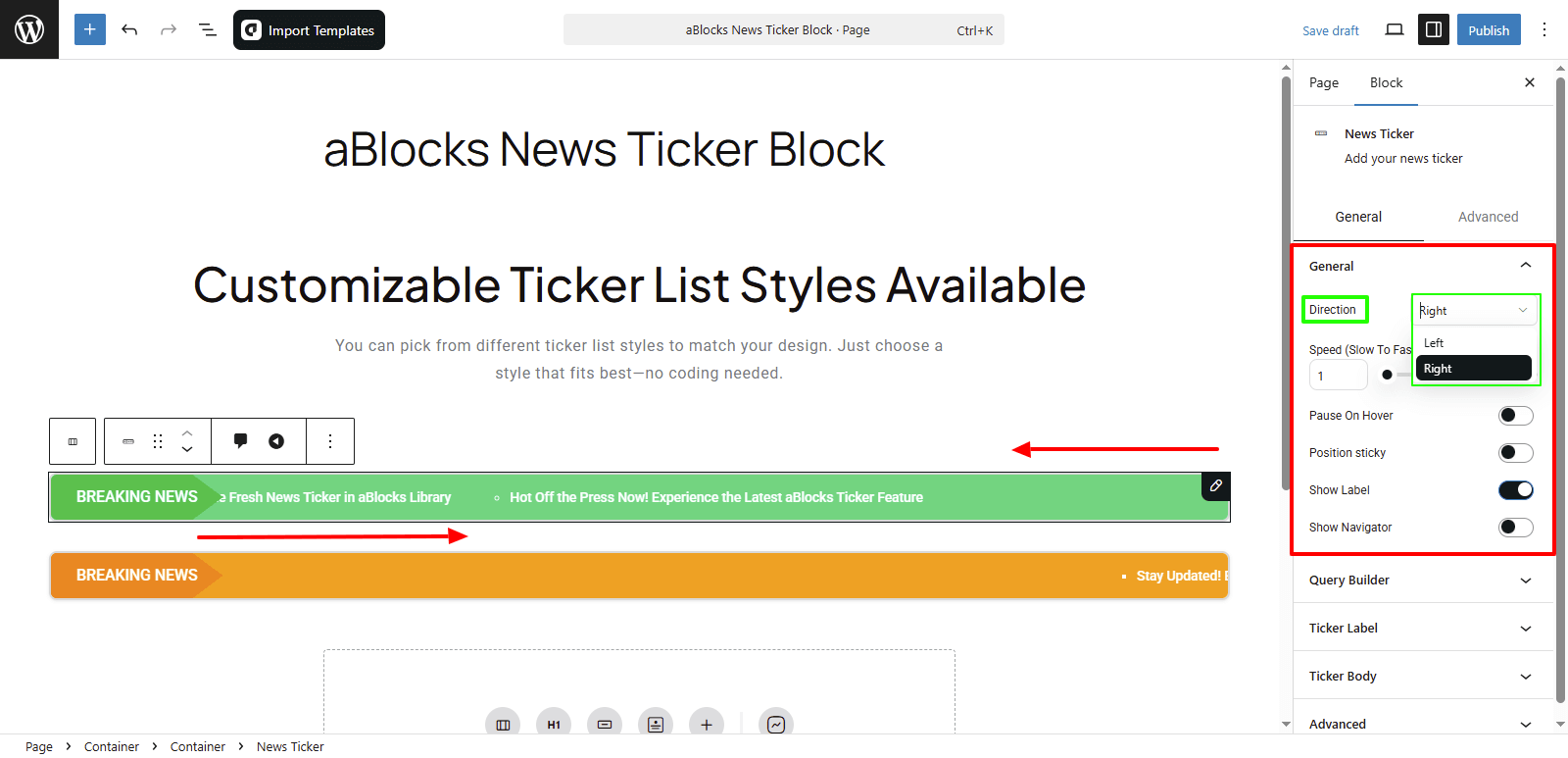
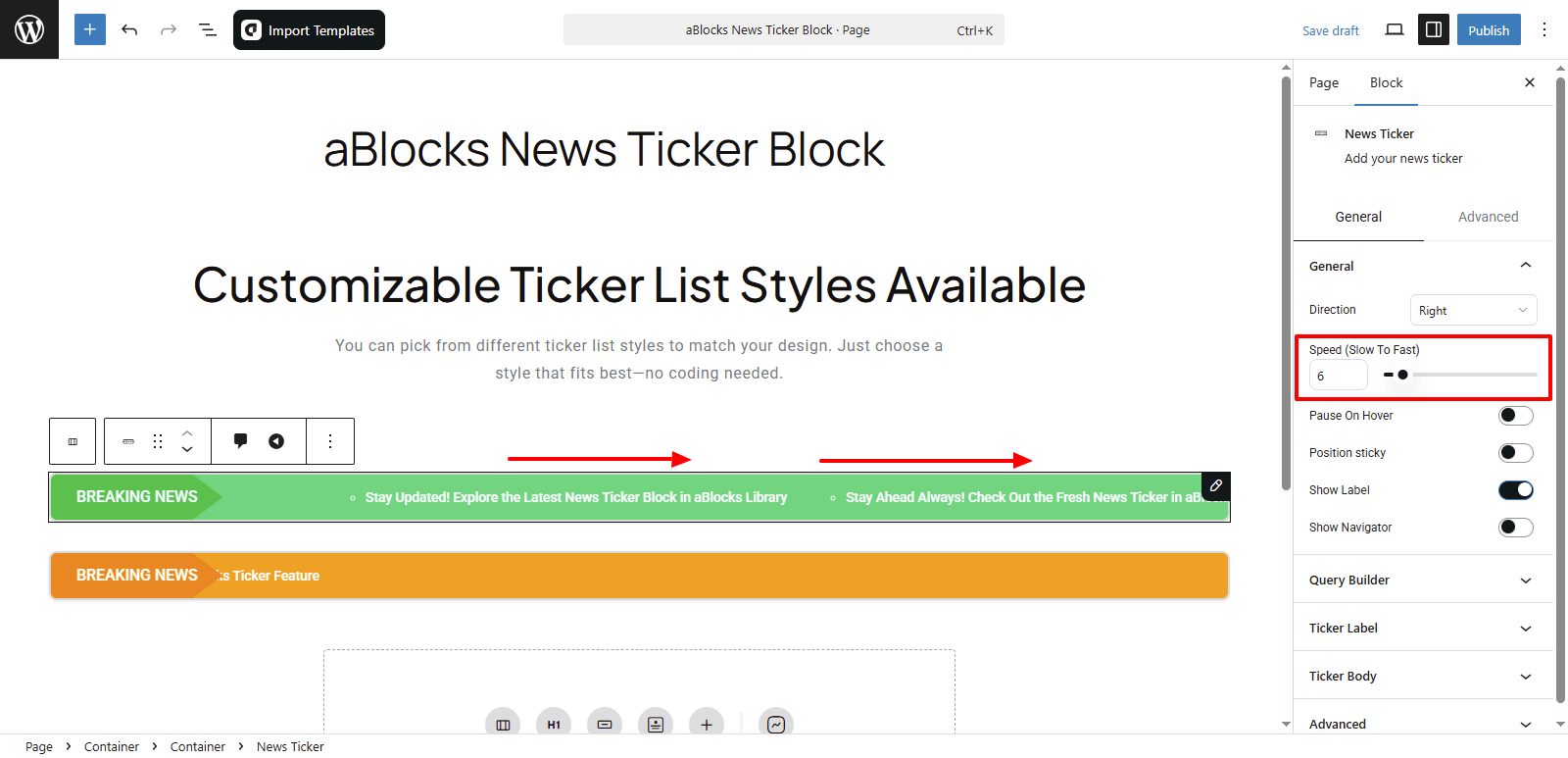
Speed (Slow to Fast): Adjust how fast the news scrolls. Move the slider or enter a value to control the speed from slow to fast.
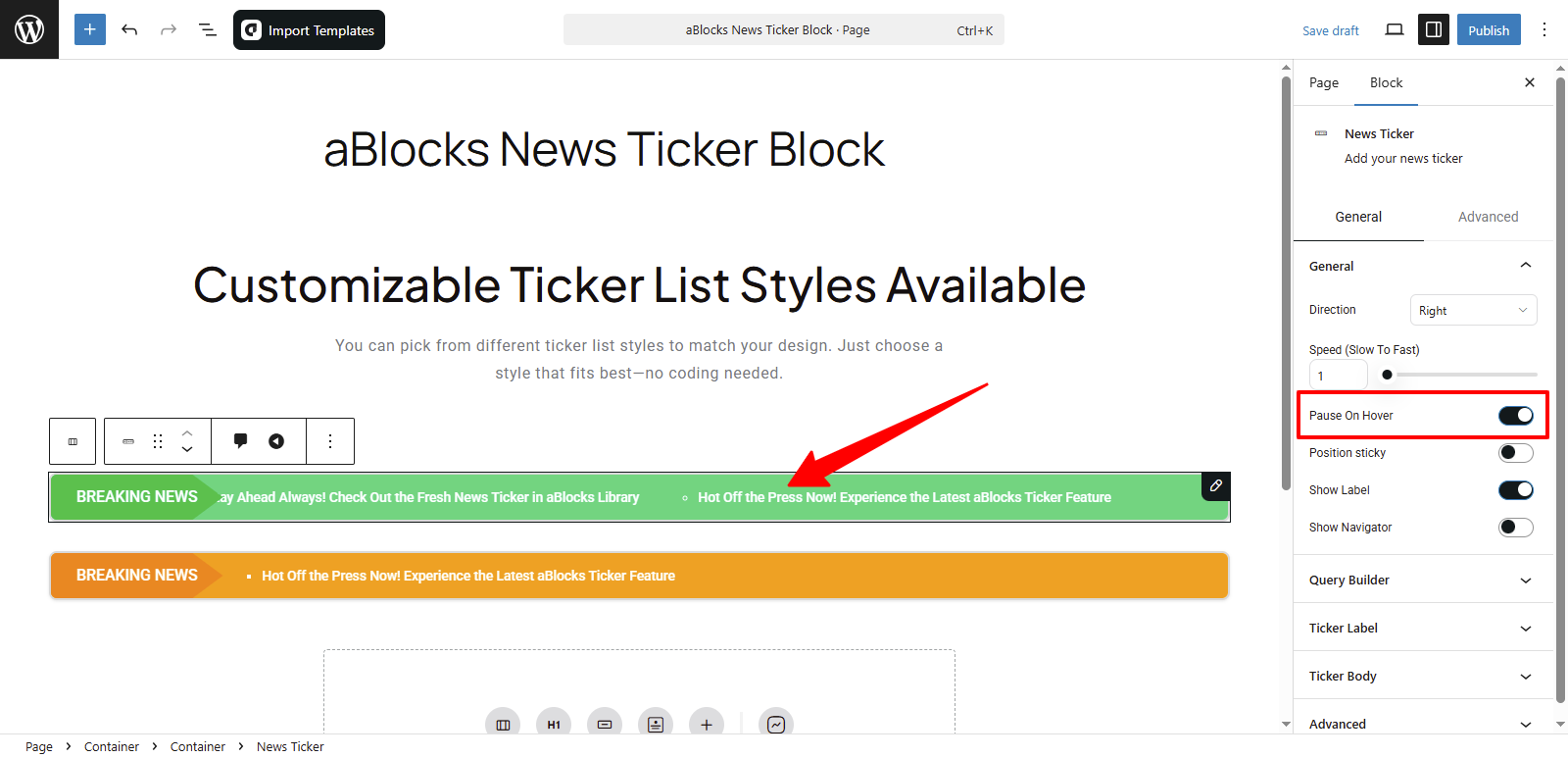
Pause on Hover: Use the toggle switch to turn this on or off. When enabled, the ticker will pause when someone hovers over it.
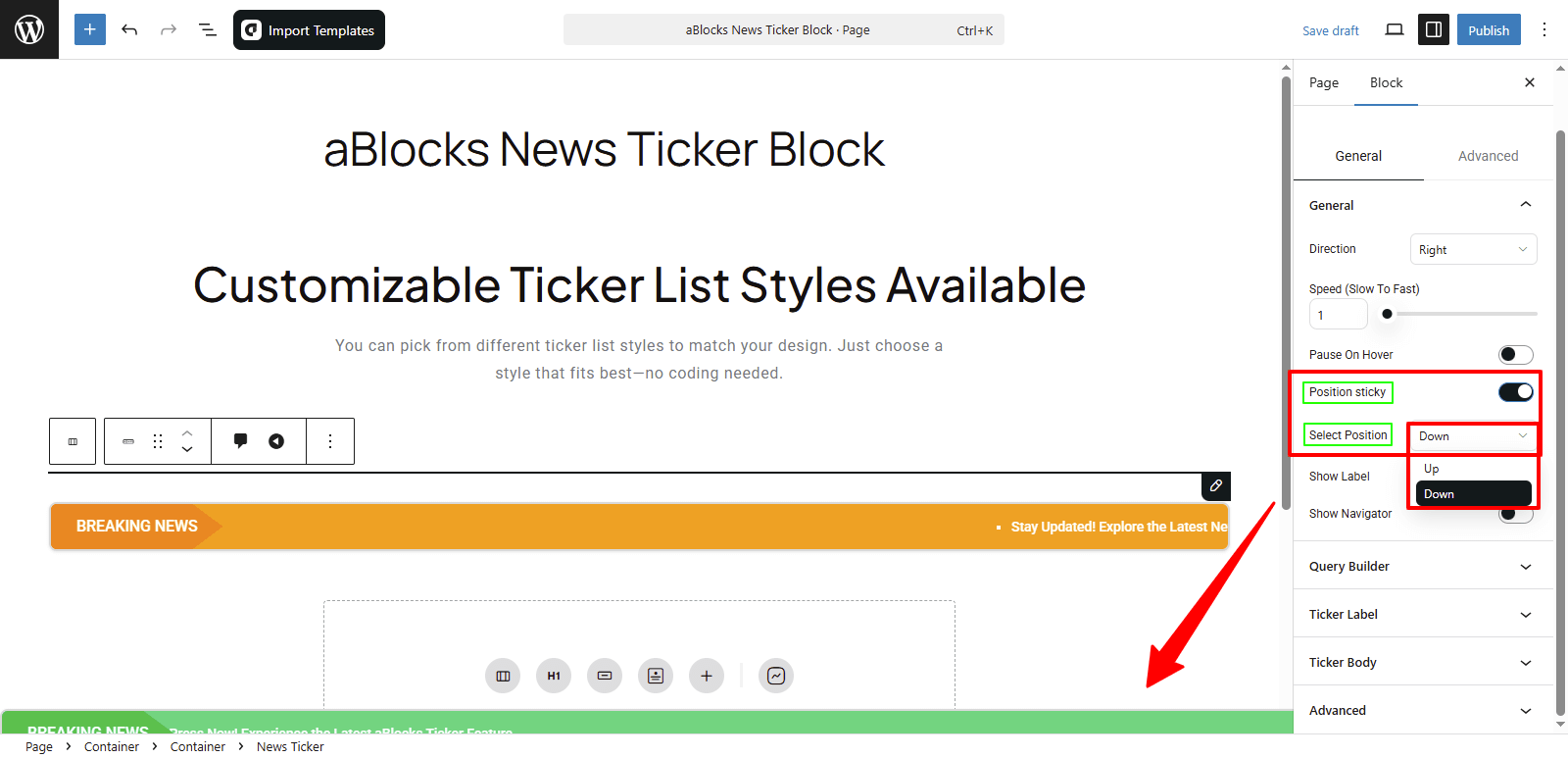
Position Sticky: Use the toggle to make the ticker stick to the top of the page. When this is on, you’ll also see Select Position options. From there, choose whether you want the ticker to appear at the Up or Down of your site.
Show Label: Turn on this toggle to display a label (like “Breaking News”) before the scrolling text. If you turn it off, the label will be hidden.
When enabled, a new section called Ticker Label will appear. Let’s go over that next.
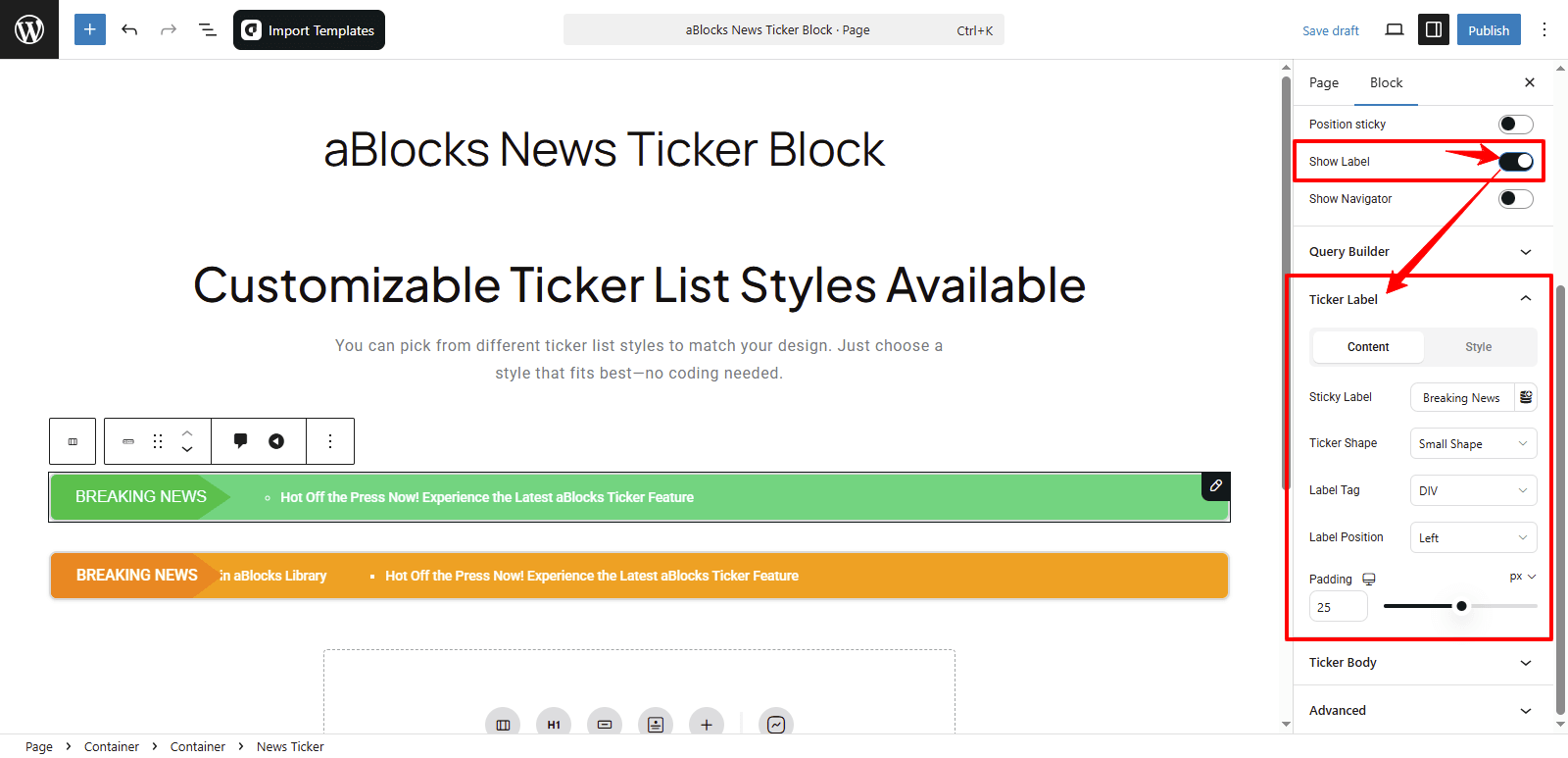
Customize the Ticker Label Section
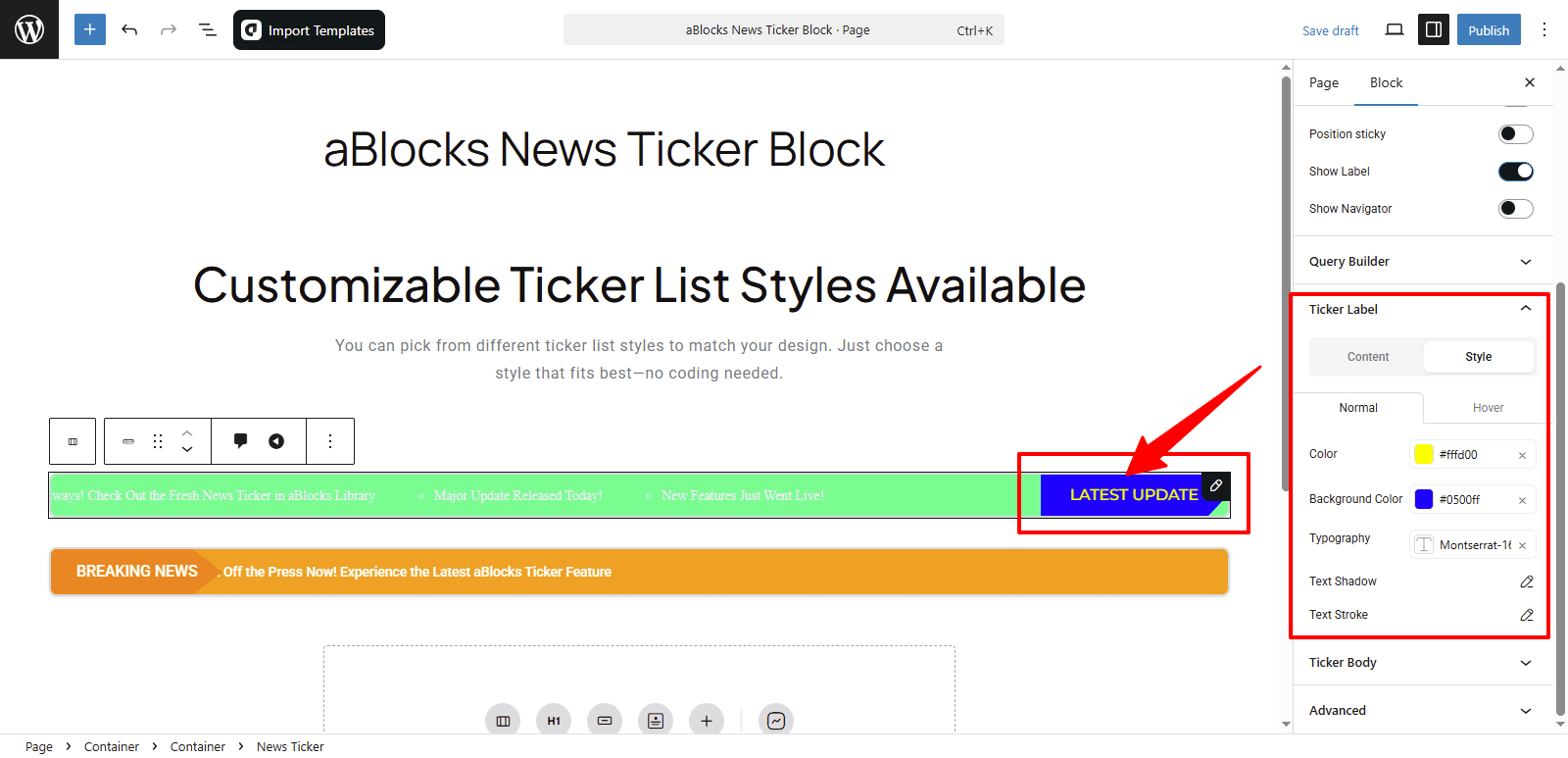
This section includes two main parts: Content and Style.
Content
Sticky Label: Edit the text for your ticker label here. You’ll also see a dynamic content icon next to it. Use it to pull dynamic values. Want to know more? Check our aBlocks Dynamic Content documentation.
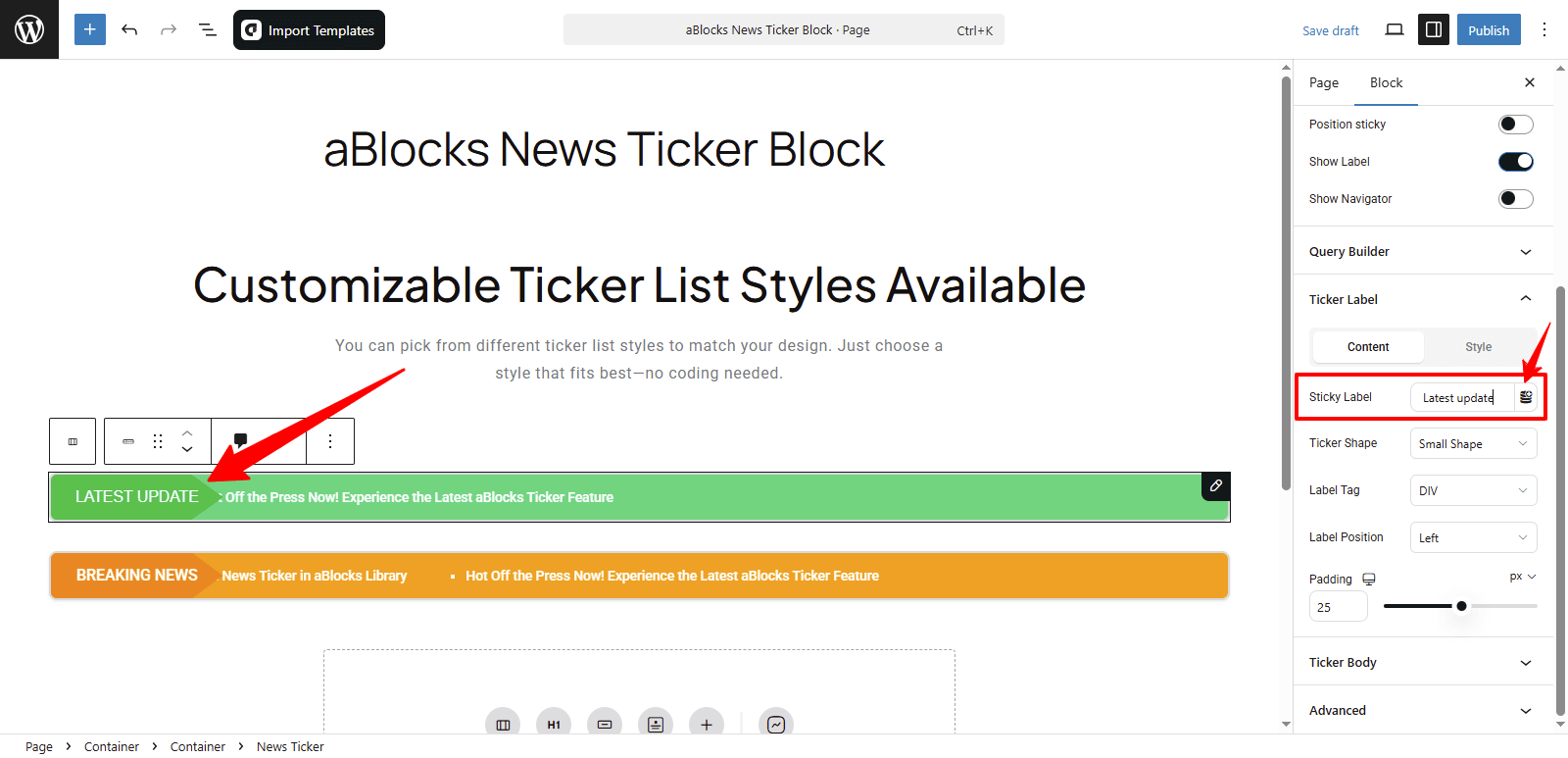
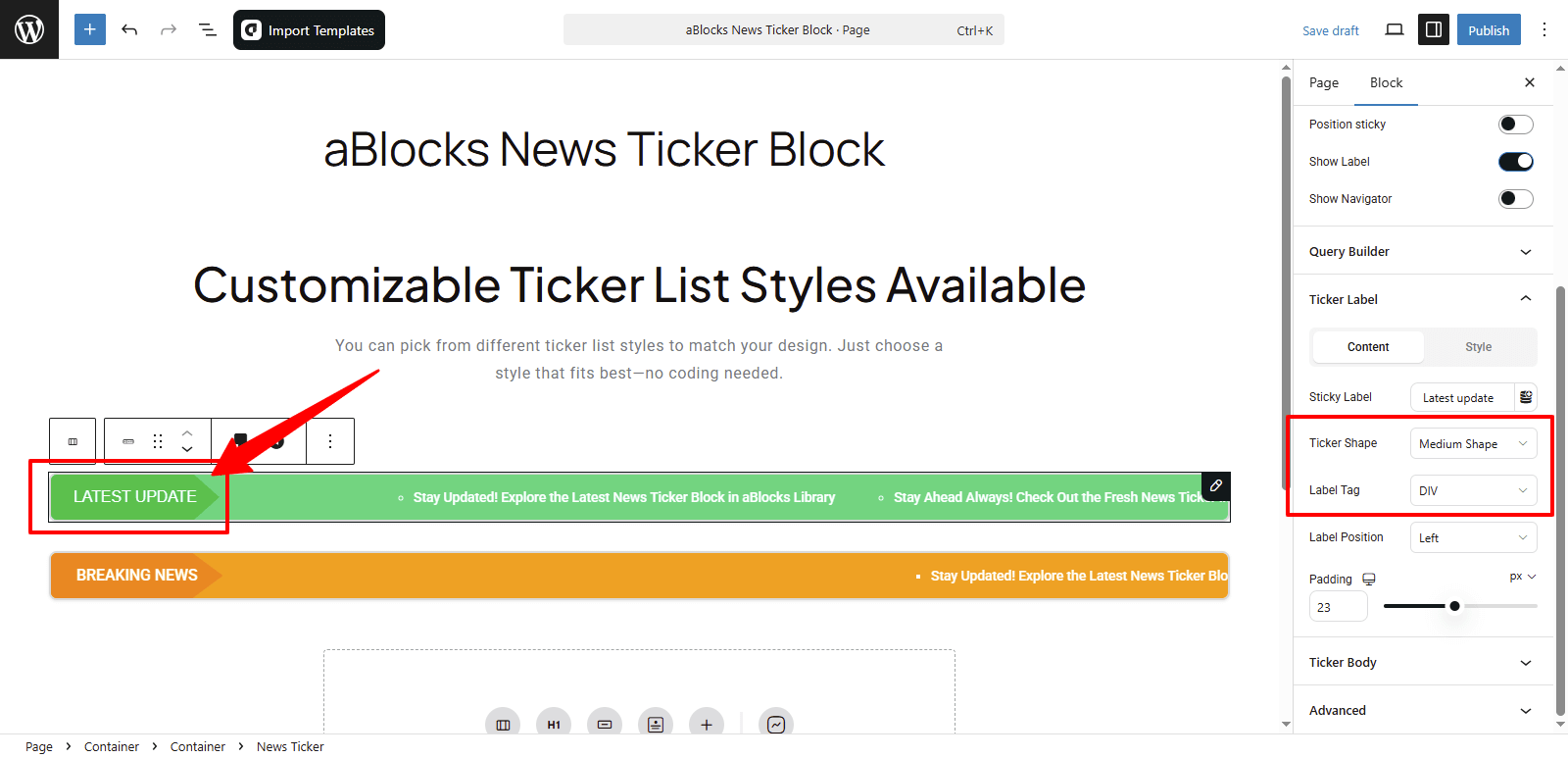
Ticker Shape: Choose the shape of the label: Normal, Small, Medium, or Large.
Label Tag: Set the HTML tag for the label. You can choose from H1, H2, H3, H4, H5, H6, DIV, SPAN, or P.
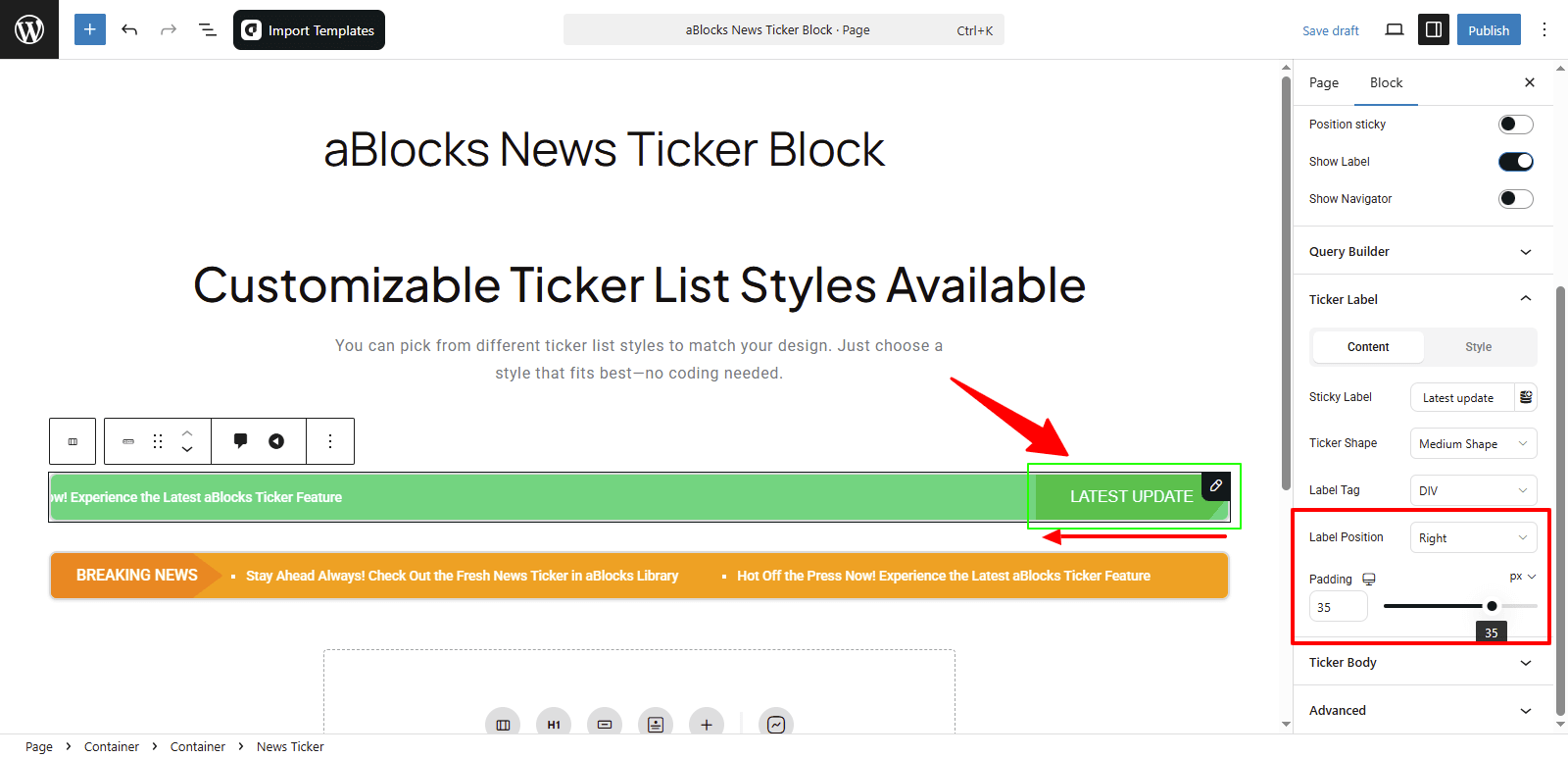
Label Position: Set the label’s position to the left or right of the ticker.
Padding: Adjust the space around the label using padding controls.
Style
Under the Style tab, you’ll get customization options for both Normal and Hover states.
Color: Change the text color.
Background Color: Set a background color.
Typography: Adjust font size, weight, spacing, and more. For full details, check the aBlocks Typography Settings documentation.
Text Shadow: Add shadows to your label text. Learn more in the aBlocks Text Stroke and Text Shadow documentation.
Text Stroke: Apply an outline to the text. Full guide available in the same aBlocks Text Stroke and Text Shadow documentation.
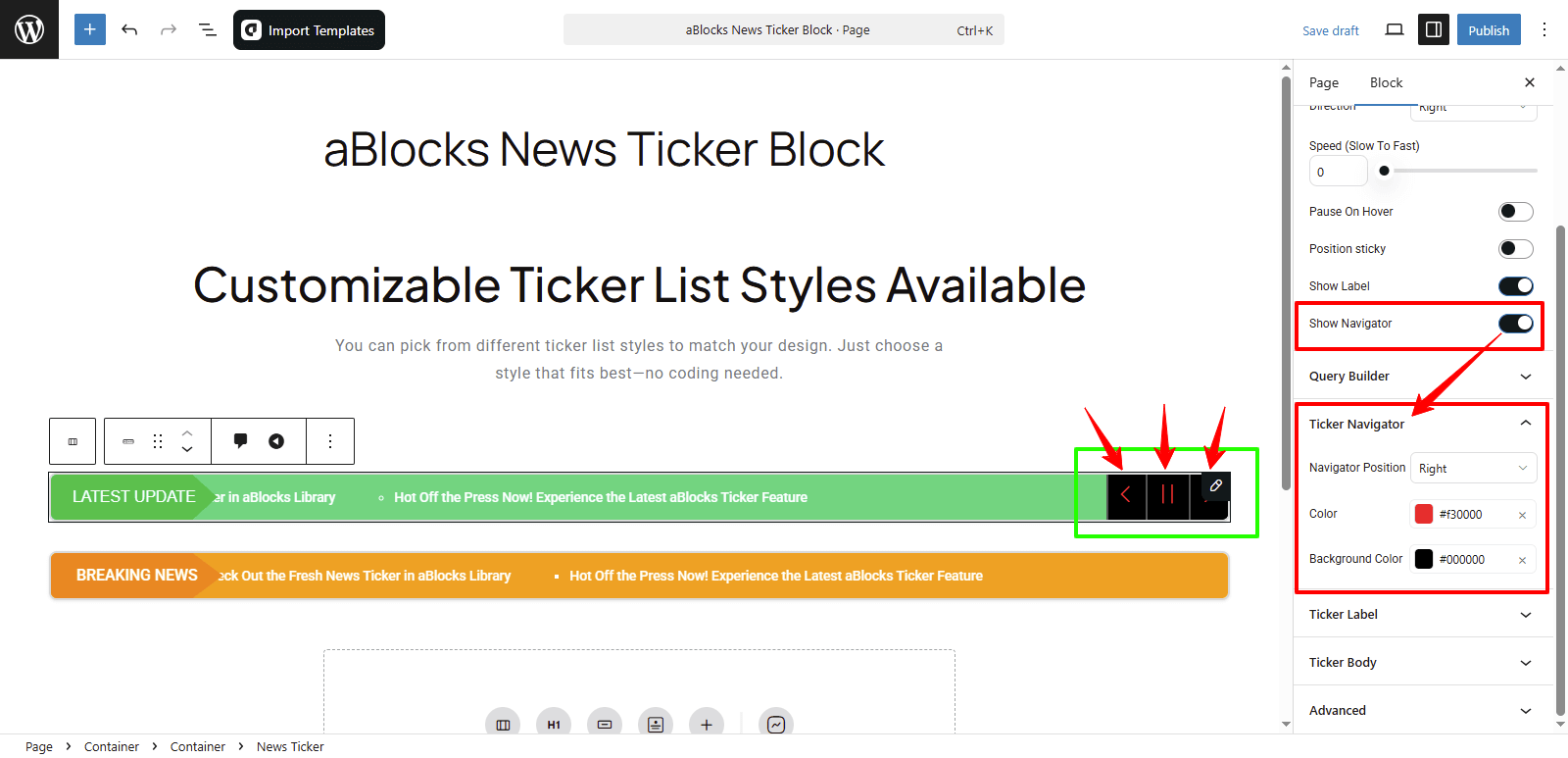
Show Navigator: Turn this toggle on to display navigation controls for the ticker.
Once it’s enabled, you’ll be able to control the ticker using three icons:
- “<” Icon – Click this to move the ticker left.
- “>” Icon – Click this to move the ticker right.
- “||” Icon – Click this to pause the ticker.
These icons let users manually move or stop the scrolling bar.
You’ll also see a new section below called Ticker Navigation. Let’s look at its settings.
Ticker Navigation Section
This section gives you a few basic options to control how the navigation looks and where it’s placed:
Navigator Position: Choose whether the navigation buttons appear on the left or right side of the ticker.
Color: Change the color of the navigation icons or arrows.
Background Color: Set the background color for the navigation area.
Query Builder
This section lets you create and manage the content that scrolls in the News Ticker.
Let’s break it down step by step.
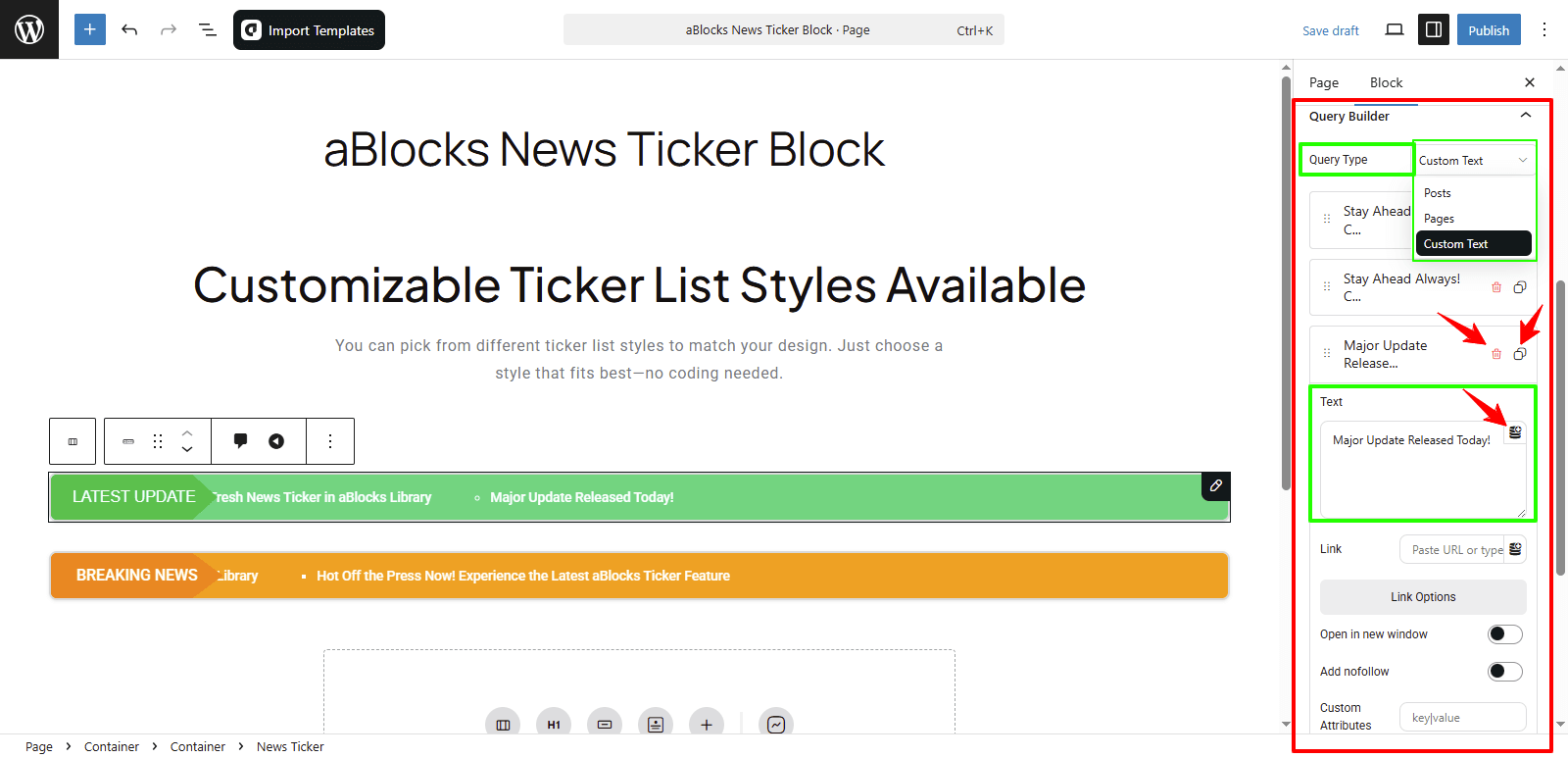
Query Type: First, choose what kind of content you want to display:
- Posts – Show content from your WordPress posts.
- Pages – Show content from your WordPress pages.
- Custom Text – Write your own custom messages.
Once selected, you’ll see the list of items (queries) you’ve added.
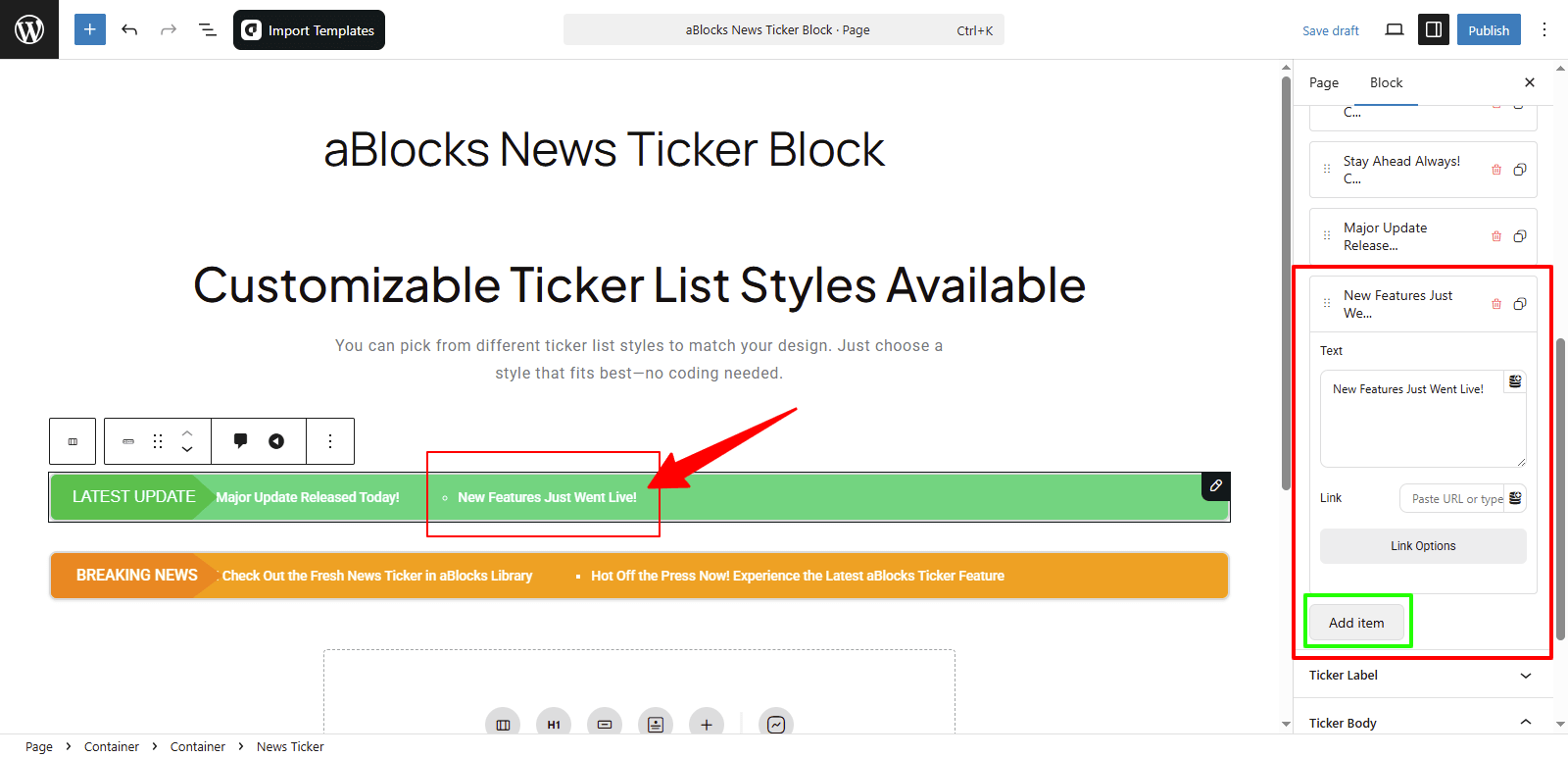
Edit or Customize Queries: Click on any query item to open its settings.
- A text box will appear. Use it to write or edit the ticker text.
- You’ll see a dynamic content icon beside the box. Click it if you want to use dynamic data. Need help? Check our aBlocks Dynamic Content documentation.
Next to each item, you’ll see two icons. The Delete icon lets you remove that specific query. The Duplicate icon allows you to copy and reuse the same item. This makes it easier to manage your ticker content without retyping everything.
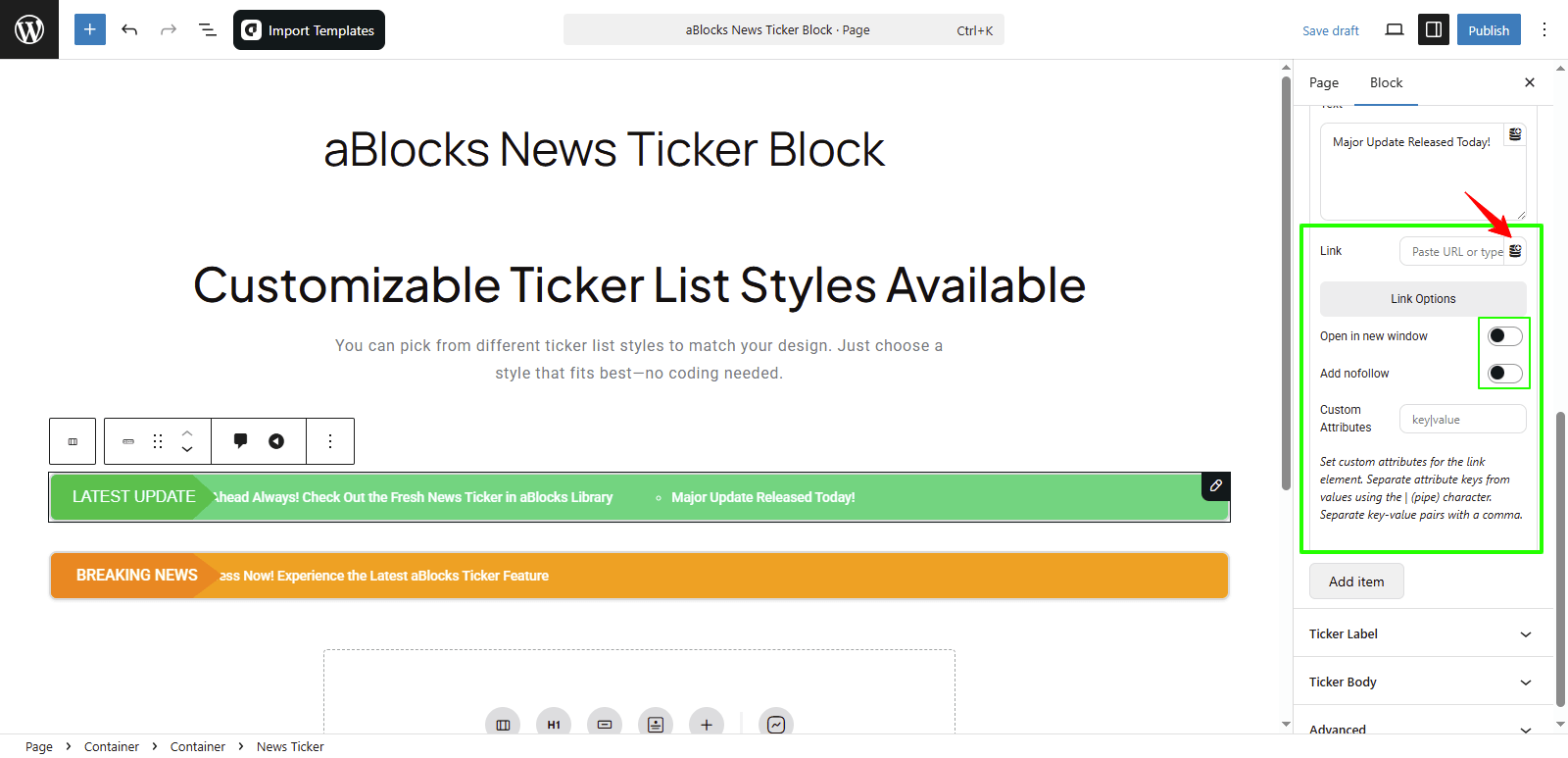
Below the text box, you’ll find the Link section, where you can add a URL to your ticker text. You’ll also see a Dynamic Content icon beside the box—click it if you want to use dynamic data. Need help? Check out our aBlocks Dynamic Content documentation for full guidance. Want more control? Click on Link Options to unlock extra settings.
- Open in New Window – Turn this on to make the link open in a new tab.
- Add Nofollow – Use this toggle to make the link nofollow or dofollow.
- Custom Attributes – Add extra info in key | value format if needed.
Add Item: Click the Add Item button to add a new query. Once it appears, you’ll get a text box just like the previous ones. Enter your query text, and below it, you’ll see the same Link section. Add a URL, use Link Options for advanced settings like opening in a new tab, adding nofollow, or setting custom attributes—just like you did with the earlier queries.
Ticker Body
This section includes two parts: Content and Style.
Content
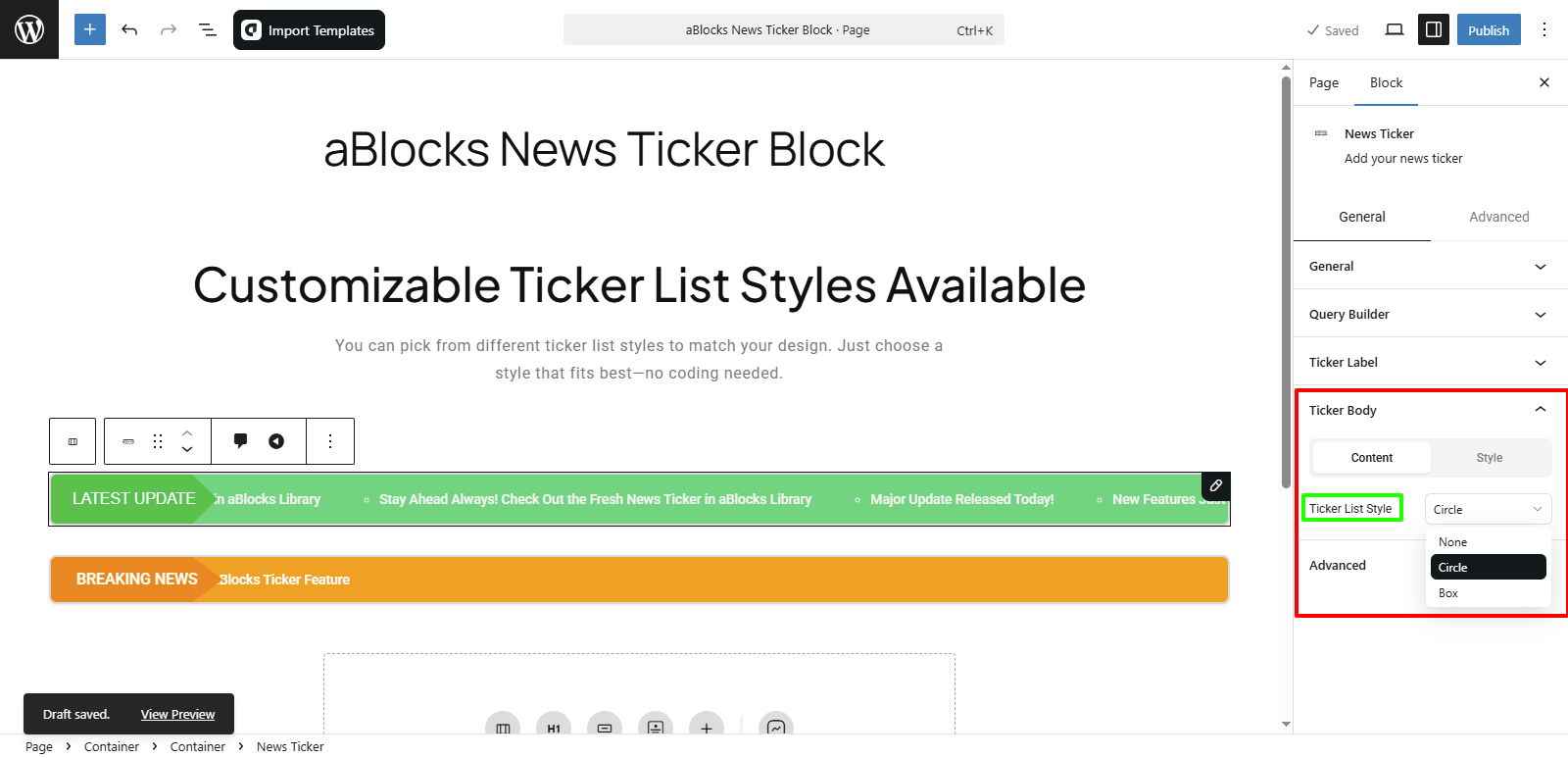
Ticker List Style: Choose how the ticker items are displayed. You can pick from:
- None – No list style
- Circle – Small bullet-style circle
- Box – Each item shown inside a box
Style
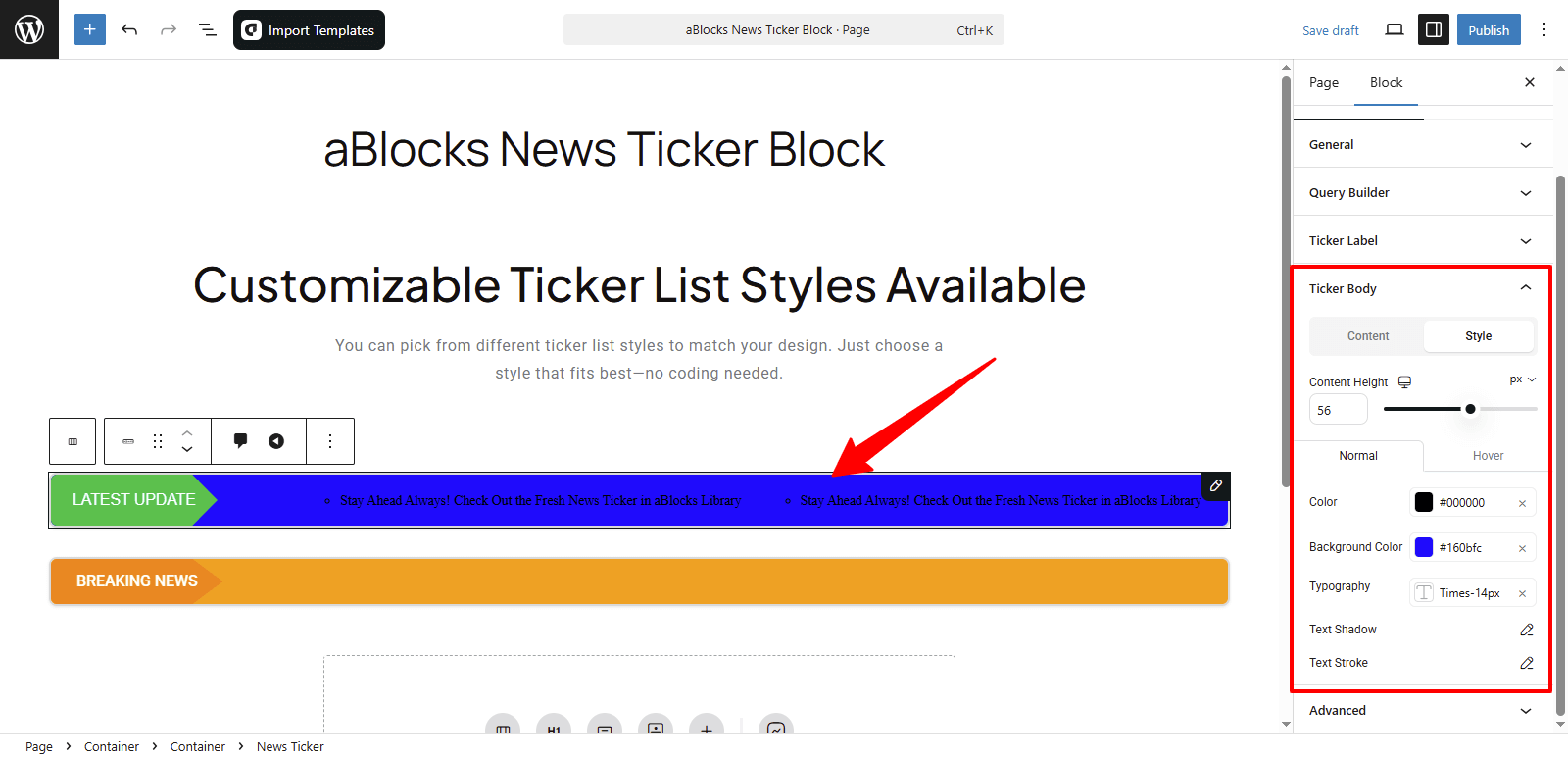
Content Height: Adjust the height of the ticker body as needed.
You’ll also find Normal and Hover tabs here. Both tabs include the same styling options. The Normal tab controls how the ticker looks normally, and the Hover tab applies styles when someone hovers over the ticker.
Normal / Hover Styling Options
Color: Pick the text color for the ticker.
Background Color: Choose the background color behind the text.
Typography: Adjust font size, weight, line height, letter spacing, and more. Need help? Visit the aBlocks Typography Settings documentation.
Text Shadow: Add shadow effects to your text. For full steps, check the aBlocks Text Stroke and Text Shadow documentation.
Text Stroke: Apply a stroke or outline to your text. For more info, see the aBlocks Text Stroke and Text Shadow documentation.
Conclusion
The aBlocks News Ticker Block helps you show scrolling headlines, updates, or announcements in a smooth and clean layout. You can choose the scroll direction, control the speed, and style every part—from the ticker label to each query item. Whether you’re using post content or adding custom text, this block gives you clear control over what shows and how it looks. It’s a simple way to keep your site updated and engaging.
If you have any questions or need assistance, feel free to contact our support team. We’re here to help!