





The aBlocks Marquee block allows you to create eye-catching, horizontally scrolling text or content—perfect for announcements, headlines, promotions, or attention-grabbing messages. This block brings a modern, animated touch to your design while remaining lightweight and easy to configure. In this documentation, we’ll walk you through how to add, customize, and make the most of the Marquee block in your Gutenberg editor using aBlocks.
Open the WordPress Editor
- Navigate to your WordPress dashboard.
- Go to Pages or Posts and either open an existing page/post or create a new one.
- This will open the Gutenberg editor.
Insert the aBlocks Marquee Block
- Click on the + (Add Block) button in the content area where you want to insert the marquee.

- In the block search bar, type “Marquee”.
- Select the aBlocks Marquee block..
Tip: You can also type marquee directly into a new block to insert it faster.
Once inserted, the block will show a default scrolling text or content. You can now start customizing the content, direction, speed, and style of the marquee.
Customize the aBlocks marquee block
To tailor the behavior and appearance of your Marquee block, navigate to the block settings in the right sidebar and use the following options:

- Direction: Choose the direction of scroll: Left or Right.
- Gap: Set the spacing between marquee items. Useful for visual separation between elements like logos or images.
- Auto Width: Toggle this on to allow the content to define its own width. Disable it to apply a fixed width.
- Loop: Toggle looping on or off.
- Off: Content scrolls infinitely without stopping.
- On: Scrolling will repeat based on the Loop Count value. Set how many times the loop should run.
- Off: Content scrolls infinitely without stopping.
- Speed: Adjust the scrolling speed in milliseconds. Lower values result in faster scrolling.
Customize Marquee Child
To efficiently organize and navigate your content:
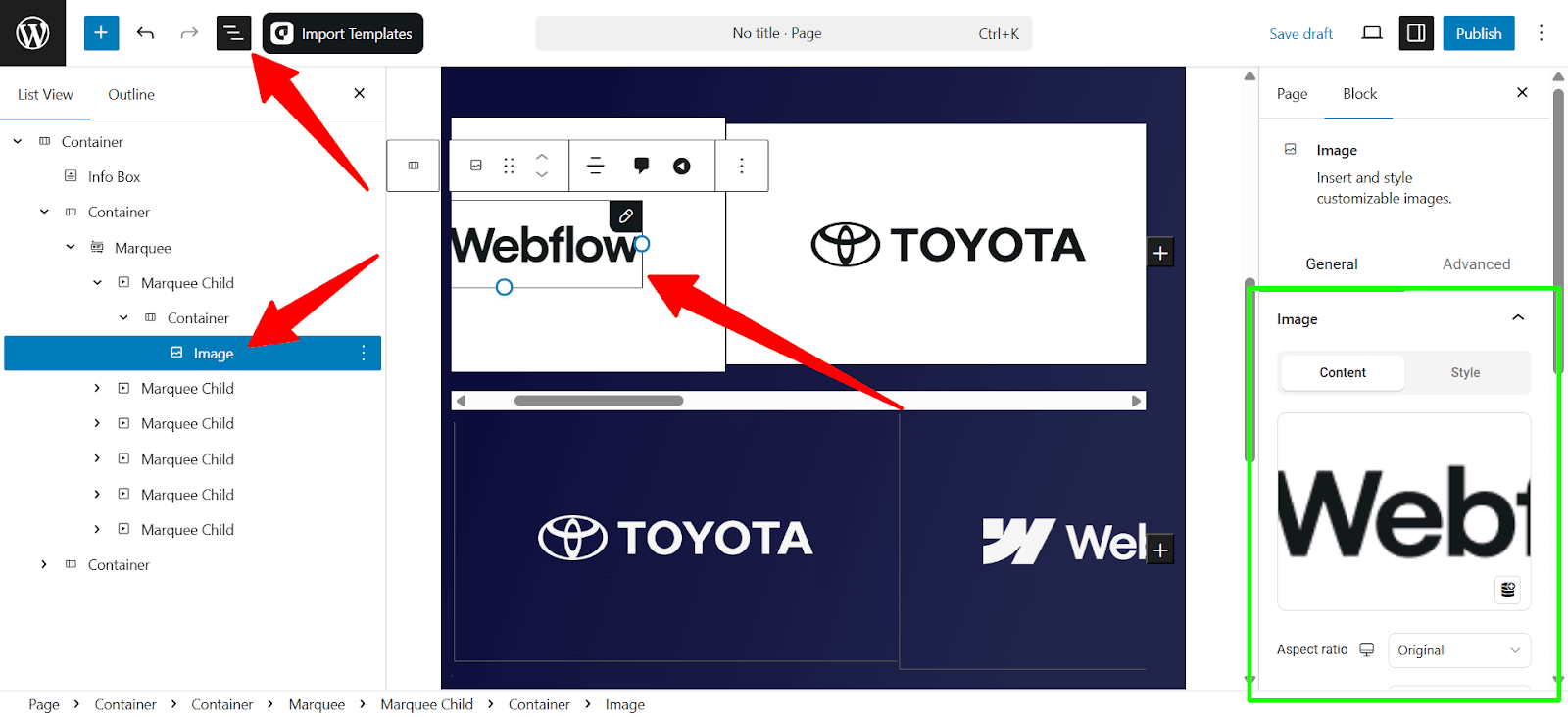
- Use the List View in the top-left of the editor to manage nested blocks.
- You’ll see the Marquee block and all its Marquee Child blocks clearly structured.
- You can rearrange, duplicate, or delete child blocks directly from this view.
Conclusion
The aBlocks Marquee block is a powerful and flexible tool for adding dynamic, scrolling content to your WordPress site. Whether you’re showcasing client logos, featured content, or announcements, this block offers intuitive customization options and seamless integration within the Gutenberg editor.