





If you want to showcase events WordPress users publish in a more engaging way, layout matters more than you think. Instead of listing events in a plain format, using sliders, grids, and carousels can make your events more visible, interactive, and easier to explore.
Most WordPress event websites still rely on basic calendar or list views. While these layouts work for organizing events, they do very little to actually promote them.
The problem is simple: default event layouts are functional, but not engaging. Important events get buried in long lists, there’s no clear visual hierarchy, and visitors often scroll past without taking action. As a result, even great events can end up with low visibility, fewer clicks, and reduced attendance.
But it doesn’t have to be this way.
With the right layout system, you can transform your events into visually engaging sections—sliders, grids, and carousels that highlight key events, guide attention, and encourage interaction. Instead of a static calendar, your site becomes a dynamic showcase.
That’s where Eventful comes in. It works as a display layer on top of The Events Calendar, turning your existing event data into modern, flexible layouts—without any coding.
In this guide, you’ll learn both the strategy behind effective event presentation and the exact step-by-step process to build sliders, grids, and carousels in WordPress.
Why Default Event Layouts Are Not Enough
Most WordPress event websites rely on plugins like The Events Calendar to manage event data—titles, dates, venues, and schedules. And to be fair, it does that job very well.
But when it comes to design and presentation, the default layouts are limited.
You’re typically stuck with basic lists or calendar views. There are no built-in sliders, grids, or advanced layout options to highlight important events or guide user attention.
That’s where the gap becomes clear.
👉 The real issue is not the data—it’s how the data is presented.
To build a high-performing event website, you need a clear separation of concerns:
- Event plugin → handles data (events, dates, venues)
- Eventful → handles presentation (sliders, grids, carousels, layouts)
This approach gives you the best of both worlds: a reliable backend for managing events and a flexible frontend for showcasing them in a visually engaging way.
This is a critical section—you’re right. It’s where users finally “get it.”
Let’s sharpen the positioning so it’s:
- crystal clear (no confusion with event plugins)
- benefit-driven
- easy to scan (SEO + readability)
- subtly persuasive (without overselling)
What Eventful Actually Does
Eventful works as a display layer on top of The Events Calendar, helping you transform your event data into modern layouts like sliders, grids, and carousels. You can explore its features and see live examples on the official Eventful plugin website.
Eventful is not an event management plugin.
It doesn’t create or manage events.
Instead, it works as a layout and display builder for events.
👉 It takes the events you already manage in The Events Calendar and transforms how they appear on your website.
How it works
Eventful pulls event data from The Events Calendar and converts it into modern, flexible layouts such as:
- Sliders
- Grids
- Carousels
- Lists
This means you don’t need to recreate events or manage data twice. You simply control how they are displayed.
Why this matters
With Eventful, you can turn static event listings into visually engaging sections—without writing a single line of code.
Key benefits
- No coding required – build layouts visually
- Works with your existing events – no duplication
- Flexible layout system – sliders, grids, carousels, and more
- Fully customizable display – control styling, spacing, and structure
This section is already solid structurally—now let’s elevate it to feel more visual, persuasive, and reader-friendly (like something you’d see on a high-quality WP blog).
We’ll:
- add a bit more context (so users imagine the layouts)
- improve flow between sections
- keep it scannable
- subtly reinforce use cases (conversion angle)
Different Layout Types You Can Create
One of the biggest advantages of using a layout builder like Eventful is flexibility.
Instead of being locked into a single way of displaying events, you can choose the layout that best fits your content, your audience, and your page design.
Here are the most effective layout types you can create:
Event Slider
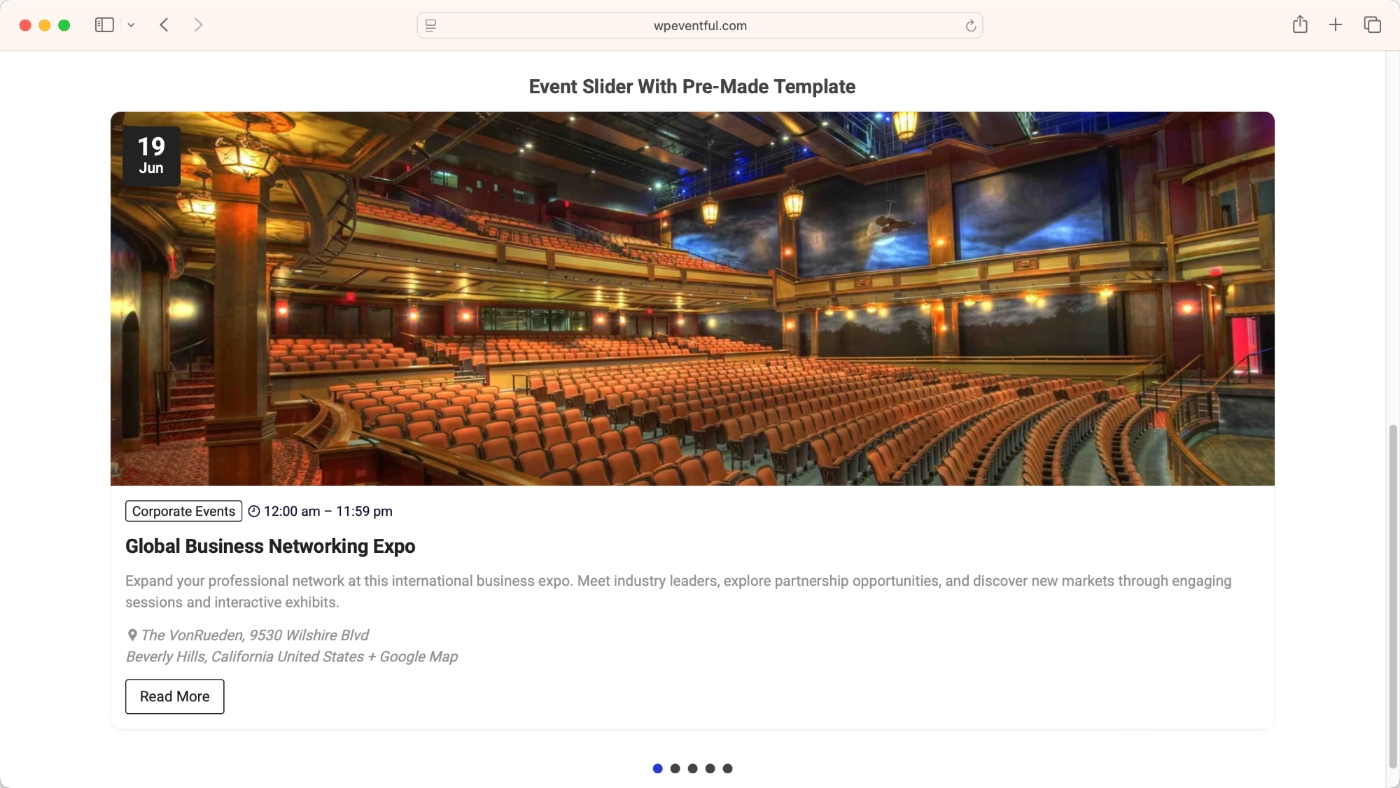
An event slider is perfect for highlighting a small number of important events.
It displays one (or a few) events at a time and allows users to navigate through them using arrows or autoplay.
- Ideal for featured or upcoming events
- Works well in homepage hero sections
- Keeps attention focused on one event at a time
👉 Use this when you want to prioritize visibility over quantity
Event Grid
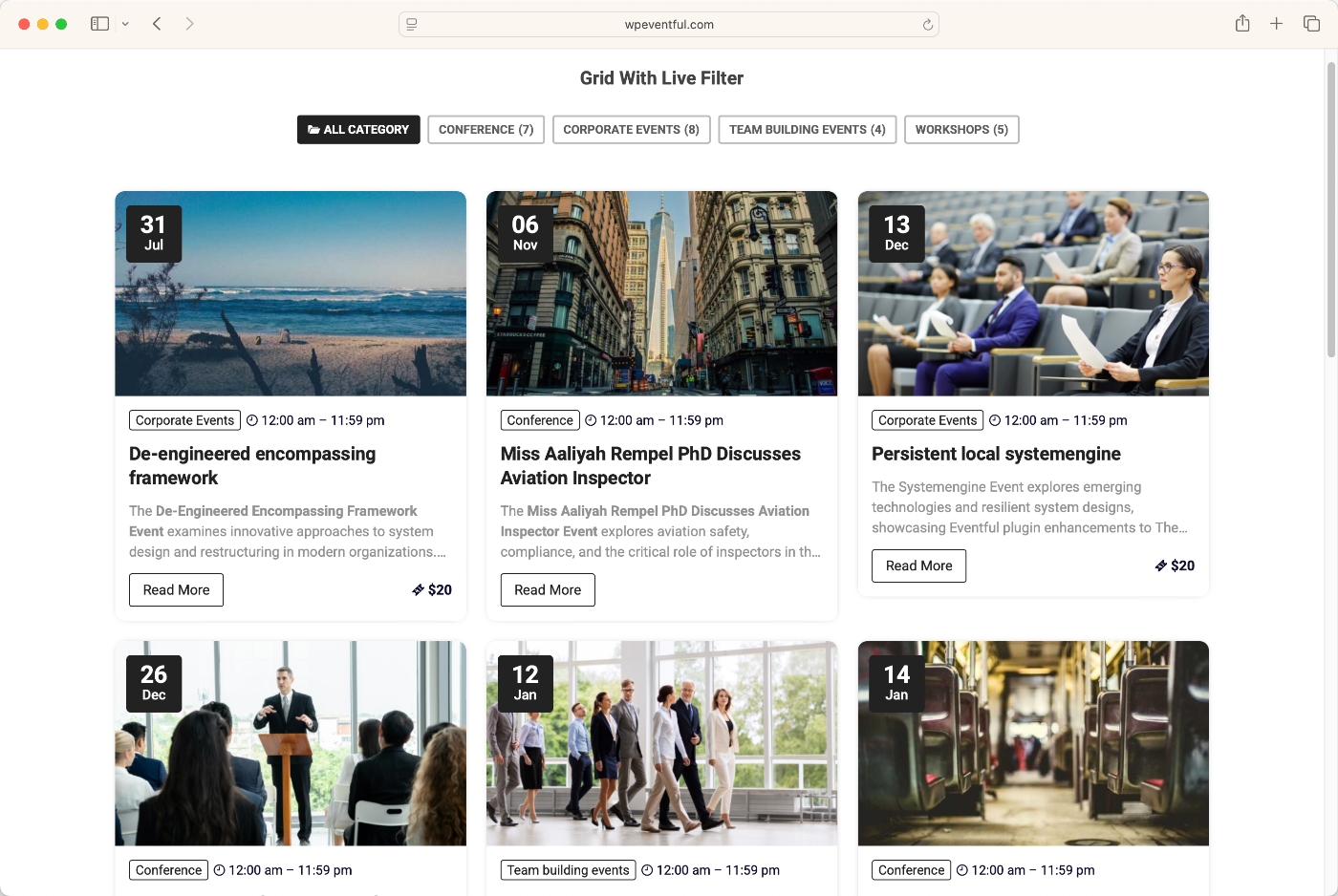
A grid layout displays multiple events in a structured, easy-to-scan format.
Each event appears as a card, making it simple for users to browse and compare options quickly.
- Clean and organized multi-event display
- Great for event directories or listing pages
- Easy to control columns and spacing
👉 Use this when you want to show multiple events clearly and efficiently
Event Carousel
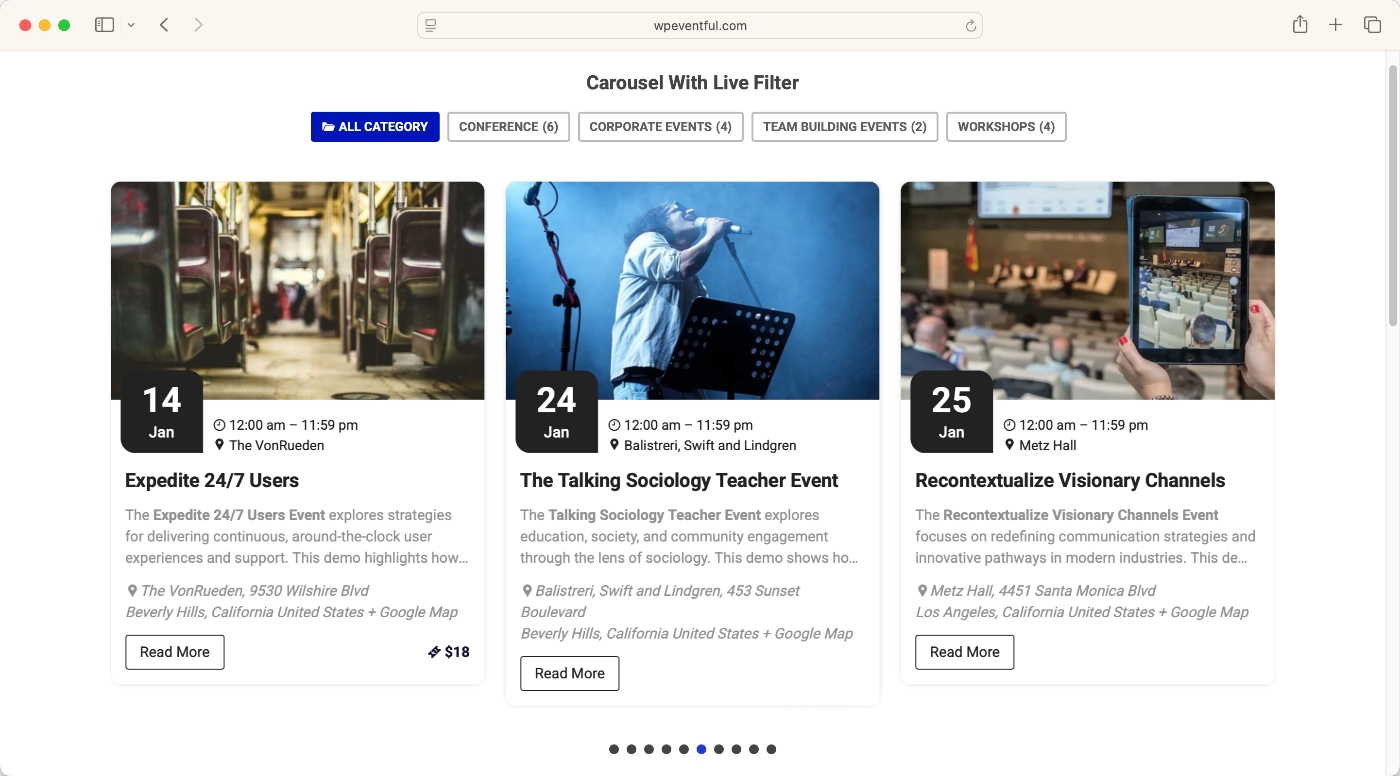
A carousel combines the benefits of sliders and grids.
It allows users to scroll through multiple events horizontally without taking up too much space on the page.
- Interactive and engaging scrolling experience
- Space-saving layout for compact sections
- Works well in side sections or mid-page highlights
👉 Use this when you want to balance visibility and space
Minimal List
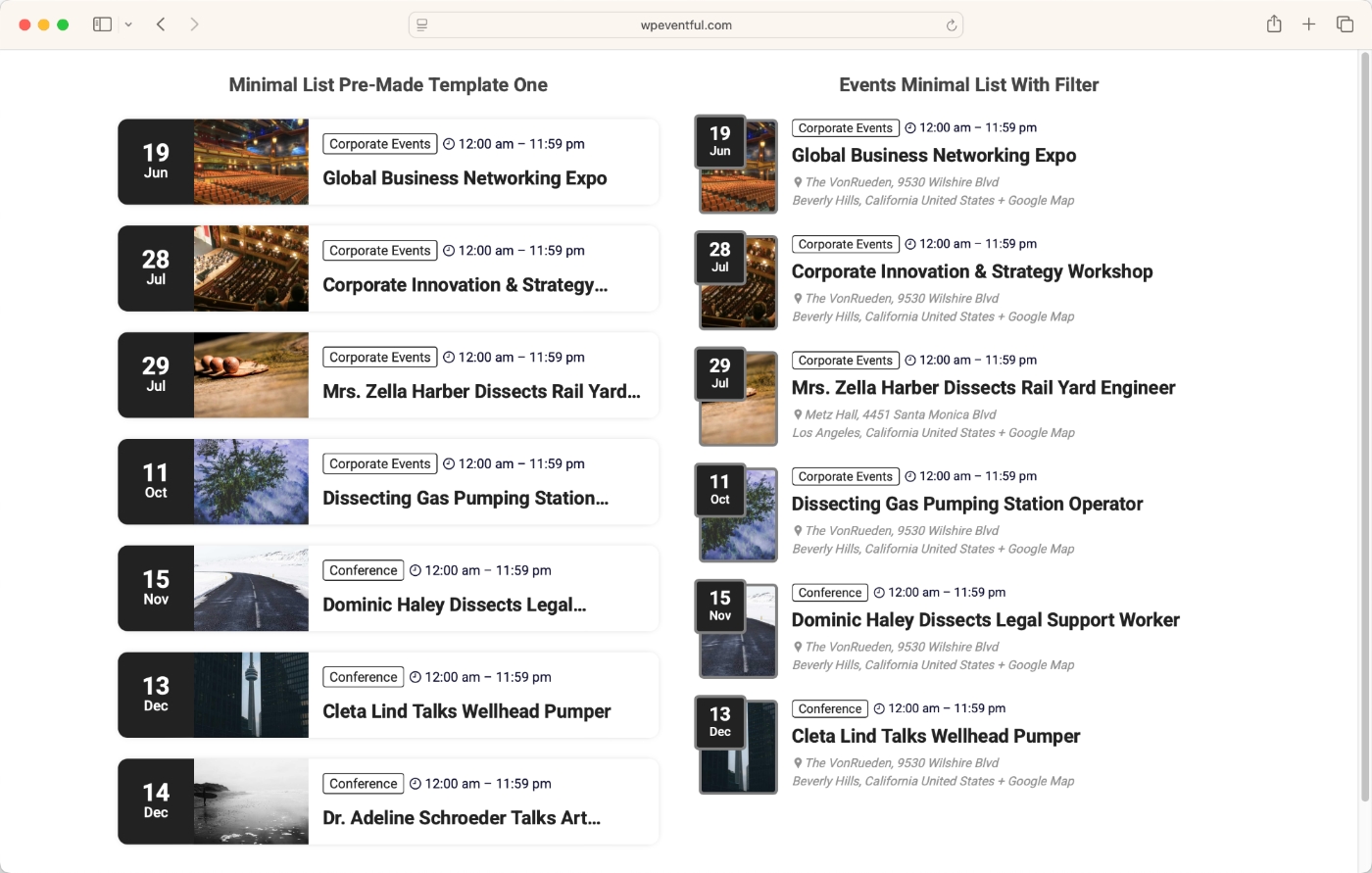
A minimal list is a simple, lightweight way to display events without heavy styling.
It focuses on essential information like title and date, making it fast and easy to read.
- Clean and distraction-free
- Loads quickly and works well on mobile
- Best for straightforward event listings
👉 Use this when you want speed and simplicity over visual complexity
What You Need Before You Start
Before you begin building your event layouts, make sure you have the right setup in place. Eventful works as a display layer, so it depends on existing event data to function properly.
Here’s what you’ll need:
- WordPress installed Your website should be up and running with access to the admin dashboard.
- The Events Calendar plugin (required) This is where your events are created and managed—titles, dates, venues, and details.
- Eventful plugin (extension) Eventful connects to The Events Calendar and transforms your event data into sliders, grids, carousels, and other layouts.
- A few events already created Add at least a handful of events so you can properly preview and test your layouts.
👉 Important: Eventful doesn’t create events—it displays them.
Without event data, there’s nothing to showcase.
Once these pieces are in place, you’re ready to start building and customizing your event layouts.
Step-by-Step: Showcase Events in WordPress
Now let’s move from concept to implementation.
In this section, you’ll learn how to showcase events WordPress users create using a practical, step-by-step workflow. By the end, you’ll have a fully functional layout—whether it’s a slider, grid, or carousel—displaying your events in a clean and engaging way.
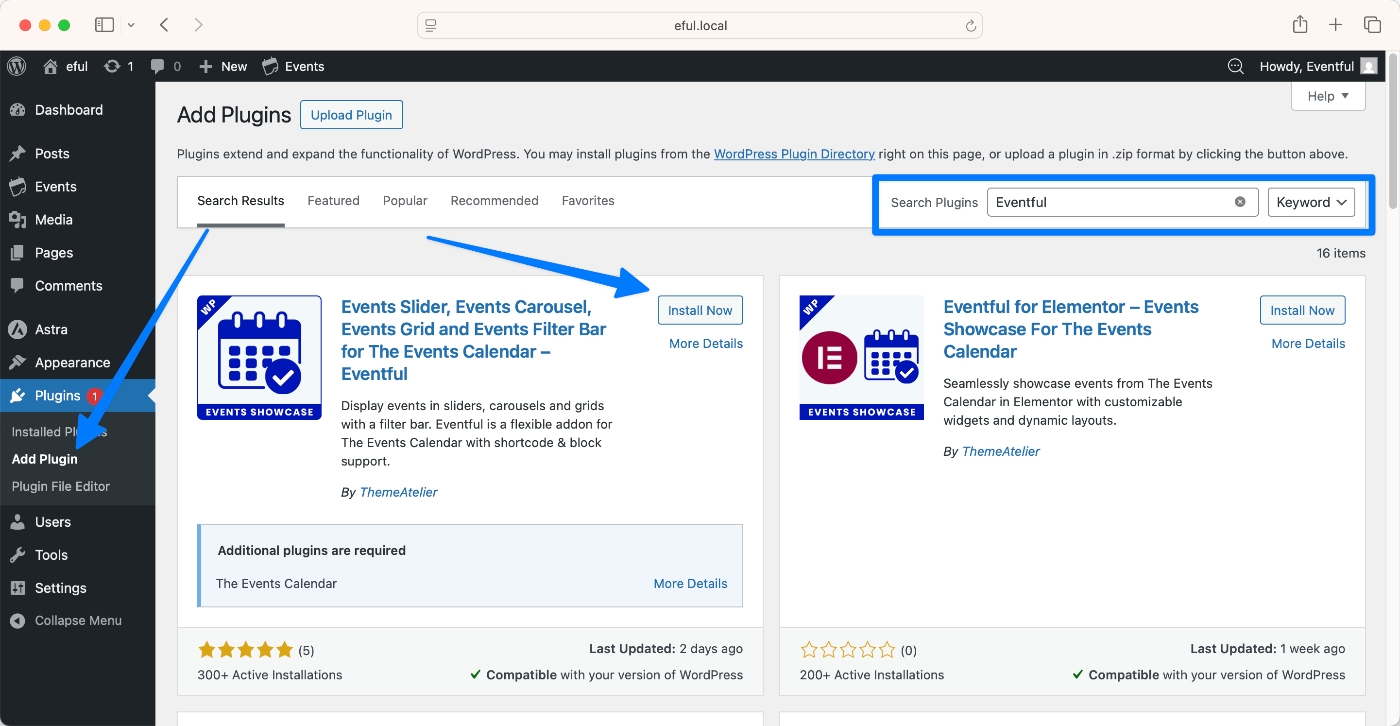
Step 1: Install Required Plugins
Before you can build event layouts, you need to install the right tools.
Eventful works as an extension, so it relies on an event management plugin to provide the actual event data.
Here’s how to set it up:
- Go to Plugins → Add New in your WordPress dashboard
- Search for The Events Calendar and click Install Now, then Activate
- Next, search for Eventful and install and activate it as well
👉 You can install both plugins directly from the WordPress plugin repository.
Once activated, The Events Calendar will handle your event data, while Eventful will give you the tools to display those events in modern layouts like sliders, grids, and carousels.
With both plugins ready, you can move on to creating and showcasing your events.
Step 2: Create Some Events First
Before you start building layouts, you need events to display.
Since Eventful pulls data from The Events Calendar, this step is essential.
In your WordPress dashboard:
- Go to Events → Add New
- Enter the event title
- Set the date and time
- Add a featured image
- Assign a category (optional but recommended)
- Fill in any additional details like venue or description
Repeat this process to create a few sample events. Having multiple events will help you properly preview how different layouts—like grids and carousels—look in real scenarios.
👉 Insight: Good layouts depend on good event data.
Clear titles, relevant images, and proper categorization make your event displays look more professional and easier to navigate.
Step 3: Go to Eventful → Add New Layout
Now that your events are ready, it’s time to create how they will be displayed.
In your WordPress dashboard:
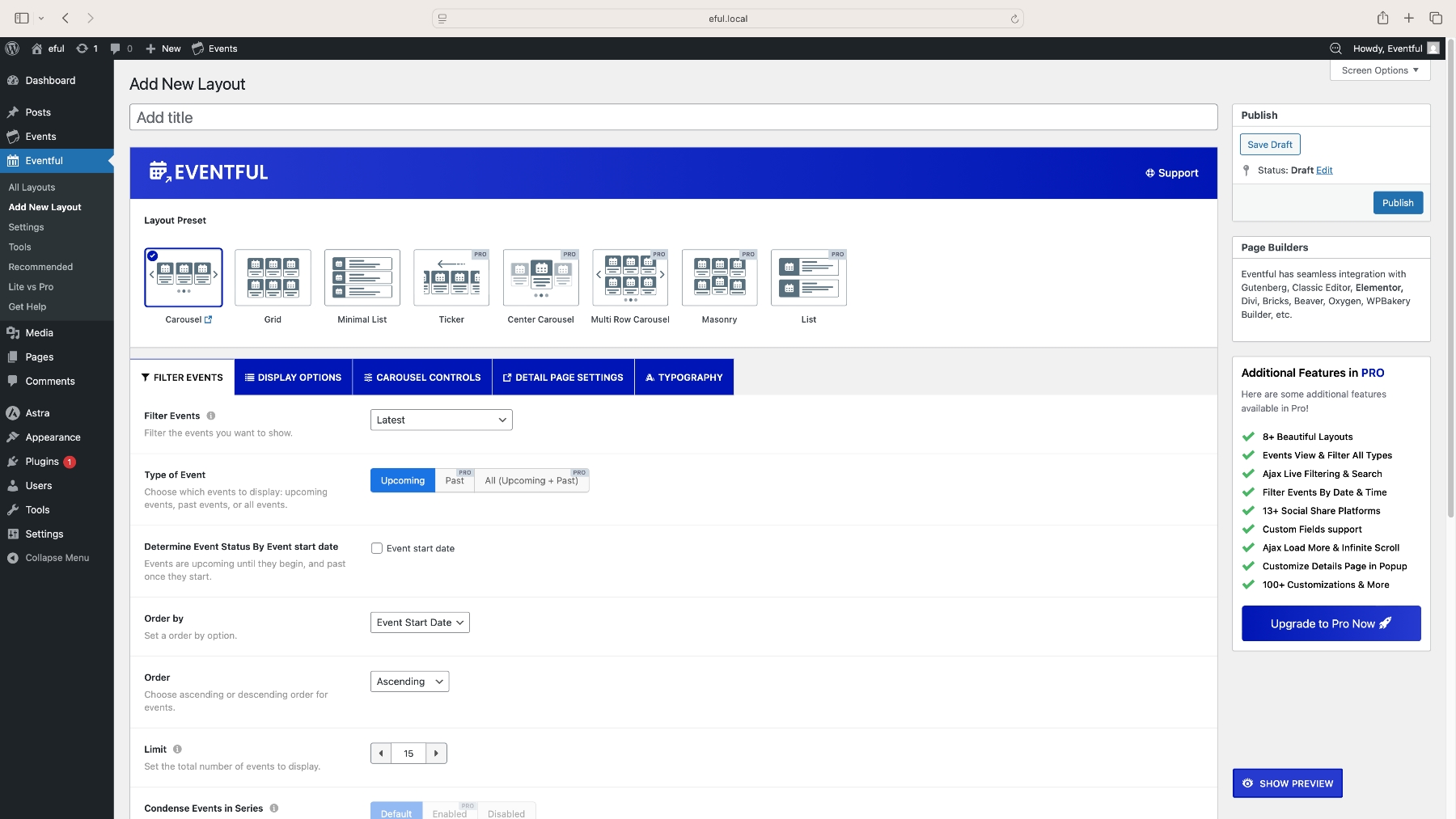
- Go to Eventful → Add New Layout
- This will open the layout builder interface
This is where everything happens.
Instead of working with code or complex settings, you’ll use this builder to control how your events appear on the front end—whether as a slider, grid, carousel, or list.
From here, you’ll be able to:
- Choose a layout type
- Filter which events to display
- Customize the design and structure
- Control how users interact with each event
Think of this step as the bridge between your event data and how visitors actually experience it on your website.
Once you’re inside the builder, you’re ready to start shaping your event layouts.
Step 4: Choose a Layout Preset
Once you’re inside the layout builder, the first thing to decide is how your events will be displayed.
Eventful provides several layout presets you can choose from:
- Carousel – a scrollable, interactive layout
- Grid – a structured, multi-column display
- Minimal List – a clean and simple list view
- Masonry (Pro) – a dynamic, Pinterest-style layout
- Multi-row (Pro) – more advanced multi-line display options
Each layout serves a different purpose, so your choice should depend on how you want visitors to browse your events.
👉 Tip: If you’re just getting started, go with Grid or Carousel.
They offer the best balance between visibility, usability, and visual appeal.
You can always experiment with other layouts later once you’re comfortable with the builder.
Step 5: Configure Event Filtering (Filter Events Tab)
Now that you’ve chosen a layout, the next step is to control which events actually appear.
In the layout builder, open the Filter Events tab.
Here, you can fine-tune exactly what gets displayed:
- Filter by event type
- Latest events
- Upcoming events
- Past events
- Order events
- Sort by event start date (recommended for most use cases)
- Limit the number of events
- Choose how many events to show in your layout
These settings help you keep your layout focused and relevant. For example, a homepage slider might only show upcoming events, while a grid page could display a larger list.
👉 You can also go further with filtering:
- Use keyword search to display specific events
- Apply advanced filters like categories or tags to organize content
This level of control allows you to create targeted sections—for example, “Upcoming Workshops” or “Featured Events”—without needing to duplicate or restructure your event data.
Step 6: Customize Display Settings
Once your events are selected, it’s time to control how they appear on the page.
Go to the Display Options tab. This is where you shape the overall look and structure of your layout.
Here, you can adjust key visual settings such as:
- Columns (responsive control) – Choose how many columns to display on desktop, tablet, and mobile. This ensures your layout looks clean across all devices.
- Spacing – Control the gaps between event items to avoid a cramped or cluttered layout.
- Layout structure – Define how content is arranged within each event card or item.
- Show or hide elements – Toggle visibility for details like event title, date, image, or meta information based on your preference.
👉 Why this matters:
This section controls how your events are presented visually. Even small adjustments here can make a big difference in readability, clarity, and overall user experience.
A well-balanced layout helps visitors scan your events quickly—and that directly impacts engagement.
Step 7: Customize Template Design
Now it’s time to refine how each individual event looks inside your layout.
Go to the Template Styles tab. This is where you control the visual structure of each event item.
You’ll typically have two options:
- Pre-made templates – Ready-to-use designs that give you a clean layout instantly
- Custom template – More control over how each element is arranged and displayed
From here, you can fine-tune key elements such as:
- Event title – size, position, and visibility
- Meta information – date, time, venue, and other details
- Content/description – how much text to show
- Thumbnails/images – size, placement, and display style
👉 Insight: This is where you define the information hierarchy.
In other words, you decide what users notice first—and what comes next.
For example, a featured layout might prioritize images and titles, while a minimal list may highlight dates and quick details.
A well-structured template makes your events easier to scan, understand, and engage with—without overwhelming the visitor.
Step 8: Configure Carousel Behavior (If Using Carousel)
If you selected a carousel layout, this step lets you control how it behaves and feels to users.
Open the carousel settings in the builder and adjust the key options:
- Autoplay – Automatically scroll through events without user interaction
- Speed – Control how fast the carousel transitions between items
- Infinite loop – Enable continuous scrolling so the carousel never stops
- Navigation arrows – Allow users to manually move forward and backward
- Pagination (dots) – Show indicators so users know how many items are available
👉 UX tip: Don’t make it too fast.
A slower, smoother transition gives users enough time to read and engage with each event.
The goal here is balance—make the carousel dynamic, but still easy to control and comfortable to browse.
Step 9: Configure Event Click Behavior
Next, decide what happens when a user clicks on an event.
Go to the Detail Page Settings section. This controls how visitors move from your layout to more detailed information.
You can choose how the event opens:
- Single event page – Redirect users to the full event page created by The Events Calendar
- Popup (Pro) – Display event details in a modal without leaving the page
You can also control how the link behaves:
- Open in the same tab
- Open in a new tab
👉 Why this matters: This setting directly affects the user journey.
Sending users to a full event page gives them more details and context, while a popup keeps them on the same page for quicker browsing. Choosing the right option depends on how much information you want to show and how you want users to navigate your site.
A smooth transition here can significantly improve engagement and keep visitors exploring more events.
Step 10: Customize Typography
With the layout and structure in place, the final touch is how your content feels visually.
Go to the Typography tab to adjust how text appears across your event layout.
Here, you can fine-tune:
- Font size – make titles stand out and keep details readable
- Alignment – control how text is positioned within each event item
- Spacing – adjust line height and gaps for better readability
- Colors – match text colors with your site’s design
👉 Tip: Try to match your typography with your overall theme branding.
Consistent fonts, colors, and spacing make your event sections feel like a natural part of your website—not something added on top. Even small typography tweaks can improve readability and give your layouts a more polished, professional look.
Step 11: Publish and Copy Shortcode
Once you’ve finished configuring your layout, it’s time to make it live.
- Click Publish to save your layout
- After publishing, you’ll see a shortcode generated for your layout, something like:
[eventful id=”xxxx”]
This shortcode is what connects your layout to any page on your site.
Simply copy it—you’ll use it in the next step to display your events wherever you want.
👉 Tip: Each layout has its own unique shortcode, so you can create multiple layouts (slider, grid, carousel) and use them on different pages or sections of your site.
Step 12: Add Layout to Any Page
Now it’s time to display your events on the front end of your site.
Take the shortcode you copied in the previous step and paste it wherever you want your event layout to appear.
You can use it in:
- A page
- A post
- Elementor (using an eventful widget)
- Gutenberg (using an eventful block)
Once added, save or publish the page.
👉 Result: Your events will display instantly in the layout you created—whether it’s a slider, grid, or carousel.
This flexibility allows you to reuse the same layout across multiple pages or create different layouts for different sections of your website.
Step 13: Preview and Test
Before you consider your setup complete, take a moment to review how everything works on the front end.
Open the page where you added your layout and test it like a real visitor would.
Check the following:
- Desktop view – Make sure the layout looks clean, aligned, and easy to scan
- Mobile responsiveness – Test on smaller screens to ensure text is readable and layouts adjust properly
- Navigation and interaction – If you’re using sliders or carousels, confirm that arrows, scrolling, and pagination work smoothly
- Event loading – Verify that events display correctly with titles, images, and dates intact
Best Practices for High-Converting Event Displays
Once your layouts are in place, the next step is making sure they actually perform.
A well-designed event section doesn’t just look good—it guides attention, improves readability, and encourages users to take action.
Here are a few best practices to get the most out of your event displays:
Highlight featured events
Not all events are equally important.
Use sliders or prominent sections to showcase your most important or upcoming events. This helps guide user attention and ensures key events don’t get lost in the mix.
Use high-quality images
Visuals play a huge role in engagement.
Make sure your event images are clear, relevant, and consistent in size. Low-quality or mismatched images can make even great events feel less appealing.
Keep the layout clean
Clutter reduces impact.
Avoid overcrowding your layout with too many elements or unnecessary details. A clean design makes it easier for users to scan and understand your events quickly.
Limit events per section
More isn’t always better.
Showing too many events at once can overwhelm visitors. Instead, limit the number of events per section and use multiple layouts (like sliders or grids) if needed.
Optimize for mobile
A large portion of your audience will view your site on mobile devices.
Make sure your layouts adjust properly, text remains readable, and interactions—like swiping or tapping—feel smooth and intuitive.
👉 Final tip: Small improvements in layout, spacing, and clarity can significantly increase how users interact with your events. Focus on simplicity, and let your content stand out.
FAQ
Do I need The Events Calendar for Eventful?
Yes. Eventful works as a display extension, which means it relies on The Events Calendar to provide the actual event data. You create and manage events there, and Eventful handles how they are displayed.
Can I create event sliders in WordPress?
Yes, you can. With Eventful, you can easily create event sliders, grids, and carousels without coding. Just choose a layout, configure it, and display it using a shortcode.
Does this require coding?
No. Everything is handled through a visual interface. You can build and customize layouts, control design settings, and display events without writing any code.
Can I use this with Elementor?
Yes. Eventful works with Elementor and other page builders. You can simply insert the shortcode into a shortcode widget or block and display your event layouts anywhere on your page.
Final Thoughts
Events don’t just need to exist—they need to stand out.
Simply publishing events isn’t enough if they’re buried in plain lists or hard-to-scan layouts. The way you present them plays a huge role in whether visitors notice, explore, and take action.
A better layout leads to more visibility.
Better visibility leads to more clicks.
And a smoother user experience leads to higher engagement.
That’s where the right tools make a difference.
With Eventful, you can turn basic event listings into visually engaging sections—sliders, grids, and carousels—without complex setup or custom code. It gives you a faster, more flexible way to present your events in a way that actually works.
Start simple, experiment with different layouts, and focus on clarity.
Because when your events are easier to see and interact with, they’re far more likely to get the attention they deserve.