





Creating lists is key to organizing content, making it easier for your audience to read and understand. Whether you’re outlining features, steps, or key points, the WordPress List Block and the enhanced aBlocks List Block give you the tools to build the perfect list for your site.
This guide will walk you through both options, covering their features, customization settings, and how to get the most out of the WordPress list block.
Using the WordPress List Block
The default WordPress List Block is straightforward, letting you create ordered (numbered) and unordered (bulleted) lists easily. Here’s how to use it:
- Adding the List Block:
Click the ‘+’ button in the Gutenberg editor and search for “List.” Select the List Block to add it to your content area. You can then choose between an ordered or unordered list using the toolbar. - Formatting and Styling:
Format your list items like any other text in WordPress—bold, italicize, or add links. The default styling is simple, but you can customize it further with CSS if you know how. - Adding and Organizing Items:
Press Enter after typing a list item to add another. Use the Tab key to create sub-items and nest lists.
While the WordPress List Block does what you need, it’s limited in customization. If you want more control over how your lists look, you’ll need something more advanced.
Enhanced List Creation with aBlocks List Block
The aBlocks List Block builds on the basics of the default WordPress List Block, offering more customization options to make your lists visually appealing. Here’s how to use and customize the aBlocks List Block:
- Adding the aBlocks List Block:

- Similar to the WordPress List Block, you can add the aBlocks List Block by clicking on the ‘+’ button in the editor and selecting it from the list of available blocks.
- Customizing Lists with Marker Type:
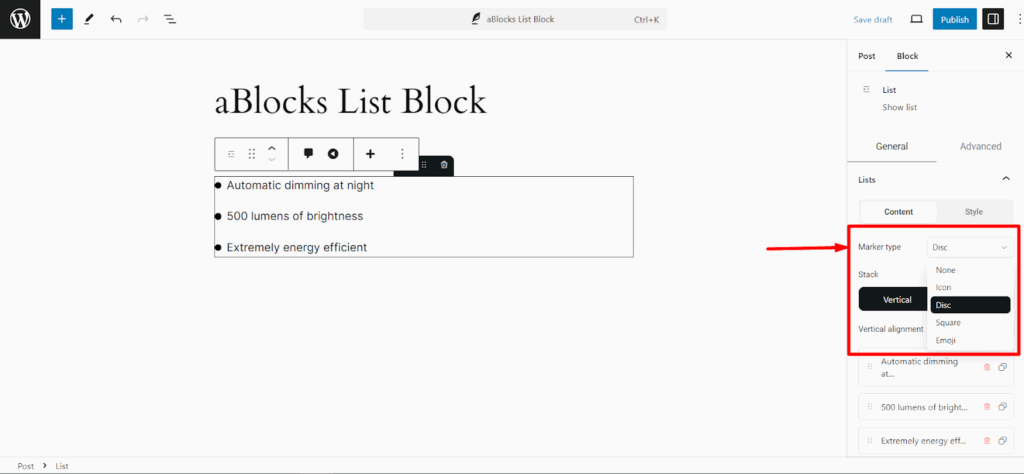
- Icon: Choose from a wide range of icons to use as your list markers. This is perfect for adding visual interest to your lists.
- Disc: A classic option, the disc marker is a solid bullet point that maintains a clean and traditional look.
- Square: Opt for square markers if you want a boxy, modern look for your list.
- Emoji: Add a fun and informal touch by using emojis as markers. This is great for playful or casual content.
- Positioning and Alignment:

- Stack: Decide whether your list items should be stacked vertically or aligned horizontally. This feature allows you to create lists that fit your layout needs, whether in a sidebar, footer, or main content area.
- Vertical Alignment: Control how the items are aligned within the list block, ensuring that your content is perfectly balanced on the page.
- Icon and List Item Customization:

- You can customize the icon color, size, and padding, allowing you to create a visually appealing list that matches your site’s design.
- The list items themselves can be styled with custom typography and color options, ensuring that every aspect of your list is in line with your brand’s aesthetic.
- You can also adjust the border radius for a more rounded or sharp look.
- You can set a background color for your list to make it stand out on the page. This is useful for highlighting important lists or creating sections within your content.
- Advanced Layout Options:
- Width: Control the width of your list block, choosing from full-width, inline, or custom settings to fit the list within your page layout seamlessly.
- Spacing and Padding: Adjust the space between list items and add padding around the content for a more polished appearance.
- Typography and Color Customization:
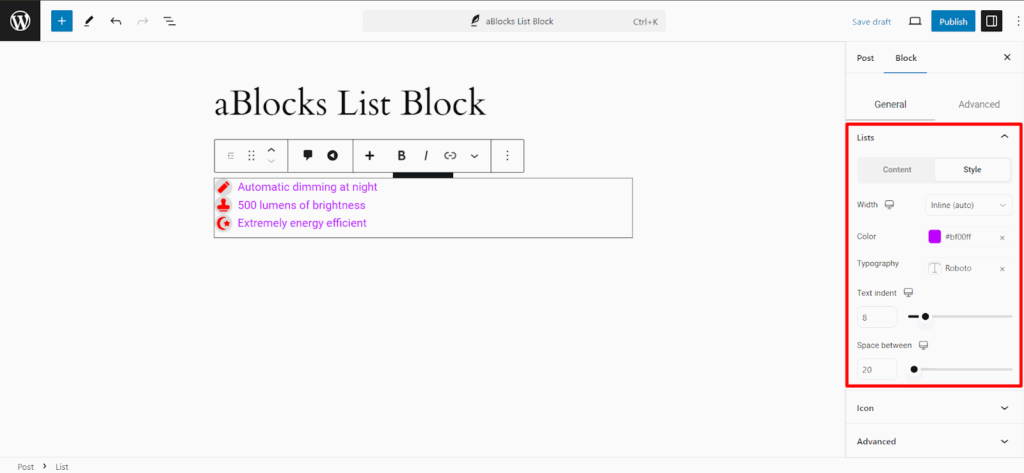
- Customize the text of your list items with advanced typography settings, including font size, weight, and color. This level of control ensures that your lists are not only functional but also visually cohesive with the rest of your content.
Why the List Block is Essential for Your Website
Lists are a staple in web design. They help organize content, making it easier for visitors to read and understand. Whether you’re listing features, steps, or key points, a well-crafted list can make all the difference. Here’s why the List Block is so important:
- Boosts Readability:
- Lists break down information into bite-sized pieces, making it easier for readers to quickly scan and pick out what’s important.
- Keeps Things Organized:
- By using lists, you can present information in a neat and tidy way. This makes your site look more professional and helps users find what they’re looking for.
- Adds Visual Appeal:
- Lists aren’t just practical—they also help break up text and add some variety to your page, making it more visually interesting.
Creating a Perfect Website with Advanced List Block Features
The aBlocks List Block takes things up a notch, offering customization options that let you create lists that look as good as they function. Here’s how these features can help you build the perfect website:
- Custom Markers:
- You’re not stuck with just plain bullet points. With aBlocks, you can choose from icons, squares, discs, or even emojis to match your site’s style. This makes your lists blend seamlessly with your overall design.
- Flexible Layouts:
- Whether you need a vertical list for a sidebar or a horizontal one for a header, aBlocks gives you the flexibility to place your lists wherever they work best. This means your site will look good and function well, no matter what.
- Styling and Effects:
- You can add borders, background colors, and even hover effects to your lists, making them pop and catch the eye. These little touches make your lists more engaging and help your content stand out.
- Consistent Design on Any Device:
- With responsive settings, your lists will look great whether someone’s browsing on a computer, tablet, or phone. This ensures a smooth, professional experience for all your visitors.
Why These Advanced Features Matter
Using these advanced list options can really elevate your website. Lists do more than just organize information—they’re a design element that can make your site more user-friendly and visually appealing.
With the extra customization available in aBlocks, you can create lists that not only present information clearly but also enhance your site’s overall look and feel. This helps you build a website that’s both beautiful and easy to navigate, keeping your visitors happy and engaged.
Conclusion
While the WordPress List Block is easy to use and effective, aBlocks offers more flexibility and control. With aBlocks, you can create lists that are not just informative but also visually engaging.
Whether you need a sleek, modern list for a product page or a playful, emoji-filled list for a blog post, aBlocks gives you the tools to make the perfect list every time.
By using the advanced features of aBlocks, your lists can become more than just text—they can be a key part of your site’s design, enhancing user experience and making your content more engaging.